The default option in Windows is to display the battery icon at bottom-left corner of the screen in the taskbar, which allows you to quickly take a look at the status of battery life on your computer.
Hence, if the battery icon is missing from the Taskbar, you won’t be able to see how much battery life is left or remaining on your Laptop.
Battery Icon Missing in Windows 11/10
The most common reason for Battery Icon missing or disappearing from the Taskbar is due to the Battery Icon being moved to System Tray or due to display of Battery Icon in the Taskbar not being enabled.
Apart from this the problem of missing battery icon on a Windows computer can also be caused due to the Device driver not being loaded or detected by the computer.
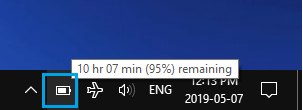
Luckily, the issue of missing Battery Icon on a Windows computer can be fixed using the following troubleshooting steps.
1. Check Overflow Pane (System Tray)
Start by checking the Overflow Pane (System Tray) to rule out the possibility of battery icon being hidden in the Overflow Pane. This can happen, if the Taskbar is crowded with multiple icons.
1. Click on the Up Arrow Icon located in the Taskbar and see if the Battery Icon is available.
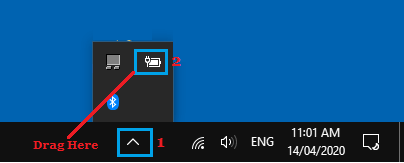
2. If the Battery Icon is available, you can place it on the Taskbar by dragging the Battery Icon from System Tray to the Taskbar.
2. Enable Battery Icon Display in the Taskbar
As mentioned above, the problem might simply be due to display of Battery Icon in the Taskbar not being enabled or accidentally being switched OFF.
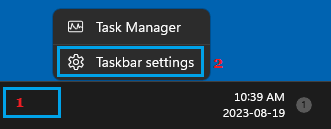
1. Right-click on the Taskbar and click on Taskbar settings.
2. Scroll down in the right-pane and click on Taskbar Corner Overflow tab > On the next screen, move the toggle next to Power to ON position.
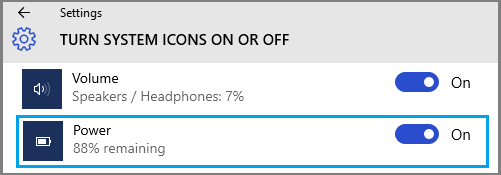
Note: Taskbar Corner Overflow Tab is not available in all versions of Windows 11.
After this, Battery icon should be available on the Taskbar or in the System Tray. If it becomes available in the System Tray, you can drag it to the Taskbar.
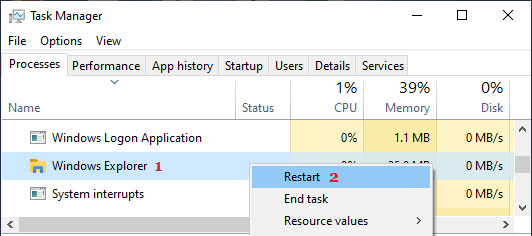
3. Restart Windows Explorer
If the Battery Icon is still not showing up in the Takbar, restarting the File Explorer might help in fixing the problem.
1. Right-click on the Start button and click on Task Manager.
2. On the Task Manger screen, make sure you are on the Processes tab > right-click on Windows Explorer and click on the Restart option.
Hopefully, this should bring back the missing Battery Icon to the Taskbar on your computer.