You can manually scan individual Files and Folders for presence of virus/malware on your computer by using the built-in Windows Security program as available in Windows 11/10.
The steps to manually scan files/folders for virus vary, depending on whether the antivirus protection on your computer is being managed by Windows Security or by a third-party antivirus program.
Manually Scan Files/Folders for Virus In Windows 11/10
If you are only using Windows Defender, you can manually scan any file or folder for virus/malware by right-clicking on the File and selecting Scan with Microsoft Defender option that becomes available in the right-click menu.
Even if you are using a third-party antivirus program, you can still manually scan any file or folder for presence of virus or malware on your computer by using the Custom Scan feature as available in Windows Security.
The Custom Scan feature in Windows Security can also be used to scan files/folders located in USB Flash Drives and External storage drives attached to the computer.
1. Scan File/Folder for Virus Using Microsoft Defender
If no third-party antivirus program is installed on the computer, you should can scan any file/folder for malware by right-clicking on the file and selecting Scan with Microsoft Defender option.
1. Locate the File/Folder that you want to scan for virus or malware.
2. Right-click on the File/Folder and select Scan with Microsoft Defender option.
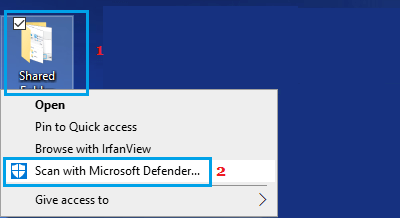
Note: If you are using an older version of Windows 10, the right-click option may read “Scan with Windows Defender”.
3. On Windows Security screen, you will be able to see the results of malware scan.
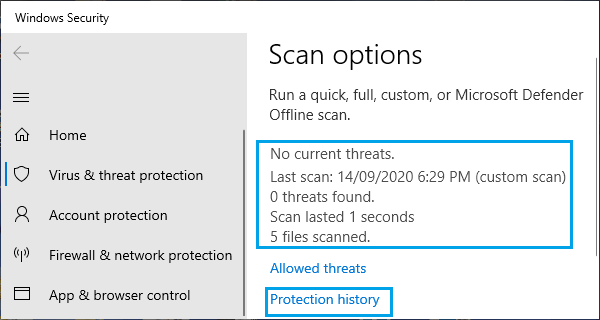
If the file or folder is clean, you will see “No Current Threats”. If virus or malware is detected, you will see Threats Found alert from Microsoft Defender, along with Names of the affected files.
If malware is detected, simply, click on Start Actions button and Windows Security will begin the process of removing the virus/malware from the affected file or folder.
2. Scan File/Folder for Virus Using Windows Security Custom Scan
If a third-party antivirus program is installed on the computer, you should still be able to scan any file/folder for virus by using Custom Scan feature as available in Windows Security.
1. Type Windows Security in the Search bar and click on Windows Security App in the search results.
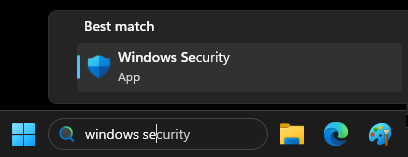
2. From the next screen, go to Virus & threat protection > Scan options > select Custom Scan and click on Scan Now.
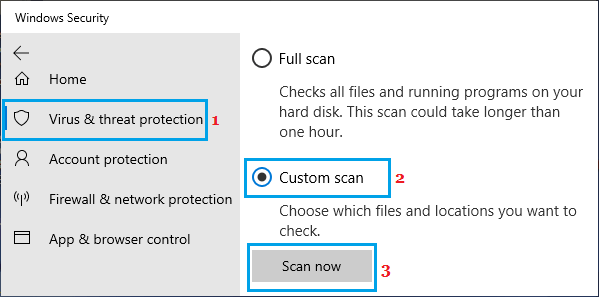
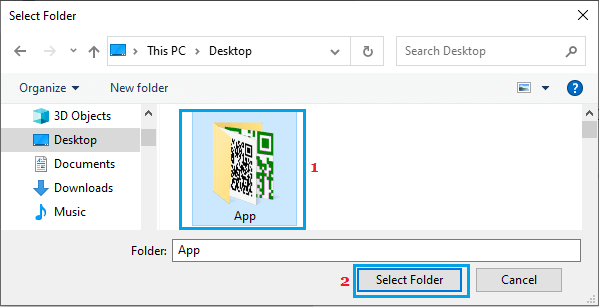
3. On the next screen, select the Folder that you want to scan for malware and click on Select Folder button.
Note: You can perform a thorough scan of all the files, programs and apps located on your computer by using the offline scan feature in Windows Defender.