The problem of Skype not opening or responding on a Windows computer is usually reported after an Update. However, this problem can also occur at any other time, while you are trying to make an Audio or Video call using Skype.
If this problem is not related to an update, it could be occurring due to the Skype App being blocked, lacking the permission to access the camera and microphone on your computer and other reasons.
Skype Not Opening or Responding in Windows 10
Depending on the reason, you should be able to fix the problem of Skype not opening or responding on your computer using the following troubleshooting steps.
1. Allow Apps to Access Microphone & Camera
First make sure that Apps on your computer are allowed to access Microphone and Camera.
1. Go to Settings > Privacy & Security > Camera > enable Camera access by moving the slider to ON position.
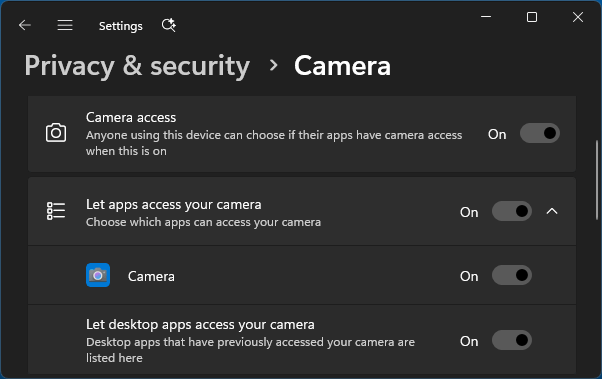
2. Next, select Microphone in the left-pane and enable Microphone access by moving the slider to ON position.
2. Allow Skype to Access Webcam & Microphone
Next, make sure that Skype has the permission to access both Camera and Microphone on your computer.
Go to Settings > Privacy & Security > Camera > scroll down in the right-pane and move the slider next to Skype to ON position.
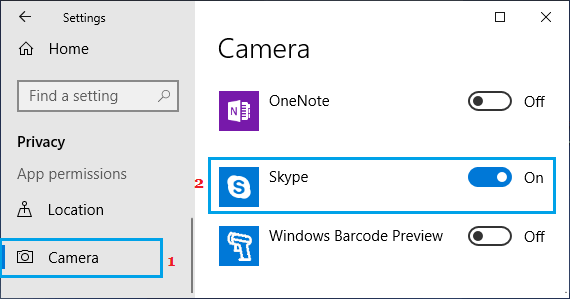
Next, select Microphone in the left-pane. In the right-pane, move the slider next to Skype to ON position.
After this, restart your computer and see if Skype is now working.
3. Repair Skype App
Sometimes, the Skype App can become corrupted and this can be fixed by using the Repair App option as available in Windows.
1. Go to Settings > Apps > Apps & Features > scroll down and click on Skype > Advanced options.
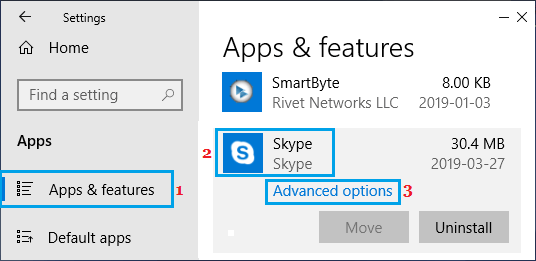
2. On the next screen, scroll down and click on the Repair button.
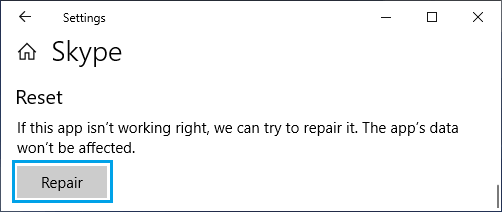
Restart your computer and see if Skype is now working on your computer.
4. Reset Skype
If the repair option did not work, you can Reset Skype App. This will basically remove and reinstall the Skype on your computer.
1. Go to Settings > Apps > Apps & Features > Scroll down in the right-pane and click on Skype > Advanced options.
2. On the next screen, click on the Reset button.
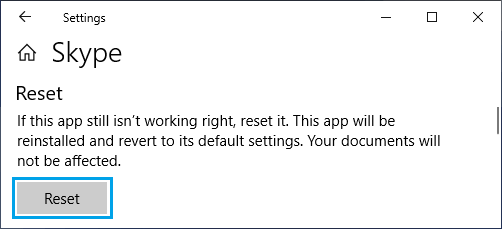
3. On the confirmation pop-up, select the Reset option to confirm.
Restart the computer and see if Skype is now working on your computer.
5. Check Firewall Blocking
It is possible that Windows Defender Firewall or Firewall of the Antivirus software program installed on your computer might be blocking Skype.
You can unblock Skype in Windows Defender Firewall using steps provided in this guide: How to Allow Apps Through Firewall in Windows 10/11.
If you are using Norton or any other Antivirus program, you will have to go into Firewall Settings of the Antivirus Program to unblock Skype.