In addition to iMessages, iPad can be setup to send and receive traditional SMS Text Messages, even if it does not have a SIM card and its own phone number.
This can be achieved by using the “Text Message Forwarding” feature in iOS, which provides the option to forward SMS Text Messages from iPhone to other Apple devices using the same Apple ID.
Once iPhone is setup to forward text messages to iPad, SMS Text Messages that are received on iPhone will start appearing on iPad and you will be able to reply to them from iPad, just like you do on iPhone.
Send SMS Text Messages on iPad
As you must have understood by now, iPad will be using the phone number and phone plan of your iPhone, in order to send and receive SMS Text Messages.
Hence, make sure that you have an iPhone with its own phone number and an active phone plan. Another requirement is to make sure that you are using the same Apple ID on both devices.
If these two requirements are met, you can go ahead and complete the following steps to setup your iPad to send and receive SMS Text Messages.
Step 1. Enable iMessage on iPhone & iPad
The first step is to make sure that iMessage is enabled on both iPhone & iPad using the same Apple ID.
On iPhone: Go to Settings > Messages > make sure iMessage is set to ON position.
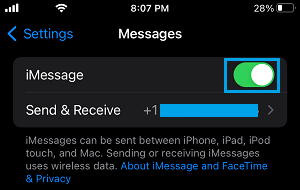
On iPad: Go to Settings > Messages > make sure iMessage is set to ON position.
Note: If you are prompted to Sign-in to iMessages, make sure that you Sign-in to iMessages using the same Apple ID on both devices.
Step 2. Enable Text Message Forwarding on iPhone
The next step is to configure the Text Message forwarding feature on iPhone to forward Text Messages to iPad.
1. Go to Settings > Apps > Messages > scroll down and tap on Text Message Forwarding.
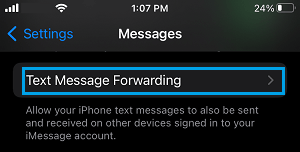
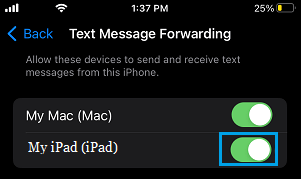
2. On the next Screen, enable Text Message Forwarding for iPad by moving the slider to ON position.
3. You should now see a pop-up on iPad providing a Security Code.
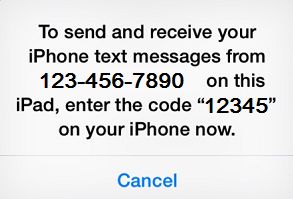
4. Enter the Security Code on iPhone and tap on Allow.

After this, SMS Text Messages that are sent to the phone number on your iPhone will start appearing on iPad and you will be able to reply to them from iPad, just like you do on iPhone.
Note: SMS Text Messages sent from iPad will be using your Messaging plan on iPhone (They are not free).