The Serial Number (Aka “Service Tag) of a computer is a unique Alphanumeric code assigned by computer manufacturers to identify the device for online support, service history and ordering parts.
In case of Laptop computers, the Serial Number should be available on a sticker attached to bottom of the device and in case of Desktop computers, sticker containing the Serial Number can be attached to Top, Side or Back of the computer.
Note: Look for ‘Service Tag‘ if the computer was manufactured by Dell, look for ‘SN#‘ if the computer was manufactured by Hewlett Packard (HP) and ‘SN‘ or ‘S/N‘ if the computer was manufactured by Lenovo.
Find Serial Number of Windows Computer
If the sticker attached to your Laptop or Desktop computer has been removed or become unreadable, you won’t be able to find the Serial Number or the Service Tag of your device.
Adding to the problem, Windows does not display “Serial Number” of computer on its System Information screen or anywhere else in the Settings menu.
In such cases, you should be able to find the Serial Number of your computer by using Command Prompt. If this does not help, you can try other methods as provided below in this guide.
1. Find Computer Serial Number Using Command Prompt
On both Windows 11 and Windows 10 computers, you should be able to find the serial number of the computer by opening Command prompt and running the WMIC command.
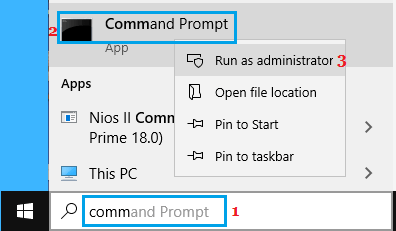
1. Type CMD in the Search bar > right-click on Command Prompt in the search results and select Run as Administrator option.
2. On the next screen, type wmic bios get serialnumber > press the enter key on the keyboard of your computer.
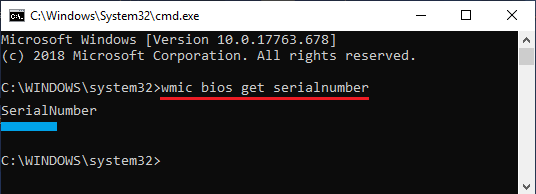
3. Once the command is executed, it should list the Serial Number of your computer below “Serialnumber” entry on the Command Prompt screen (see above image).
If WMIC command does not display the Serial Number of the computer, the problem is usually due to the Serial Number information not being entered by the manufacturer in the firmware.
The WMIC command can display the Serial Number, only if this information was enetred and made available in the firmware (BIOS/UEFI), otherwise it may display the Serial Number as blank space, 0 (zero) or as “To be filled by O.E.M”.
The same will be the result, if the computer was assembled (self-built) or you had purchased an assembled PC from someone else. In such cases, you can try other methods as provided below.
2. Check the Sticker
If you still have the box in which your Laptop or Desktop computer was bought or delivered, it should have a sticker containing information about the computer, including its Serial Number.
As mentioned above, the Serial Number may be listed as ‘Service Tag‘, SN#, SN or S/N, depending on the maker or manufacturer of the computer.
2. Check Packaging
If you still have the cardboard box in which the Laptop or Desktop was bought or delivered, you should be able to find the Serial Number or Service Tag of the computer on a sticker attached to the box.
As mentioned above, the Serial Number may be listed as ‘Service Tag‘, SN#, SN or S/N, depending on the maker or manufacturer of the computer.
3. Check Your Email
If you had purchased the laptop/desktop online from Dell, HP or any other manufacturer, try to find Emails received from them.
If there is an Email containing the Receipt for your purchase, you should be able to find the Serial Number mentioned in the Email Receipt.
4. Check Registration and Warranty Documents
If you were provided with a warranty certificate or purchased an extended warranty, the serial number of the computer should be available on the warranty certificate.
Similarly, if you registered the computer with the manufacturer, the Serial Number should be available on the registration document.
5. Check Battery Compartment and Case
If you have a laptop with removable battery, check its battery compartment. The Serial Number might be present on a sticker attached in the battery compartment.
In the case of desktop computers, the serial number of the computer can be usually found on a sticker attached inside the computer case.
6. Find Microsoft Serial Number on Surface Devices
In the case of Microsoft devices, the Serial Number is known as Microsoft Serial Number and it usually occurs in the form of a 12 digits long number.
If you do not have the original packaging or the sticker has become faded or damaged, you should be able to find the Microsoft Serial Number of your computer using the Surface App.
1. Open the Surface App and click on the Feedback button.
2. On the next screen (“Your Surface”), you will find the Microsoft Serial Number listed.
Tip: Check the bottom of Surface Keyboard, check the bottom/sides of Surface clipboard that attaches to the Keyboard. Also, flip out the kickstand and look for a string of numbers near its base.
Reasons for Use of Serial Number in Computer
The reason for assigning Serial Numbers to computers by the manufacturers is to identify and track the device during manufacturing, inventory control, online support, service history and ordering of parts.
Tech Support: You will be asked to provide Service Tag of the computer, when you contact Dell and Serial Number of the computer, when you contact manufactures like HP & Lenovo for online support.
Warranty & Insurance: Serial Number of the computer is used to verify ownership of the computer and confirm that the computer is genuine and not counterfeit or stolen.
Inventory & Quality Control: Manufacturers make use of Serial Numbers to track units during production, sales, quality control and management of inventory in the warehouse.
Software Licensing Control: Computer Serial Numbers are used by software providers to make sure that the use of software is limited or valid for a particular device.
Repairs & Ordering Parts: Serial Number or Service Tag is used by the manufacturers to quickly identify the hardware configuration of the computer, when it is sent for repairs during warranty period.