While many of the commonly used Commands can be executed by opening Command Prompt as a regular user, there are certain commands that can trigger “Access Denied” error; unless they are executed by opening Command Prompt as an Administrator.
The reasons for this is the privilege-based security model employed by Windows operating system; which provides limited access to standard users and requires elevated privileges for executing commands that can modify System settings, System files, Registry files, Network settings and make changes to protected Windows services.
Related: How to Execute Run Command As Admin in Windows 11/10.
Open Command Prompt as Admin
You can find below different methods to open Command Prompt as Admin from a non-admin account and execute commands without triggering “Access Denied” errors and gain full control over system-level operations
1. Use Windows Search to Open Command Prompt as Admin
An easy way to open Command prompt as Admin in both Windows 11 and Windows 10 is by typing CMD in the Search bar.
1. Type CMD in the Search bar > right-click on Command Prompt in the search results and select Run as Administrator option.
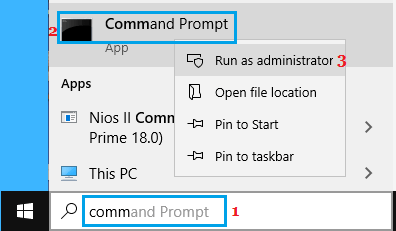
2. When prompted, enter your Admin Password to open Command Prompt As Admin.
3. Once you enter the Admin Password and click on Next, you will find yourself on the Command Prompt screen.
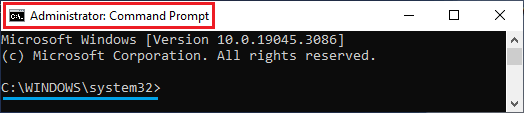
As you can see in above image, the Command prompt screen is labelled as “Administrator: Command Prompt”, which confirms that you are running Command prompt with Administrative rights.
Another indication is that you will be in C:\Windows\System32 directory, instead of C:\Users[account_name].
2. Open Command Prompt as Admin Using Run Command
Another way to Open Command prompt As Admin is by using Run Command.
1. Right-click on Start button and click on Run.
2. In the Run Command window, type CMD and then press Ctrl+Shift+Enter keys to open Command Prompt As Admin.
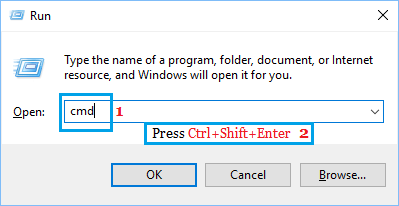
3. When the Command Prompt opens, you will be able to Run Commands requiring Admin Privileges.
3. Open Command Prompt As Admin from Start Menu
The steps to open Command Prompt with Admin privileges vary, depending on the version of Windows operating system installed on your computer.
If you are using Windows 11, you can open Terminal or PowerShell from the Start Menu and then switch to Command prompt.
1. Right-click on the Start button and click on Terminal (Admin).
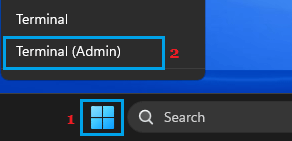
2. On the Terminal screen, click on the Down Arrow next to the + Icon and select Command Prompt.
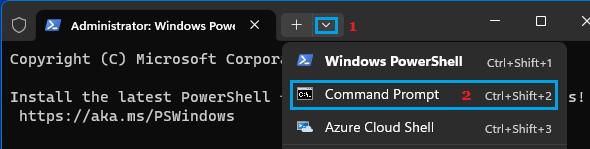
This will open Command Prompt as Admin; which allows you to Run Commands requiring Administrative rights.
If you are using Windows 10, you should be able to open Command Prompt by right-clicking on the Start button and selecting the Command Prompt (Admin) option.
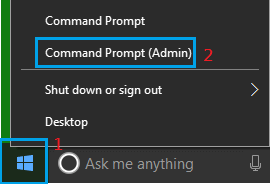
If the Command Prompt option is not available in the right-click menu, go to Settings > Personalization > Taskbar and disable Replace Command Prompt with PowerShell option.
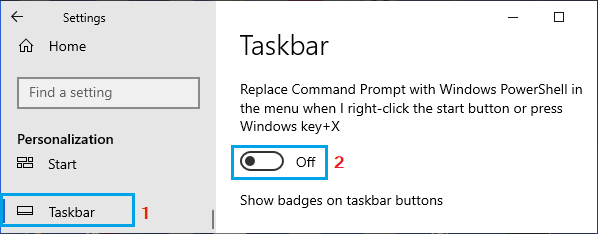
After this, you will find both Command Prompt and Command Prompt (Admin) option in the right-click menu.