As you must have noticed, WhatsApp Message Notifications appearing on the Lock screen of your iPhone display sender names along with a preview of the messages being received on your mobile device.
Although, only a brief preview of the WhatsApp Message is displayed, it is still possible for someone interested or motivated to guess the purpose and content of the message by taking a look at Message Previews.
Hence, if you are concerned about your privacy; you can disable WhatsApp Message Previews appearing on the Lock screen of your mobile device.
Related: 3 Ways to Lock WhatsApp Messages on iPhone.
Hide WhatsApp Message Previews on iPhone
When you hide WhatsApp Message previews on iPhone, anyone that takes a look at the screen of your iPhone will only be able to see the name or phone number of the person that is messaging you on WhatsApp.
If required, you can go a step further and prevent even the name or phone number of your WhatsApp Contacts from appearing on the Lock screen of your mobile device by by preventing WhatsApp from displaying Notifications on the Lock Screen of your iPhone.
1. Hide WhatsApp Message Previews On iPhone
Follow the steps below to Hide or prevent WhatsApp Message previews from appearing on the Lock screen of your iPhone.
1. Go to Settings > WhatsApp > Notifications.
2. On the next screen, scroll down to Lock Screen Appearance section and tap on Show Previews.
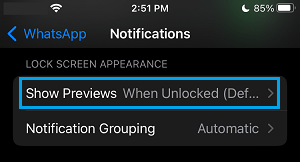
3. On the next screen, select the Never option.
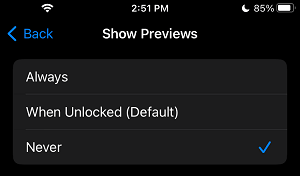
After this, you will no longer find Message Content or Message Previews in WhatsApp Notifications appearing on your iPhone.
You will continue to receive WhatsApp Message Notifications, but they will only contain the Names of your WhatsApp Contacts and Message Previews will be hidden.
2. Hide WhatsApp Notifications on iPhone Lock Screen
As mentioned above, even if WhatsApp Message previews are disabled, the Name or phone number of people calling or messaging you on WhatsApp can be seen in the Notifications appearing on the screen of your iPhone.
As mentioned above, this can be easily fixed by preventing WhatsApp Notifications from appearing on the Lock Screen of your iPhone.
1. Go to Settings > Notifications > WhatsApp.
2. On the next screen, uncheck Lock Screen by tapping on it.
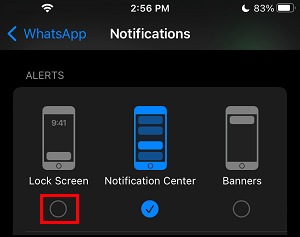
After this, WhatsApp Message and Call Notifications will only be appearing in the Notification Center and they can only be accessed unlocking your device; using passcode, Touch or Face ID.