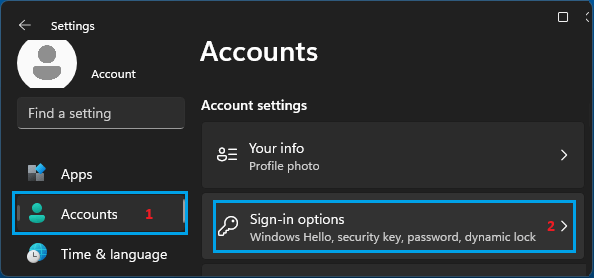
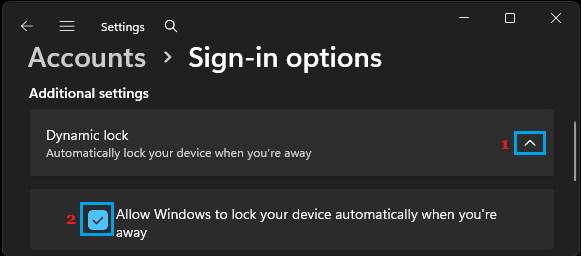
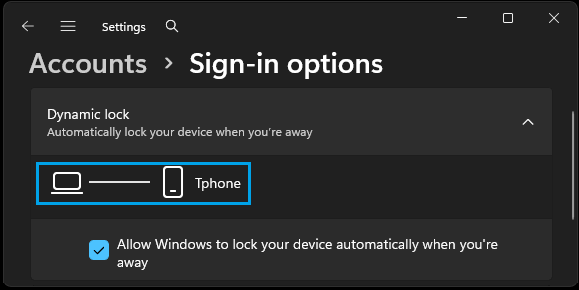
Even if your computer is already protected by its default Auto Lock setting, you can make use of the Dynamic Lock feature to add an extra layer of security and significantly reduce the risk of unauthorized access to your device.
When the “Dynamic Lock” feature is enabled on a Windows computer, it automatically locks the screen when a paired Bluetooth device moves out of range. This provides better protection; compared to the regular auto-lock feature in Windows, which has to wait for the timer-set inactivity period to end; before it can lock the screen.
Another drawback of the default auto-lock setting in Windows is that the timer gets reset; if the computer becomes active due to the mouse being moved, the touch-pad being accidentally brushed or a key on the keyboard is pressed.
Related: How to Lock Screen on Windows Computer.
Enable Dynamic Lock on Windows computer
As mentioned above, the Dynamic Lock feature in Windows makes use of paired Bluetooth device to detect your presence near the computer. Hence the first step; which is required to make use of the Dynamic Lock feature in Windows is to pair an iPhone or Android phone with the computer.
If you do not pair your mobile device with the computer, you will see “Dynamic Lock is not working because your PC has no paired device” or similar error message and the computer won’t be protected by the Dynamic Lock feature.
Step 1. Pair Phone with Computer
Make sure that Bluetooth is enabled on your iPhone or Android phone and follow these steps to pair your mobile device with the computer.

1. Press Windows + I shortcut to open the Settings app on your computer.
2. Select Bluetooth & Devices in the left-pane and enable Bluetooth in the right-pane by moving the toggle to ON position.
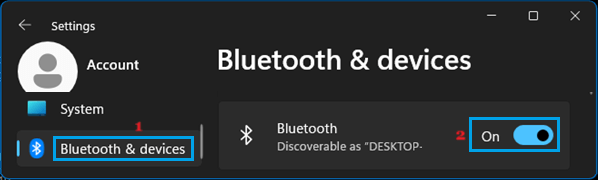
3. After enabling Bluetooth, click on Add Device button.
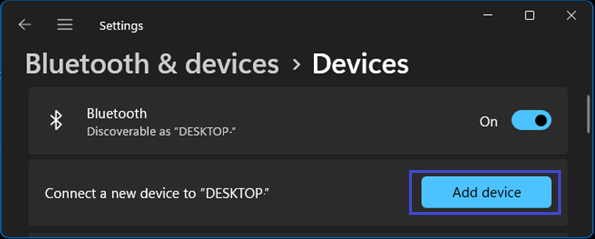
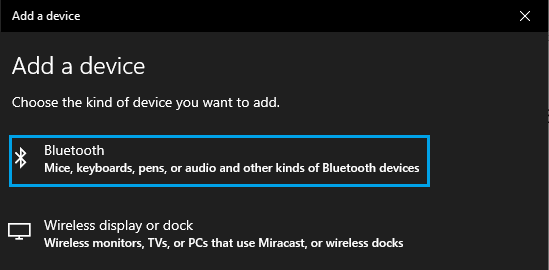
4. On Add a device screen, select the Bluetooth option.
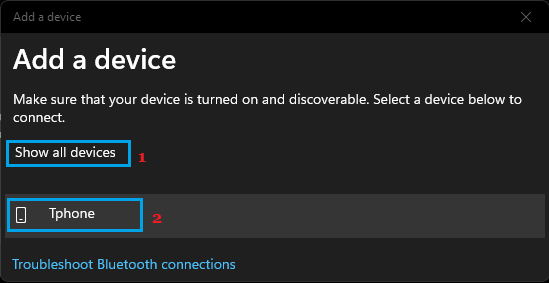
5. On the next screen, click on Show All Devices and select your Phone as it appears on “Add a device” screen.
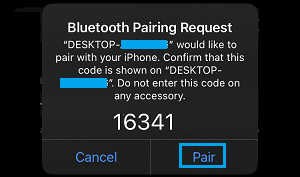
6. You should now get a pair notification on your phone. Verify the code and tap on the Pair option.
7. On the “Add device” screen on your computer, click on the Connect button.
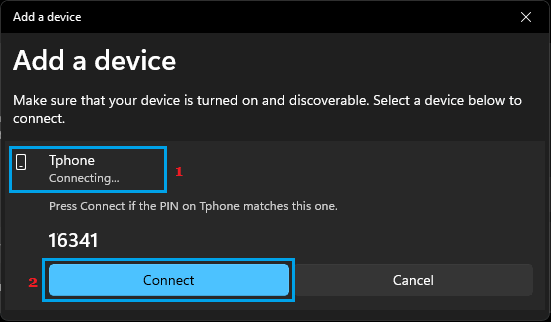
This completes the process of pairing your mobile device with the computer and you can move to the next step.
Step 2. Enable Dynamic Lock