If your MacBook is running slow, you can take a look at the apps and processes running on the computer, including hidden background running apps.
This can be done by using Activity Monitor, which provides a real-time view of all the processes running on Mac, along with the amount of resources being used by each of these processes.
Show All Running Apps and Processes on Mac
If you are only interested in taking a quick look at only the apps running on a MacBook, you can make use of Application Manager, which also provides the option to Quit or Terminate the Apps.
However, the most comprehensive way to view all the apps and processes running on Mac, including hidden background running apps is by using Activity Monitor.
1. See Apps Running on Mac using Dock
Perhaps, the easiest way to view apps currently running on Mac is by taking a look at the Dock on your Mac.
As you can see in the image below, the active or running applications will have a black dot underneath the applications icon.

While this method is easy to use, it may not always show all the apps running on Mac and it does not show the processes running in background.
Also, this method does not provide details about the amount of CPU & RAM being used by the Apps.
2. Show Apps & Processes Running on Mac Using Activity Monitor
You can find below the steps to open the Activity Monitor utility on Mac and take a look at all the apps and processes running on the computer.
1. Open the Finder on your Mac.
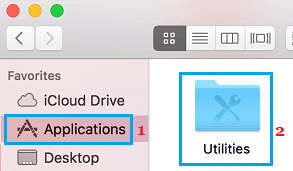
2. On the Finder screen, click on Applications in the left-pane and open the Utilities folder in the right-pane.
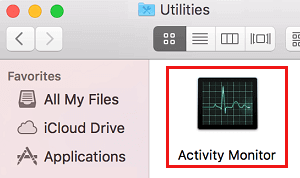
3. In Utilities folder, double-click on Activity Monitor which should be the first item in Utilities Folder.
4. When the Activity Monitor opens, you will be able see all the Processes or Applications currently running on your Mac.
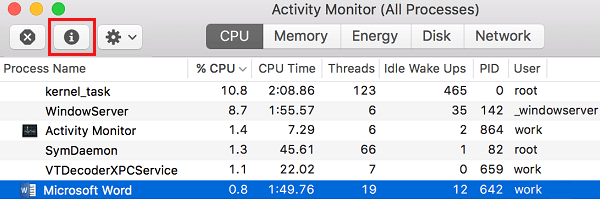
As you can see in the above image, there are 5 different tabs in the Activity Monitor -> CPU, Memory, Energy, Disk and Network.
5. To view more info about a specific process or application, simply click on the Application/Process and then click on the i icon button, located at top-left corner of the screen.
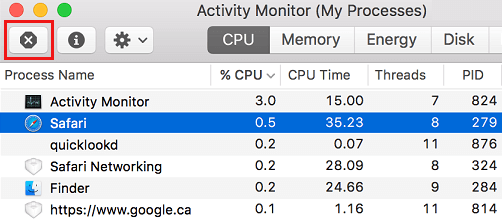
6. To force-quit an application or process, click on the application that want to force-quit and then click on the x button, located at the top left side of the screen.
3. Show Apps Running on Mac Using Applications Manager
Another way to check apps and programs running on Mac is by using the Force Quit Applications manager as available on your Mac.
1. Click on Apple Logo in the top-menu bar > select Force Quit option in the drop-down menu.
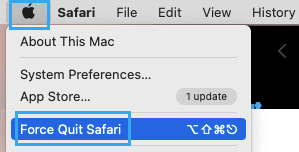
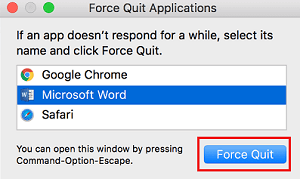
2. This will open the Force Quit Applications manager, showing apps running on your Mac.
3. To Force-quit any App, select the App and click on the Force Quit button.
4. Show Apps Running on Mac using Terminal
You can also make use of the Terminal to take a look at applications and processes running on Mac.
1. Open the Finder on your Mac.
2. From the Finder screen, navigate to Applications > Utilities Folder > Double-click on the Terminal.app.
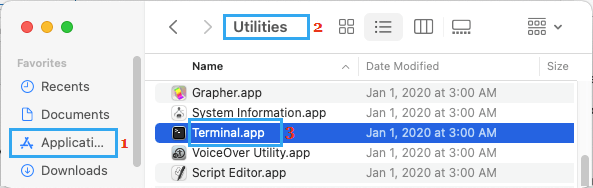
3. On the Terminal screen, type top –o cpu and press the enter key on the keyboard of your Mac.

This will bring up the list of apps and processes running on Mac, along with the amount of CPU being used by each of these apps.
4. To re-organize this list close the Terminal and re-open it. Once the Terminal re-opens type top –o rsize and press the enter key on the keyboard of your Mac.

This time, applications using the most memory will be listed at top of the list and application or processes using the least amount of memory will be listed at bottom of the list.