You won’t be able to see the type of file you are dealing with, unless the “Show File Extensions” option is enabled on your Windows computer.
As you may agree, not being able to See File Extensions is a bad idea from security point of view, as you may be tricked into opening unsafe files on your computer.
For example, you won’t be able to know whether a File named “document01” is a harmless document file (.doc) or a harmful executable file (.exe), without taking a look at its hidden extension part.
Similarly, a file may look like a genuine PDF File with a PDF icon, but may actually turn out to be a harmful executable file with .exe Extension.
Show File Extensions in Windows 11/10
As mentioned above, the chances of opening harmful executable files are greater, when file extensions are hidden, which naturally leads to the conclusion that it is better to set Windows to clearly show file extensions on your computer.
You can find below the steps to Show File Extensions on a Windows computer by using File Explorer and also by using the Control Panel.
1. Show File Extensions Using File Explorer
The easiest way to make Windows computer display File Extensions is by disabling “Hide File Name Extensions” option on the File Explorer screen.
1. Open the File Explorer on your computer.
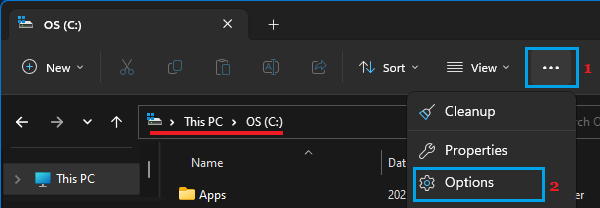
2. On the File Explorer screen, click on 3-dots icon and select Options in the drop-down menu.
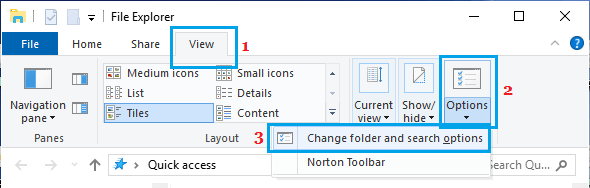
If you are using Windows 10, click on the File Tab and select Change Folders and Search options in the menu that appears.
3. On Folder Options screen, switch to View tab and uncheck Hide Extensions for known file types box.
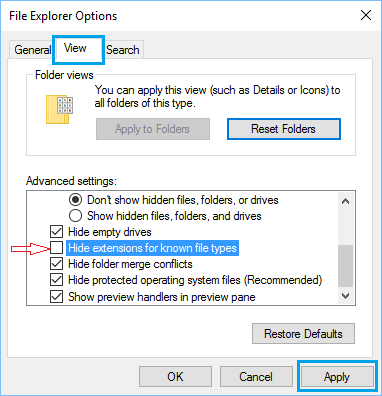
4. Click on Apply and OK to save this change on your computer.
After this, you should find all the files on your computer being clearly displayed with their full file name extensions.
2. Show File Extensions Using Control Panel
You can also enable the option to show File Extensions by using Control Panel.
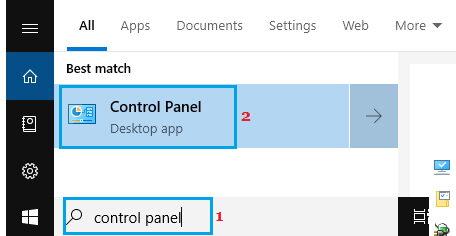
1. Type Control Panel in the Search bar and click on Control Panel in the search results.
2. On Control Panel Screen, switch to Large Icons view and click on File Explorer Options.
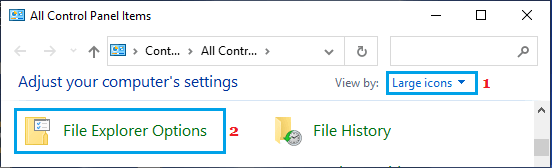
3. On File Explorer Options screen, go to View tab and uncheck Hide Extensions for Known File Types option.
4. Click on Apply and OK to save this change on your computer.