In general, internet connectivity error message reading “Unable to Connect to Proxy Server” is usually noticed on computers using a proxy server or VPN service to connect to internet.
However, the same error message can also appear on computers that are not using proxy settings, due to incorrect network settings, outdated browser cache, malware and other reasons.
Can’t Connect to Proxy Server Error in Windows 11/10
If you are unable to connect to internet due to Proxy Server error, you can start by clearing the browser cache to rule out the possibility of the problem being caused due to corrupted cache files.
If clearing the cache does not help, you can move to other troubleshooting steps as provided below in this guide.
1. Flush DNS and Reset IP
1. Right-click on the Start button and click on Command Prompt (Admin).
2. On the Command Prompt screen, type the following Commands one-by-one and hit the enter key after each command.
- ipconfig /flushdns
- netsh int ip reset
- netsh winsock reset
After executing above Commands, Restart the computer and try to access the webpage or website that you were not able to.
2. Reset Internet Options
Unable to connect to Proxy Server error can be caused due to change in network settings.
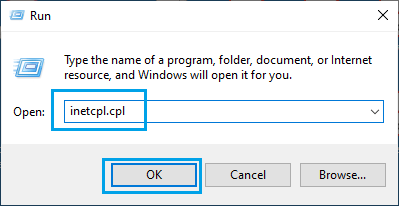
1. Press Windows + R keys > type inetcpl.cpl and press the Enter key.
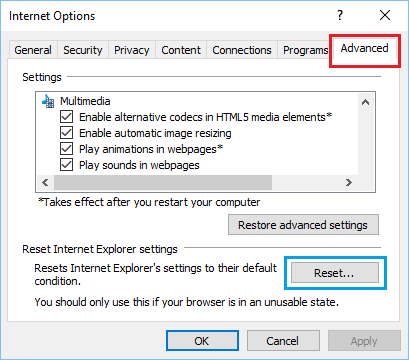
2. On Internet properties screen, go to the Advanced tab and click on the Reset button.
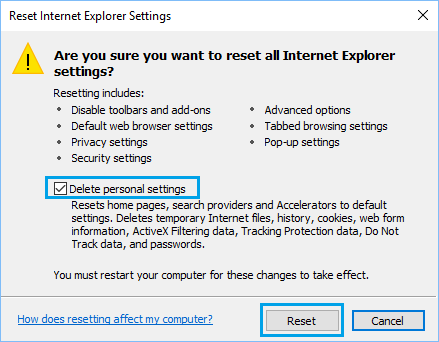
3. On the next screen, select Delete Personal Settings box and click on the Reset button.
4. Restart the Computer and see if you can connect to internet without seeing any error messages.
3. Check Proxy Server Settings
If you are using a Proxy Server or VPN, check the VPN Settings on the computer and make sure they are correct.
1. Go to Start button > Settings Icon > Network and Internet > VPN.
2. On the next screen, click on VPN Name and select Advanced Options.
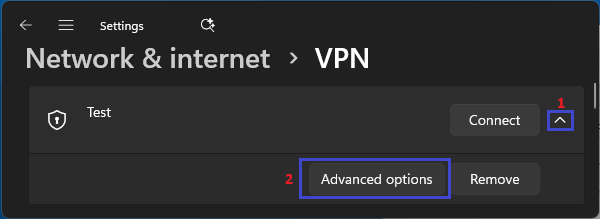
Windows 10: Go to Settings > Network and Internet > VPN > click on VPN Name > Advanced Options.
2. On the next screen, make sure VPN Name, Address and other details are correct. If not, click on the Edit button.
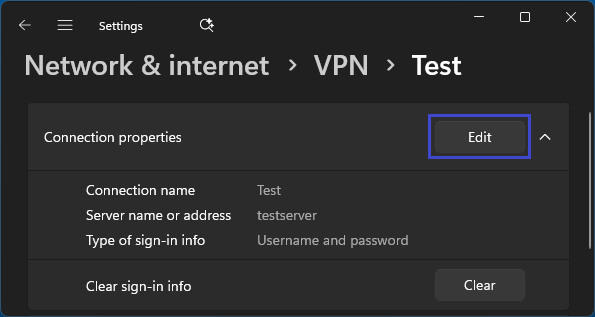
3. On the next screen, correct the VPN details as required.
After correcting Proxy Settings, check if your computer can now connect to internet.
4. Disable Proxy Settings
The next step would be to disable the proxy server settings on your computer and see if this helps in fixing the issue.
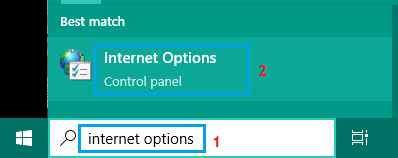
1. Type Internet Options in the Search bar > click on Internet Options Control Panel in the search results.
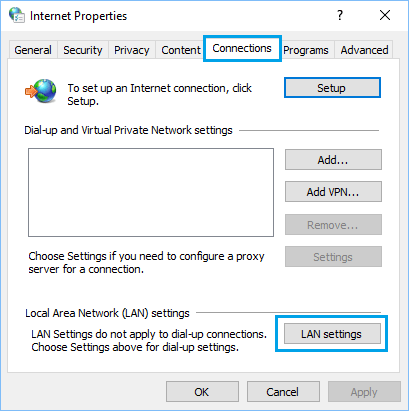
2. On Internet Properties screen, switch to Connections tab and click on LAN Settings button.
3. On the next screen, uncheck Use a Proxy server for your LAN option.
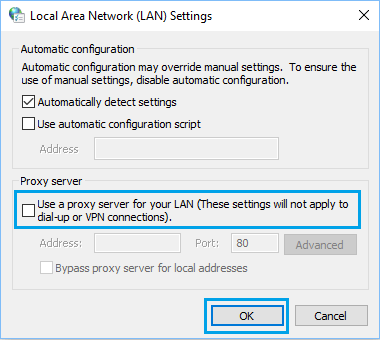
4. Click on OK to save this setting on your computer.
After this, restart the computer and hopefully you should now be able to connect to internet.
5. Reset Chrome Browser to Default Settings
If above steps did not help, the next step would be to rule out the possibility of the problem being caused due to change or corruption of the browser settings on your computer.
Hence, follow the steps to Reset Google Chrome to default settings as provided in this guide: How to Reset Google Chrome to Default Settings.
After the Browser is Reset, you should be able to access the internet on your computer.
6. Scan For Malware
In certain cases, the problem could be due to presence of viruses or malware on the computer.
Hence, scan the computer for presence of malware by using the third-party antivirus program installed on your computer.
It is also recommended that you make use of Windows Defender offline scan to thoroughly check the computer for malware and harmful programs.