If your computer is coming up with “.dll file missing” or “.dll file not found” message, it won’t be able to open the particular app, desktop program or game which is being impacted by the absence, non-loading or corruption of the DLL File mentioned in the error message.
For example, missing MSVCP140.dll & VCRUNTIME140.dll file error can prevent Microsoft Excel, Word, Teams, Photos App, Photoshop, AutoCad, others apps, programs and games that were developed using Microsoft C and C++ tools.
Similarly, missing D3DX9_43 & XINPUT1_3.dll files error can impact games and apps that make use of these Dynamic Link Library (DLL) files for graphics and “missing Kernel32.dll” file error can impact almost any app, desktop program or game; as it is critical part of library files that handle memory and process management on a Windows computer.
User32.dll, Hal.dll, Ntdll.dll and Urlmon.dll (mostly in Windows 10) are other common types of DLL Files that are reported to be causing errors on a Windows computer.
Reason for DLL File Missing or Not Found Error
The reason for “.dll file missing ” or “.dll file not found” error on a Windows computer could be due to accidental deletion or corruption of the .dll file. The problem could also be due to the DLL File being overwritten with an older or non-compatible version by legitimate apps and in certain cases by malware, registry cleaning tools and software downloaded from less reputable sources.
Hence, it is highly recommended that you avoid using registry cleaning tools, avoid downloading of DLLs from unknown sources, download software only from trusted sources and keep the operating system on your computer updated by installing regular Windows updates.
1. Restart Windows
It is not uncommon to find “.dll is is missing” or “.dll file not found” error being caused due to the required .dll file not being loaded by the computer.
Hence, it is always a good idea to restart the computer and give Windows another chance to load or properly load the required .dll file.
2. Restore DLL Files
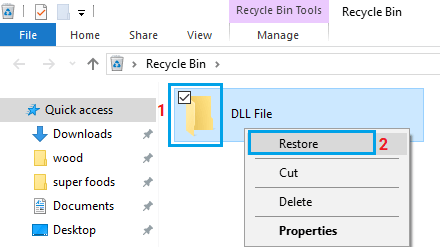
If you had accidentally deleted a DLL File, it should still be available in the Recycle Bin.
1. Open the Recycle Bin on your computer and look for files with .dll extension.
2. Right-click on the DLL File and select the Restore option.
3. Install Windows Updates
DLL file errors; especially kernel32.dll errors can be caused due to installation of the operating system on the computer becoming outdated. Also, it is possible that Microsoft has come up with a new service pack or patche to replace/update DLL files.
Hence, make sure that your computer is updated to the latest version of the operating system by going to Settings > Windows Update and clicking on Check for Updates button in the right-pane.
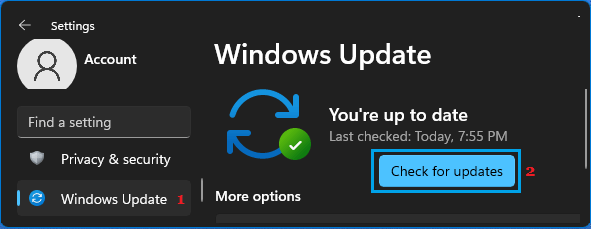
Wait for Windows to check for available updates and follow the prompts to install the update (If available).
4. Uninstall and Reinstall Applications
If you are noticing the DLL File error after installing a particular app, program or game, it is possible that the problem is being caused due to improper or broken installation of the software.
The only way to confirm this would be to Uninstall the program and reinstall it back on your computer.
5. Re-register the DLL File
In our case, it was possible to fix “DllRegisterServer in urlmon.dll failed” error on a Windows 10 computer by re-registering the urlmon.dll file.
1. Right-click on Start button and click on Command Prompt (Admin).
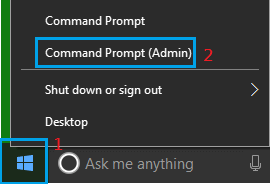
Note: You can type CMD in the search bar, if Command Prompt is not available in the WinX menu.
2. On the Command prompt screen, type regsvr32 urlmon.dll and press the Enter key.
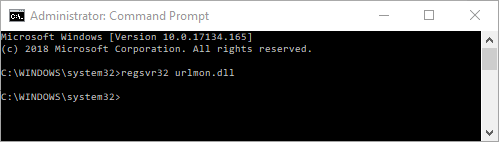
3. After the command is executed, Restart the computer and see if the problem is fixed.
6. Run Malware scan
Missing, Not Found and other types of DLL File errors can also be caused due to the DLL files being deleted, replaced and corrupted by malware.
Hence, it makes sense to scan the computer for malware using the third-party antivirus program installed on your computer and also by using Windows Defender Offline scan, which can scan the computer for malware at a much deeper scan.
7. Run System File Checker
You can make use of the built-in System File Checker (SFC) tool as available on your computer to find and replace the missing or corrupted .dll file.
1. Open Command Prompt as Admin.
2. On the Command prompt screen, type sfc /scannow and press the Enter key on the keyboard of your computer.
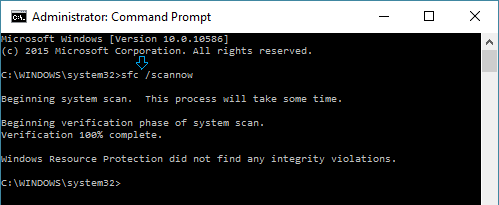
3. Patiently wait for the SFC scan to be competed.
8. Repair System Image Using DISM
The DISM tool in Windows is designed to scan the computer for corrupted/damaged, missing files and replace them.
1. Open Command Prompt (Admin).
2. On the Command prompt screen, type Dism /Online /Cleanup-Image /RestoreHealth and hit the Enter key on the keyboard of your computer.
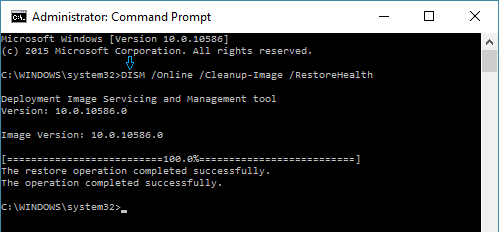
3. Patiently wait for the DISM command to be completed (15 to 20 minutes or more).