If you have an Apple Watch, you might be pleased to know that it can be used to unlock your MacBook, without the need to enter its Login Password.
This means, you don’t have to go through the annoying process of waking up your device and typing the password, every time you attend a phone call or check papers and find your computer being locked.
This feature on Apple Devices is known as “Auto Unlock” and it was first introduced by Apple way back in 2013, via macOS Sierra update.
Unlock Mac With Apple Watch
In order to Unlock a MacBook with Apple Watch, you need to meet or fulfill the following hardware and software requirements.
- MacBook needs to have macOS Sierra or later versions installed on it.
- Apple Watch needs to have WatchOS3 or later versions installed on it.
- Bluetooth and Wi-Fi need to be enabled on the MacBook.
- MacBook and Apple Watch need to be signed-in to the same Apple ID.
In addition to these, you also need to enable passcode on Apple Watch, enable Two Factor Authentication for Apple ID and then enable the Auto Unlock Feature on your MacBook.
1. Enable Passcode on Apple Watch
Follow the steps below to enable and setup a Passcode for your Apple Watch.
1. On your Apple Watch, go to Settings > Passcode > Enable Passcode.
2. Enter a Passcode for your Apple Watch.
Note: Make sure that you note down this passcode and keep it in a safe place.
2. Enable Two Factor Authentication
Follow the steps below to enable Two-Factor Authentication for your Apple ID.
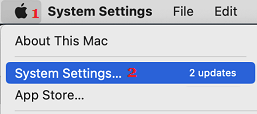
1. Select Apple Icon in the top menu bar and click on System Settings in the drop-down menu.
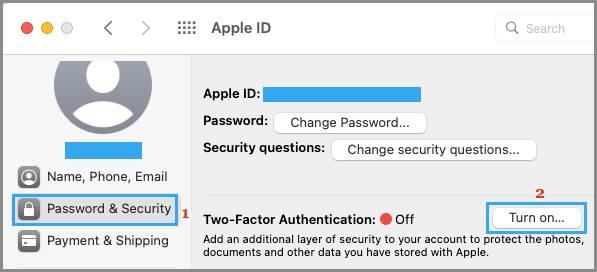
2. From System Settings screen, go to Apple ID > Password & Security > click on the Turn on… button, located next to Two-Factor Authentication entry.
3. On the next screen, enter your Phone Number and tap on Continue.
4. Follow the instructions to receive verification code from Apple and verify the phone number by entering the verification code on your Mac.
3. Enable Auto Unlock Feature on Mac
After setting up passcode on Apple Watch and enabling Two-Factor Authentication for Apple ID, you are all setup and ready to enable the Auto Unlock feature on your Mac.
1. Select Apple Icon in the top menu bar and click on System Settings in the drop-down menu.
2. From System Settings screen, go to Security and Privacy and select Allow Apple Watch to unlock your Mac option.
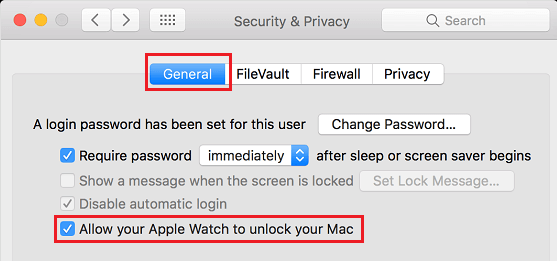
3. On the pop-up, enter your Admin Password to enable the Auto Unlock feature on your Mac
After this, you will be able to wake up your Mac (while wearing Apple Watch) and access it immediately without having to enter the login password.