Users have reported being stuck in “Verification Required” loop; while trying to download both paid and free apps from the App Store on iPhone. The pop-up message requires the users to enter Apple ID Password and confirm or add a New Payment method.
However, even when the payment method is confirmed; the “Verification required” message keeps coming back and prevents users from downloading the requested free or paid app.
Related: How to Change App Store Country on iPhone.
“Verification Required” App Store Prompt
In general, the reason for repeated “Verification Required” pop-up; while downloading free and paid apps from the App Store is due to expiry of the credit card or payment method linked to Apple ID or lack of sufficient funds to cover an upcoming subscription payment.
Hence, it should be easy to fix this error by updating payment information, clearing the unpaid balance and adding funds to cover upcoming subscription payment.
1. Check For Unpaid Balance
The first step would be to rule out the possibility of this problem being caused due to an unpaid balance.
1. Go to Settings > tap on your Apple ID Name.
2. From the next screen, go to Media & Purchases > View Account > select Purchase History option.
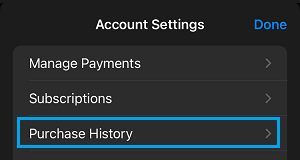
3. On the purchase History screen, look for any item that appears in Red Text.
If you find any item that appears in red text, you will have to Add Funds to cover the cost of this item.
Note: The amount of unpaid balance may not be mentioned, if it is less than $25. In such cases, you will see a message indicating that payment has failed.
2. Add Funds to Apple Account
If there is an unpaid balance or payment failed message, you need to Add Funds to your Apple Account by using Gift Card, Apple Pay or other form of payment method that is linked to your Apple Account.
1. Go to Settings > Apple ID > Media & Purchases > Select View Account option.
2. On the next screen, select Add Funds to Apple Account option.
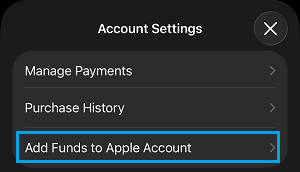
3. On the next screen, select $25 or select Other and enter the amount that is required to cover the pending balance or upcoming subscription amount.
Once the pending amount is cleared, you should be able to download Apps, without going into “Verification Required” loop.
3. Update Payment Information
If the problem is not due to an unpaid balance, it might be due to your payment information not being upto date.
1. Go to Settings > Apple ID > Media & Purchases > View Account.
2. On the next screen, select Manage Payments option.
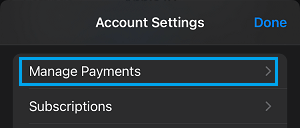
3. On Manage Payments screen, select your listed Payment Method (Credit Card, PayPal, Debit Card).
4. On the next screen, make changes to Payment Info as required and tap on Done.
4. Remove Payment Information
Another way to fix the “Verification Required” message; especially while downloading free apps is by removing the expired credit card or other type of payment information, which is no longer valid.
1. Go to Settings > Apple ID > Payment and Shipping > Select your Credit Card or Payment Method
2. On the next screen, select Delete Credit Card ot Remove Payment Method option.
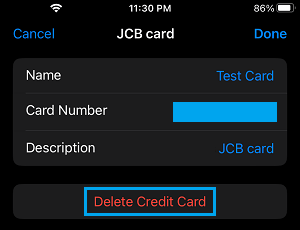
Note: You won’t be able to change or remove your payment Information, if there is an unpaid balance or an upcoming due payment.
After this, you should be able to download free apps on your iPhone and Mac, without encountering the sticky “Verification Required” loop.