You can use WhatsApp on iPad by downloading the official WhatsApp App from App Store and also by using a workaround, which allows you to use WhatsApp on iPad without the need to download the App.
In both these methods, iPad servers the functions of a linked or companion device, almost instantly syncing chats from your existing WhatsApp Account on a mobile device to the screen of your iPad.
This means, it is necessary to have WhatsApp Account on a mobile device (iPhone or Android phone), in order to use WhatsApp on iPad using any of these methods.
Use WhatsApp on iPad
Since, a dedicated WhatsApp App for use on iPad is available on App Store, the recommended or the official way to use WhatsApp on iPad is by downloading the App.
As mentioned above, you can also use WhatsApp on iPad without downloading the App by using the second method, which makes use of a simple workaround to use WhatsApp Web on iPad.
Note: Both these methods can also be used on Android tablets using more or less the same/similar steps.
1. Use WhatsApp on iPad Using WhatsApp App
This method requires you to download the official WhatsApp App from the App Store on iPad and scan a QR code that appears on the screen of your iPad.
Note: If you are using an Android Tablet, download the App from Google Play Store and follow the steps.
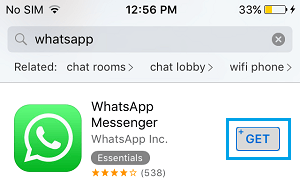
1. Open the App Store on your iPad > Search for WhatsApp and select WhatsApp as it comes up in the Search results.
2. Tap on the Get option to start the process of downloading WhatsApp on your iPad.
3. After the download process is completed, open WhatsApp and tap on Continue.
4. Once you tap on Continue, you will see a QR Code on the screen of your iPad.
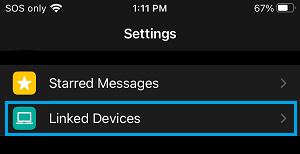
5. Now, open WhatsApp on your iPhone > tap on Settings tab in the bottom menu and select Linked Devices in the Settings menu.
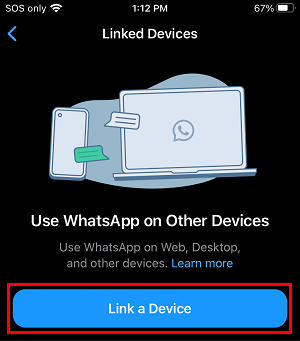
6. On the next screen, tap on Link a Device button.
7. On the next screen, tap on OK. Got it and use the Rear Camera of iPhone to scan the QR Code displayed on the screen of your iPad.
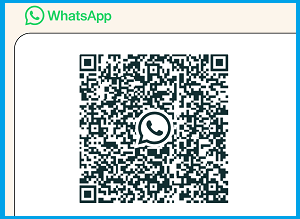
8. Once the QR Code is scanned by iPhone, you will your entire WhatsApp account appearing on the screen of iPad.
Once your WhatsApp account becomes available on iPad, you will be able to reply to messages and send new WhatsApp messages from from iPad, just like you do from your iPhone.
2. Use WhatsApp on iPad Using WhatsApp Web
Although, WhatsApp web is meant for use on computers, it can also be used on iPad and any Android Tablet by using a workaround.
The workaround as provided below makes use of “Request Desktop Site“ option as available in both Safari and Google Chrome browsers to get WhatsApp web QR code on the screen of iPad.
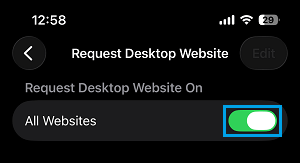
Note: It is important that you visit web.whatsapp.com site only after enabling “Desktop Site” option for All Websites in Safari browser on your iPad.
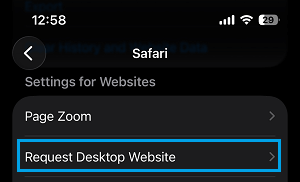
1. On iPad, go to Settings > All Apps > Safari > scroll down and tap on Request Desktop Website option.
2. On the next screen, enable for All Websites option by moving the slider to right.
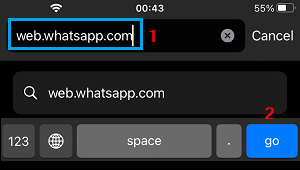
3. After this, open Safari browser on your iPad > Type web.whatsapp.com in the Search bar and tap on Go.
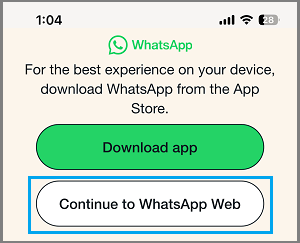
4. On the next screen, select Continue to WhatsApp Web option, which will bring the QR Code on the screen of your iPad.
5. After the QR Code becomes available on iPad, open WhatsApp on your iPhone, tap on Settings tab in the bottom menu and select Linked Devices in the Settings menu.
6. On Linked Devices screen, tap on Link a Device button.
7. On the next screen, tap on OK. Got it and use the Rear Camera of iPhone to scan the QR Code displayed on the screen of your iPad.
8. Once the QR Code is scanned by iPhone, you will see all your WhatsApp messages appearing on the screen of iPad.
As mentioned above, you will have access to your entire WhatsApp account on iPad, which allows you to reply to messages and send new messages from iPad.