While a phone number is required to create and verify WhatsApp Account, it is possible to use WhatsApp on an iPhone or Android Phone; even if it does not have its own phone number or an active SIM Card installed on it.
This is possible; because WhatsApp requires a phone number only during the sign-up or account creation process. Once the account is verified, WhatsApp relies on VoIP (Voice Over Internet Protocol) technology to facilitate communication between its users and does not make use of phone numbers to make calls and send messages.
Verify WhatsApp Without Phone Number
The reason for WhatsApp prompting users to provide a valid phone number during the account creation process is to verify that the account is being created by an actual person by sending a six-digit verification code. Since, your phone does not have its own phone number, you can verify your WhatsApp Account by using any of the following methods.
- Verify WhatsApp Using Landline Number
- Use Phone Number from Another Device
- Use Virtual Phone Number (Risky)
- Use Linked Devices
Once the verification process using any of these methods is completed, you will be able to make WhatsApp voice/video calls and send messages from your iPhone or Android phone; even though it does not have its own phone number or an active SIM Card installed on it.
Important Note: According to WhatsApp’s official Help Center guidelines, landlines phone numbers are supported on WhatsApp Business and VoIP numbers are not supported. Hence, using a VoIP number to verify WhatsApp is risky; as it can be flagged by WhatsApp and create problems during account recovery and future re-registration (if required).
For more information about WhatsApp’s Account Registration requirements, you can go to WhatsApp’s Help Center and also take a look at WhatsApp’s Terms of Service.
1. Verify WhatsApp Using Landline or Home Phone Number
As mentioned above, Landline phone numbers are officially supported on the business version of WhatsApp and it can be used; even if you are not running a registered business. Once, the business version of WhatsApp is setup, it functions exactly like the regular version of WhatsApp for all practical purposes.
Even, if you do not have a traditional landline phone number, you should still be able to verify WhatsApp by using a digital phone number; as long as it has been provided by a known service provider in your country.
1. Download WhatsApp Business from App Store (iPhone) or from Google Play Store (Android phone).
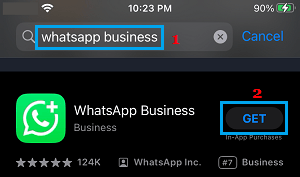
2. Once the App is downloaded, open WhatsApp Business and agree to its terms of use by tapping on Agree & Continue.
3. On the next screen, select the Country where you are located and enter your Landline or Digital Home Phone Number and tap on Next.
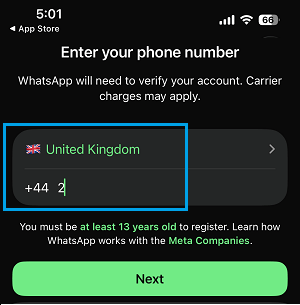
4. On the next screen, make sure the phone number is correct and tap on OK > On the next screen, wait for about 30 seconds and tap on Didn’t receive a verification code?.
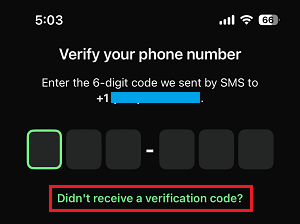
5. On “Choose how to verify” screen, select the Voice call option and tap on Continue to receive the verification code by an automated voice call from WhatsApp on your Landline or Digital Home phone number.
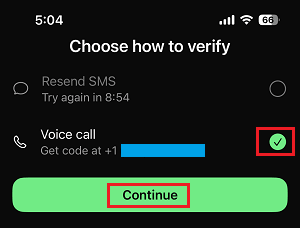
6. Receive the call from WhatsApp > note down the verification code and enter it on “Verify your phone number” screen.
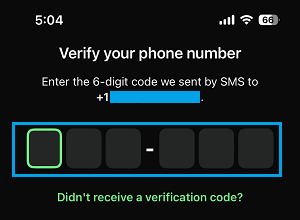
7. Follow the remaining onscreen Instructions to complete the setup process.
After the setup process is completed, you can start using WhatsApp on your mobile phone, even though it does not have its own phone number.
2. Use Phone Number from Another Device
Another way to verify WhatsApp on an iPhone or Android phone without its own phone or active SIM card is by using your personal or work phone number; which is not associated with any WhatsApp Account.
1. Download WhatsApp Messenger from App Store (iPhone) or Google Play Store (Android) on your mobile device.
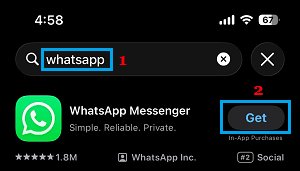
2. After the download is completed, open WhatsApp > Agree to terms > select your Country > enter the Phone Number from another device and tap on Continue.
3. Make sure the phone number is correct and tap on OK to receive a six-digit verification code from WhatsApp on your active mobile device.
4. On “Verify your phone number” screen, enter the verification code that you received from WhatsApp.
5. Follow the instructions to complete the setup process.
Once the setup process is completed, you will be able to use WhatsApp on your mobile device without SIM Card.
3. Verify WhatsApp Using Virtual Phone Number
As mentioned above, VoIP phone numbers are not supported by WhatsApp. Hence, the chances of a WhatsApp account being verified by using this method can vary. Also, you need to be aware that there is always the possibility of your account being locked; if WhatsApp prompts for a re-verification and it fails due to use of VoIP number.
If you still want to try this method, the first step is to get a virtual phone number from TextNow, Google Voice and other VoIP providers by using steps as provided in this guide: How to Get Virtual Phone Number (Free & Paid).
Once you get a virtual phone number from any VoIP provider, you can try to verify your WhatsApp account by using steps as provided above in the First method.
4. Use linked Devices Feature
WhatsApp allows its users to use the same WhatsApp Account on up-to 4 devices (Another phone, tablet, PC) by making use of the linked devices feature. Hence, if you already have a WhatsApp account; you can use it on another phone that does not have its own phone number by using the following steps.
1. Open the web browser on your iPhone or Android Phone; which does not have its own phone number.
2. Type web.whatsapp.com in the search bar and press the Enter key. This will take you to WhatsApp’s official website; where you will see a QR Code.

3. Open WhatsApp on your Primary mobile device (which has the WhatsApp Account) > tap on Settings or 3-dots Icon (Android) and select Linked Devices.
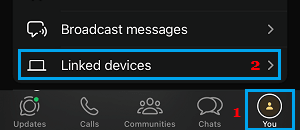
4. On the next screen, tap on Link a Device.
5. Use the camera of the primary device to scan the QR code that is available on the phone without phone number.
Once the QR code is scanned; you will find WhatsApp Account from your primary device appearing on the secondary device.