The default setting in OneDrive is to startup with the computer and automatically start the process of backing up files located on the computer to Microsoft’s cloud storage service.
While this default setting in OneDrive can help in making sure that all the files located on the computer are backed up to OneDrive; there are many users who do not like the idea of files being automatically uploaded to OneDrive and prefer to manually upload selected files to OneDrive.
Hence, we are providing below different methods to prevent files located on the computer being automatically saved to OneDrive.
Stop Auto Save to OneDrive in Windows 11/10
The easiest way to prevent OneDrive from automatically uploading files located on the computer to Microsoft’s OneDrive service is to remain signed-out of your OneDrive Account.
However, this option is not suitable; if you are actively using Microsoft’s cloud storage service or want to remain Signed-in to OneDrive and yet prevent OneDrive from furiously uploading files to Microsoft’s Cloud storage service.
In such cases, OneDrive App provides the option to exclude files located on the Desktop and in Documents, Pictures & Videos Folders from being automatically uploaded to its cloud storage service.
1. Disable OneDrive Folder Backup
This option is suitable and recommended, if you want to keep OneDrive installed and usable on the computer, but want to prevent OneDrive from automatically uploading files located on the computer to Microsoft’s cloud storage service.
1. Click on the cloud-shaped OneDrive icon located on the taskbar > click on the Gear Icon and select Settings in the menu that appears.
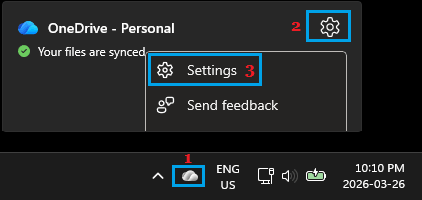
Note: If you do not see OneDrive Icon, open the Overflow pane by clicking on the Up Arrow icon.
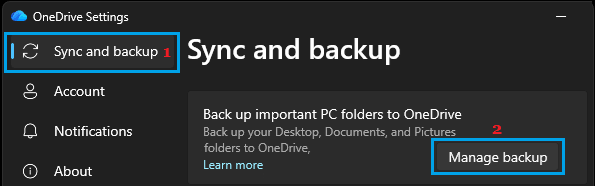
2. On OneDrive settings screen, select Sync and Backup in the left-pane and click on Manage Backup button, located in the right-pane.
3. On the next screen, you can switch off Desktop, Documents, Pictures, Videos and other Folders that you do not want to be automatically saved to OneDrive.
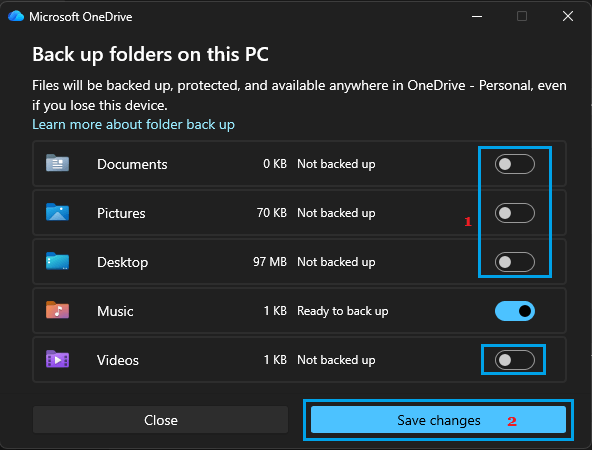
4. Make sure that you click on Save changes button to preserve these settings for OneDrive App on your computer.
2. Prevent Screenshots from Being Uploaded to OneDrive
For most users, saving Screenshots to OneDrive is not necessary and enabling this feature can result in cluttering of your OneDrive Account with unwanted screenshots.
1. Click on OneDrive Cloud icon > select Gear Icon and click on Settings.
2. On the next screen, select Sync and Backup in the left-pane and move the slider next to Save screenshots I capture to OneDrive entry to OFF position.
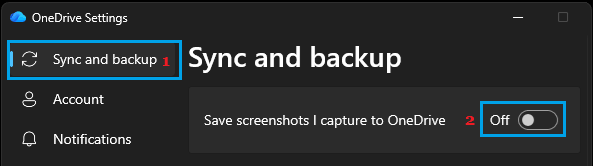
From now on, any screenshots that you take on your computer will not be automatically saved to OneDrive.
3. Unlink Computer from OneDrive
If you are sure about not using OneDrive on a particular computer due to security or personal reasons, Microsoft provides the option to Unlink that particular computer from its OneDrive cloud storage service.
For the actual steps to unlink computer from OneDrive, you can refer to this guide: How to Disable or Uninstall OneDrive in Windows 11/10.