In case you are interested, it is possible to Set Sleep Timer for any video on YouTube, which makes the video automatically stop playing after a set period of time.
This can be useful, if you like watching YouTube videos or listening to podcasts on YouTube, before going to sleep.
Set Sleep Timer in YouTube on iPhone
The easiest way to set sleep timer for any YouTube video on iPhone is by using the built-in sleep timer feature as available in the premium version of YouTube.
If you are not subscribed to YouTube Premium, you can make use of the Clock App to set sleep timer for any YouTube video on iPhone.
1. Set Sleep Timer in YouTube Premium
If you are subscribed to the Premium version of YouTube, you can set sleep timer for any YouTube video on iPhone by using the built-in sleep timer, which is only available in YouTube Premium.
1. Login to YouTube Premium and open the video that you want to watch.
2. Tap on Settings Icon (cogwheel) and select Sleep Timer.
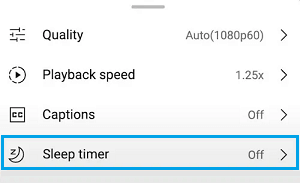
3. On the pop-up, select the Period up to which you want the video to play.
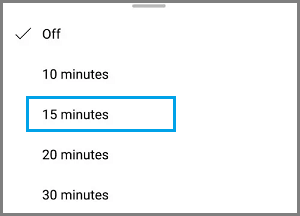
After this, you can continue watching or listening to the YouTube video and expect it to stop after your selected time period.
2. Set Sleep Timer Using the Clock App
If you are not using the Premium version of YouTube, you should be able to set Sleep Timer for YouTube video by using the clock app.
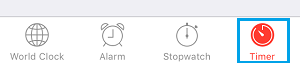
1. Open the Clock App on your iPhone and tap on the Timer tab in bottom-menu.
2. On the timer screen, select the Time (Minutes or hours) that you want YouTube to play and then tap on When the Timer Ends option.
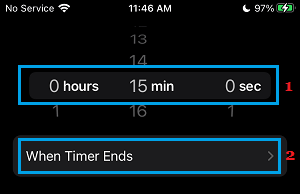
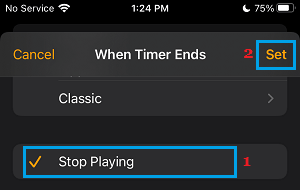
3. On the next screen, select Stop Playing option and tap on Set (top-right) to save this setting on your iPhone.
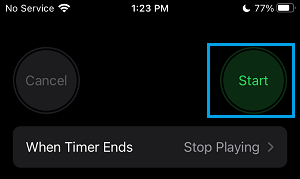
4. After this, tap on the Start button to start the timer.
5. After this, open YouTube and start playing the YouTube Video that you want to listen, before going to sleep.
This way you can safely listen to long YouTube Videos while going to sleep, without worrying about the possibility of falling asleep with YouTube still playing on your device.
The YouTube Video will play on iPhone, only up to the time remaining in the Timer and it will automatically stop playing and the screen will also switch-off as soon as the timer ends.