When you start setting up any iPhone, you will find it coming up with “No SIM Card” or “SIM Required” pop-up, as soon as it gets connected to Wi-Fi Network.
In the case of a New iPhone, the “No SIM Card” pop-up can be easily dismissed and the remaining Setup process completed, without the need to use a SIM Card.
If you are trying to activate an older iPhone (iOS 11.3 and earlier), you will see “SIM Required” pop-up, which cannot be dismissed. However, you should still be able to activate your device without SIM Card by connecting it to Mac or Windows PC.
Activate iPhone Without SIM Card
As mentioned above, all that is required to setup and activate a current generation of iPhone without SIM Card is to dismiss the “No SIM” pop-up and continue with the setup process.
If you are trying to activate an older device without SIM Card, you can make use of the second method as provided below in this guide.
1. Activate New iPhone Without SIM Card
If you a have a New iPhone (iOS 11.4 and higher), you can follow the steps below to setup and activate the iPhone without SIM Card.
1. Press the Power Button to start iPhone.
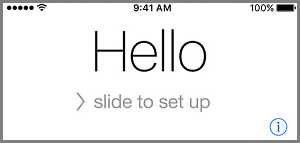
2. On the startup screen, Slide-right to start the Setup Process.
3. On the next screens, select Language > Country > tap on Set Up Manually option.
4. Select your Wi-Fi Network > enter Wi-Fi Network Password > tap on OK to dismiss “No SIM Card” pop-up.
5. On the next screen, tap on Continue to agree to Apple’s Data & Privacy conditions > setup Touch ID or tap on Setup Later > setup your Lock Screen Passcode.
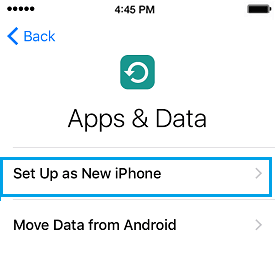
6. On Apps & Data screen, select Set Up as New iPhone option.
Note: If you have Backup on iCloud, you can select the applicable Backup option (iCloud or iTunes) and you follow the steps to Restore iPhone from Backup.
7. On the next screen, enter your Apple ID and Password.
Note: If you do not have an Apple ID, tap on Forgot Passcode or don’t have an Apple ID Link. On the next screen, you can either Create an Apple ID or tap on Setup Later in Settings Link.
8. Tap on Agree to accept Apple’s Terms & Conditions.
9. On the next screen, tap on Continue and follow the instructions to complete the remaining setup process.
2. Activate iPhone Without SIM Card on Mac or Windows PC
If you have an older iPhone (iOS 11.3 and lower), you can make use of a Windows computer or Mac to setup and activate your older iPhone without SIM Card.
1. Connect iPhone to Mac or Windows computer with iTunes Installed on it.
2. Once iPhone is detected by iTunes, it should prompt you download the latest version of iOS update as available for your iPhone.
3. After downloading updates, you will see “Setup as New” or “Restore From Backup” options. Select, Setup as New option and tap on Continue.
4. Follow the Onscreen instructions to complete the Setup Process.
There is actually a lot that you can do with Wi-Fi Only iPhone, take a look at our guide: How to Use iPhone Without SIM Card, and you will be pleasantly surprised.