If you take a look at storage space occupied by any app on your iPhone, you are likely to see the storage space occupied by its “Documents & Data” being way more than storage space occupied by the app itself.
This is especially true; in the case of social media and messaging apps like Facebook, Instagram & WhatsApp; which end up storing all conversation logs; along with all the sent and received photos, videos and audio clips on the local or internal storage of your iPhone.
The reason for apps being allowed to store their “Documents & Data” on iPhone is to help them load faster by making use of cached data (images, thumbnails, reusable files) and provide a better user experience by remembering your preferences, login details, message history and preserving your downloaded content (images, videos).
Delete “Documents & Data” on iPhone
If you are looking for a way to delete “Documents and Data” on iPhone, it is likely that you are either trying to recover the local storage space on your Apple device or trying to improve the performance of a particular app by clearing its accumulated data.
However, the bad news is that you cannot manually select and wipe out the “Documents & Data” folder on iPhone; like it can be easily done on an Android phone.
Hence, the only way to clear “Documents & Data” generated by Apps on the internal storage of an iPhone is by making use of the following options.
- Offload & Reinstall the App: While offloading the app does not remove its “Documents & Data” it does help in clearing the storage space occupied by the app itself and cached images stored inside the app bundle.
- Use App’s Internal Settings: Apps like Safari, Spotify, Netflix and others provide the option to clear cached files and remove downloads; which can be found by going to “Storage” or “Privacy” section of the Settings menu of the App.
- Delete & Reinstall the App: The most effective way to completely clear “Documents & Data” on iPhone is removing and reinstalling the apps. This is the only way to remove “Documents & Data” of apps that do not provide any internal “clear-data” or “clear-cache” option.
- Clear iCloud “Documents & Data”: In addition to storing data on iPhone, apps store “Documents & Data” on iCloud; which occupies storage space in your iCloud Account.
With this understanding, let us go ahead and take a look at different methods to remove “Documents & Data” occupied by apps on iPhone.
1. Offload & Reinstall the App
When you Offload an app on iPhone, the storage space occupied by the app itself is removed; with all your account data and preferences remaining intact.
While this method also removes cached images stored inside the app bundle; the cached images stored inside the app bundle are tiny compared to cached data stored by the apps in “Documents & Data”.
1. Go to Settings > General > iPhone Storage.
2. On the Storage screen, select the App (Facebook in this case) that you want to Offload from your device.
3. On the App’s detail screen, select the Offload App option.
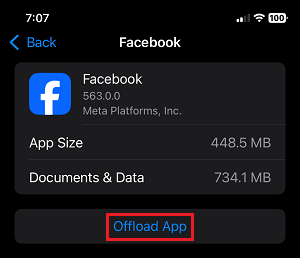
After the Offload process is completed, you can Reinstall the app by tapping on the App Icon; which should still be available on the Home screen with a cloud-icon.
2. Remove & Reinstall the App
As mentioned above, the most effective way to completely clear “Documents and Data” of apps on iPhone is by removing & reinstalling the app.
1. Go to Settings > General > tap on iPhone Storage.
2. On the Storage screen, scroll down and select the App (Facebook in this case) for which you want to delete its “Documents and Data”.
3. On the next screen, scroll down and select the Delete App option.
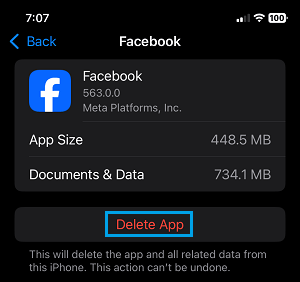
4. On the confirmation pop-up, tap on the Delete option to confirm.
This will delete the app along with all its “Documents and Data” stored on the local storage of your iPhone.
At any time, you can Reinstall the App on your iPhone by opening App Store > searching for Name of the deleted App and tapping on the install option located next to the App.
3. Clear App Data from Inside the App
As mentioned above, certain Apps like Safari, WhatsApp and others provide the option to manually clear the cache.
1. Go to Settings > Apps > Safari.
2. On the next screen, scroll down to “History & Website Data” section and tap on Clear History and Website Data option.
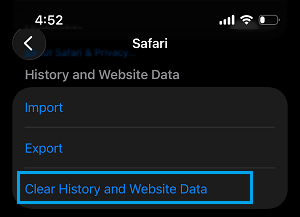
Note: If you want to preserve Search History, you can clear only website data (cookies & cache) by using steps as provided in this guide: How to Clear Safari Cache on iPhone & Mac.
4. Delete “Documents and Data” from iCloud
In addition to storing cached data on iPhone, apps that are provided with access to iCloud end up storing cached data, sign-in information and other types of app related data to iCloud and this information is labelled as “Documents and Data” in your iCloud Account.
If required, you can easily clear “Documents and Data” stored by Apps in your iCloud Account by using the following steps.
1. Open Settings > tap on your Apple ID Name.
2. From Apple ID screen, go to iCloud > Drive > tap on Manage storage.
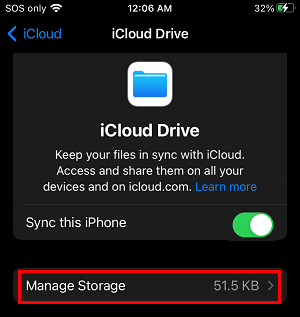
3. On the next screen, select Delete from iCloud option to remove “Documents & Data” stored by apps in your iCloud Account.
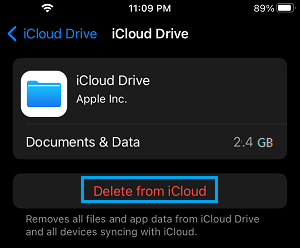
4. On the confirmation pop-up, tap on Remove from iCloud to confirm.
This will delete “Documents and Data” stored by all the apps that have been provided with access to iCloud on your iPhone.