While iPhone displays Signal Strength in the form of 4-bars located at top-right corner of the screen, it also provides the option to check the actual signal strength in numbers (Decibels).
Decibels or Decibel-Milliwats (dBm) is the actual unit of measure for measuring signal strength and it provides a more accurate information about the signal strength, compared to displaying signal strength using bars/dots; which can only provide an approximate indication of the signal strength.
For example, the signal strength of your iPhone displaying 3 bars might actually be stronger and better than your friend’s Android phone displaying 4 bars and vice-versa.
Display iPhone Signal Strength in Numbers
You can make iPhone display its Signal Strength in Numbers by dialing *3001#12345#*, which takes you to iPhone’s “Field Test Mode” page, which provides the actual signal strength in Decibel-Milliwatts (dBm) for both 4G and 5G Networks.
Cell phone signals operate between -50 dBm (excellent) to -120 dBm (Very poor) range. In general, values greater than -70 dBM are considered as good signal and values lesser than -100 dBM are considered as weak signal.
For example, when you move from an area of very bad signal strength (-120 dBm) to good signal strength, you are likely to see the signal strength numbers on your iPhone changing from -120 to -110, -100, -92, -75, -62 and so on.
Note: In case you are interested, you can refer to this link on Wikipedia for more information on this topic.
1. Display Signal Strength in Numbers on iPhone
If your iPhone is using the latest version of iOS, you can follow the steps below to display the signal strength of your iPhone in Numbers.
1. Go to Settings > Wi-Fi > Move the Wi-Fi Slider to OFF position.
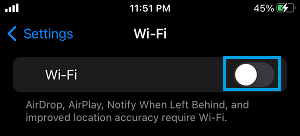
2. After disabling Wi-Fi, open the Phone App on your iPhone.
3. Use the Keypad to type *3001#12345#* and press the Call button.
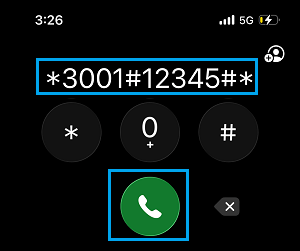
4. This should take you to iPhone’s FTM (Field Test Mode) Dashboard, where you should be able to see the signal strength of the 4G/5G network on your iPhone being displayed in the RSRP Tab.
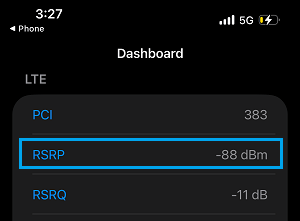
As you can see in above image, the iPhone signal strength is -88 dBm, which is a poor signal strength.
2. Change iPhone Signal Strength Display to Numbers (dBm)
In the earlier versions of iOS (iOS 10 and below), it was possible to change the display of iPhone signal strength from bars/dots to Numbers (dBm) by using the following steps.
1. Go to Settings > Wi-Fi > Disable Wi-Fi by moving the slider to OFF position.
2. Open Phone App > Dial 3001#12345#* and press the Call button.
3. Hold down the Power button, until you see “Slide to Power OFF” screen.
4. Press and Hold-down the Home button, until you see the screen going blank.
You should find the screen first going blank and then returning back to Home screen, displaying the signal strength in numbers (dBm).
Note: On the current models of iPhone, you can see the signal strength in numbers (dBM), but cannot change the signal strength display from 4 bars to decibels (dBm).