If you have forgotten the login passcode for your iPhone, you can make up to 5 incorrect attempts to guess the forgotten passcode, without the risk of your device being disabled. After this, iPhone gets progressively disabled for 1, 5, 15 and 60 minutes, when you make the next 4 attempts and it gets permanently disabled when you make the 10th attempt.
Once iPhone gets permanently disabled, the only way to gain access to your device is by Resetting the forgotten passcode; either by logging into your iCloud Account on a computer or by forcing your device into Recovery Mode.
Reset Forgotten iPhone Password
While the easiest way to reset the Login Password on iPhone is by using iCloud, this option can be used only if Apple’s “Find My” service is enabled on your iPhone. If it is not, the only way to Reset Passcode on iPhone is by forcing your device into Recovery mode.
In both cases, all the existing data on your iPhone will be completely erased out, along with the forgotten password. Luckily, it is possible to get back all the data on your iPhone by Restoring your device from a Backup stored on iCloud or available on your MacBook or Windows computer.
1. Reset iPhone Password Using iCloud
As mentioned above, this method can be used only if Apple’s Find iPhone service is enabled on your iPhone and Data Recovery is also possible; if a Backup of your device is available on iCloud.
If a Backup is not available on iCloud, you can still use this method to reset the forgotten passcode and setup your iPhone as a New Device.
1. Using Windows PC or Mac, visit iCloud.com and Sign-in to your iCloud Account.
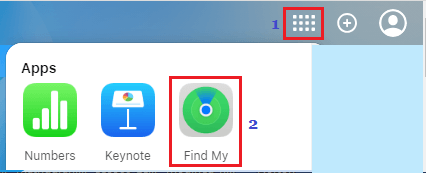
2. Once you are in iCloud, click on Apps Icon located at top-right corner and select Find My Icon in Apps menu.
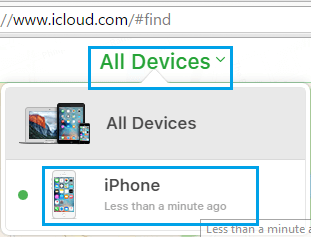
3. When prompted, enter your Apple ID Password to Sign-in to “Find My iPhone” service. On the next screen, click on All Devices and select your iPhone in the drop-down.
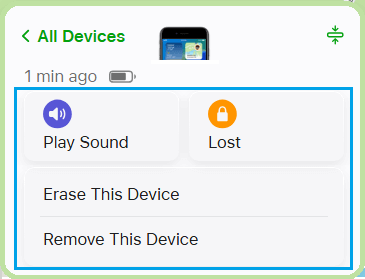
4. On the next screen, select Erase This Device option to Erase all the data from your device.
5. When prompted, enter your Apple ID password and wait for the Factory Reset Process to be completed.
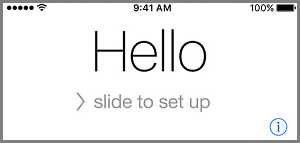
6. Once the Factory Reset Process is completed, you will find your device restarting with “Hello” screen, prompting you to setup your device.
7. Follow the onscreen instructions, until you reach ‘Apps & Data screen’. On this screen, select Restore from iCloud Backup option.
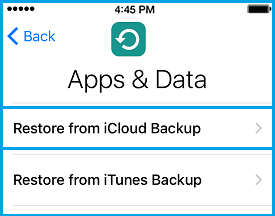
8. When prompted, enter your Apple ID Password and tap on Next.
9. On the next screen, select the iCloud Backup that you want to Restore your iPhone from.
Once the restore process is completed, you will be able to login to your iPhone and find all your settings, data and apps back on your device.
Note: If you had not enabled iCloud Backups, you can select Setup as New iPhone option, which erases all the data from your device.
2. Reset iPhone Password Using Recovery Mode
If Apple’s “Find My” service is not setup on your iPhone, the only way to reset iPhone passcode is by forcing your device into Recovery Mode.
In order to force iPhone into recovery mode, you will need a Mac or Windows computer with the latest version of iTunes installed on it and a cable to connect iPhone to computer (charging cable).
After connecting iPhone to MacBook or Windows computer, you need to follow the steps to force your device into Recover Mode as provided in this guide: How to Put iPhone in Recovery Mode.