It can be quite surprising and concerning to suddenly find the computer displaying a Dark or Black Desktop Background, instead of displaying its usual colorful Windows background.
In most cases, this problem is known to occur while users are trying to Change the Desktop Background image or trying to switch the Desktop Background type from Picture to Slideshow or Solid color.
Fix Black Desktop Background In Windows 11/10
If Desktop Background on the computer has turned black while trying to change the Desktop Background, it can be fixed in most cases by simply switching from Solid color to Picture or Slideshow type of background.
In other cases, the problem of a Black Desktop Background on a Windows computer can be fixed using other troubleshooting steps as provided below in this guide.
1. Switch to Picture Background
As mentioned above, the simple act of switching from Solid color to Picture or Slideshow type of background can help in fixing the issue.
1. Go to Settings > Personalization > scroll down in the right-pane and click on Background.
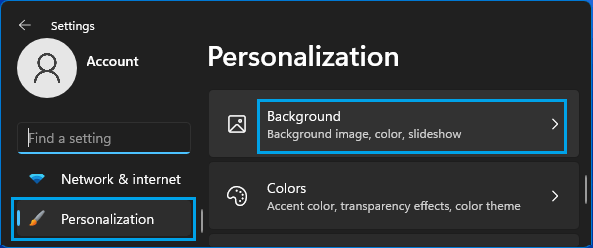
2. On the next screen, switch the background to Picture or any other type of available background.
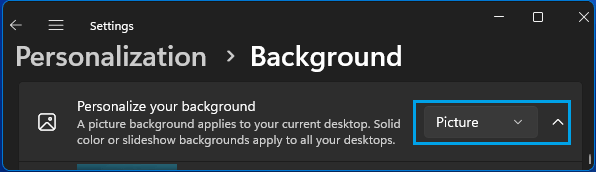
Windows 10: Go to Settings > Personalization > Background (left-pane). In the right-pane, change the Background from solid color to Picture.
Once the newly selected Desktop Background appears, you should be able to switch back to your original Solid color or Picture Background.
2. Enable Show Windows Background Option
If you are using Windows 10 computer, the problem might be due to “Show Windows Background” option being disabled on your device.
1. Go to Settings > Ease of Access > Other Options (left-pane) > Enable Show Windows Background option in the right-pane.
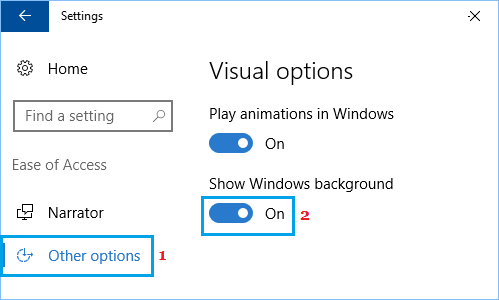
2. Restart the computer and it should now show its usual colorful Windows Desktop Background.
3. Replace Black Desktop Background With Picture
A quick way to get rid of black desktop background on a Windows computer is by replaing the Black Desktop Background with any Picture available on the computer.
1. Open the File Explorer on your computer.
2. Go to Pictures Folder > Right-click on any Image and click on Set as Desktop Background in the menu that appears.
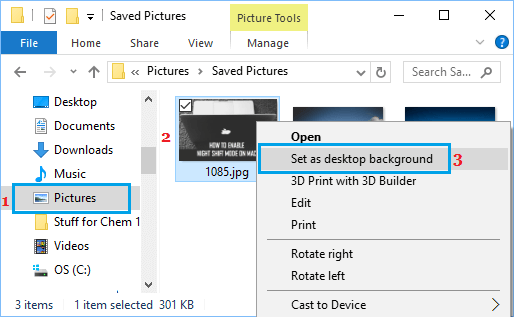
3. The Black Background will be replaced by the Image or Picture that you selected.
4. Unselect High Contrast Black
Sometimes, the problem is due to High Contrast Theme being selected for the Background Display on your computer.
1. Go to Settings > Accessibility > Contrast Themes.
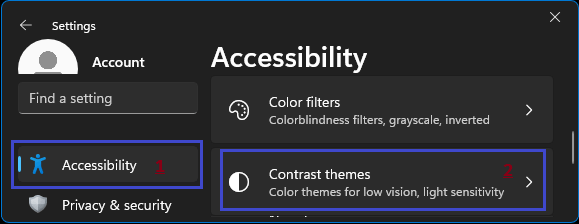
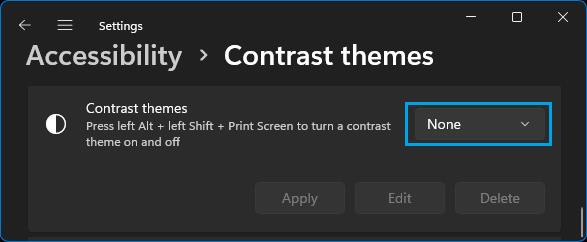
2. On the next screen, set Contrast themes to None.
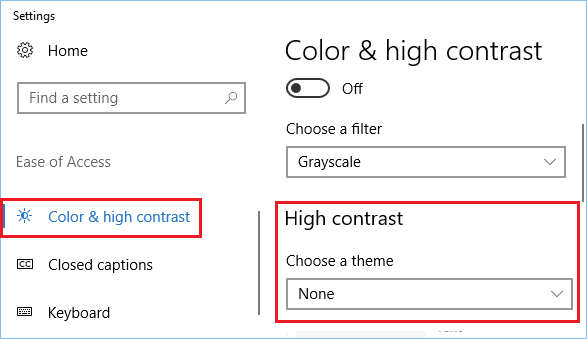
Windows 10: Go to Settings > Personalization > Colors > click on High Contrast Settings link > On the next screen, change High Contrast setting to None.
5. Check Ease Of Access Settings
The problem could be due to accidental change in Ease of Access Settings.
1. Open the Control Panel on your computer.
2. On Control Panel screen, make sure that you are in Category View and click on Ease of Access.
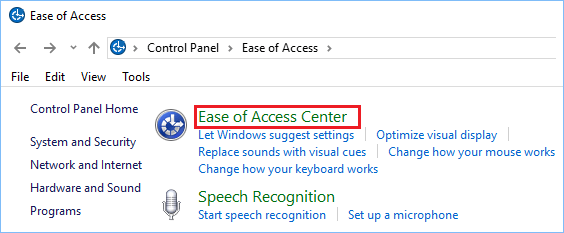
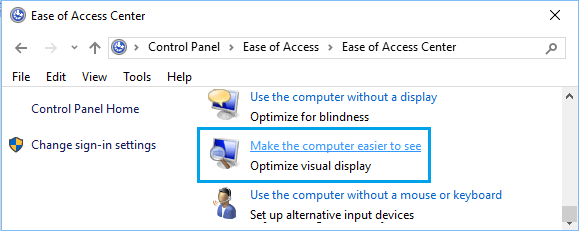
3. On the next screen, click on Make the computer easier to see Link.
4. On the next screen, scroll down and uncheck Remove background images option.
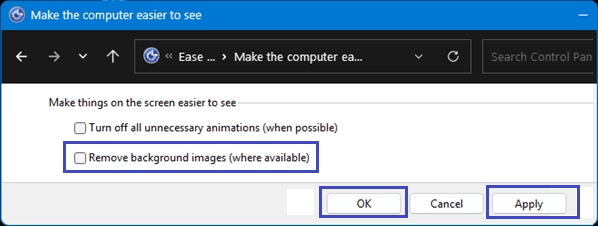
5. Click on Apply and OK to save this setting.
After this, set a Wallpaper of your choice as the Background Image on your computer by going to Settings > Personalization > Background.
6. Check Power Plan Settings
The problem of Black Desktop Background can also be caused due to Power Settings on your computer.
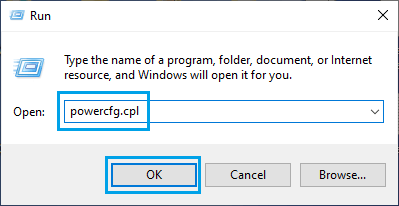
1. Press Win + R Keys > Type powercfg.cpl and click on OK.
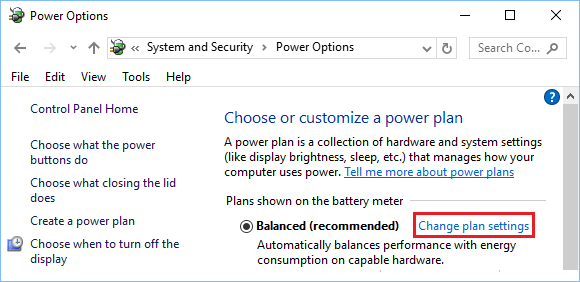
2. On Power Options screen, click on Change Plan Settings link.
3. On the next screen, click on Change Advanced Power Settings link.
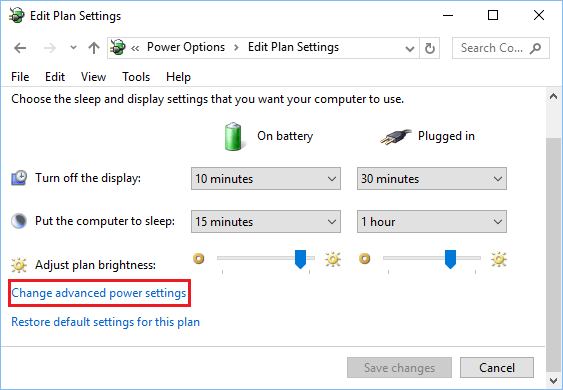
4. On the next screen, expand Desktop background settings entry and make sure Slide Show is set to Available.
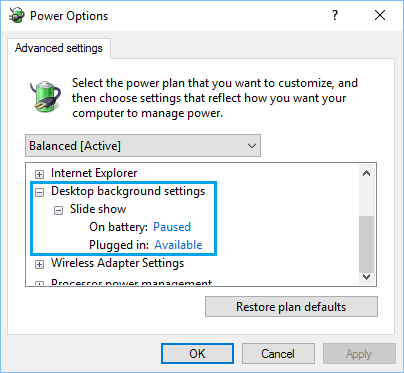
If Slide Show option was disabled, enable the option for Slide Show and then set a Wallpaper of your choice by going to Settings > Personalization >Background.
7. Corrupt TranscodedWallpaper File
If above methods did not help, the problem could be due the “TranscodedWallpaper” File on the computer becoming damaged or corrupted.
1. Open the File Explorer on your computer.
2. From the File Explorer screen, navigate to C: Users/User Account/AppData/Roaming/Microsoft/Windows/Themes Folder and Rename TranscodedWallpaper File to TranscodedWallpaper.old.
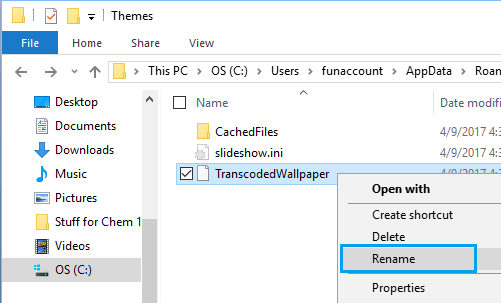
Note: Enable Show Hidden Files option, in case you are unable to see AppData Folder
3. While you are still in Themes Folder, open Settings.ini File using Notepad, delete contents of this file (if any) and save this file.
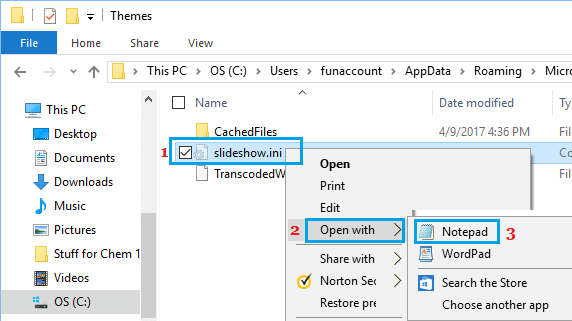
After completing above steps, you can setup a new Desktop Background for your computer by going to Settings > Personalization >Background.