When you Boot a Windows computer in Safe Mode, it starts up in its most basic state; using only the most essential system files and drivers that are required to start the computer and keep it running. This makes it easy to identify the app, desktop program, driver or the most recent change that is preventing the computer from starting up or causing problems on the computer.
For example, if your computer runs into problems or crashes after installation of an app or driver update, you can undo the driver update and uninstall the app by booting the computer in Safe Mode. Similarly, booting the computer in Safe Mode provides an ideal bare-bones environment for fixing the following types of problems.
- Malware & Viruses: Starting the computer in Safe Mode, prevents malicious programs from automatically loading. which allows you to run malware scan and remove them.
- System Restore: If you are unable to undo a change on the computer using System Restore, you should be undo the change by running System Restore from with Safe Mode.
- Slow Computer: If your computer is running slow, you can make use of Safe Mode to check and confirm if the problem is being caused by a particular third-party app.
- Advanced Troubleshooting: You can repair corrupted system files, repair hard drive and fix boot errors by using “Safe Mode with Command Prompt”.
Related: 4 Ways to Exit Safe Mode in Windows 11/10.
Boot Windows Computer in Safe Mode
Depending on the nature of the problem on your computer, you can boot or start your Windows 11/10 computer in Safe Mode by using any of the following methods.
- Safe Mode Using Settings.
- Safe Mode Using Run Command.
- Safe Mode Using Shift Key Restart method.
- Safe Mode Using Recovery Mode
- Safe Mode Using Bootable USB Drive
1. Start Windows In Safe Mode Using Settings
You can find below the steps to start your computer in Safe Mode by using Settings.
1. Go to Settings > System > scroll down in the right-panr and click on the Recovery tab.
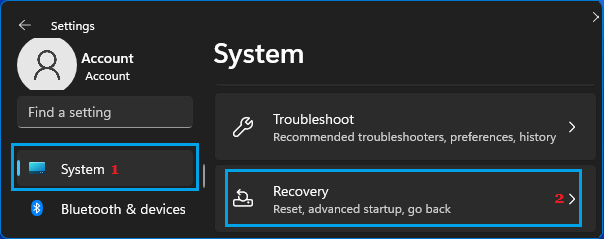
2. On the next screen, scroll down in the right-pane and click on Restart Now button, located next to Advanced Startup.
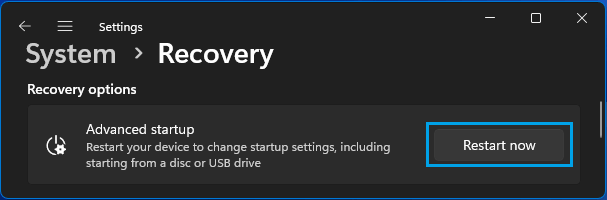
Windows 10: Go to Settings > Update & Security > Recovery > click on Restart Now button.
3. On the confirmation pop-up, click on Restart Now to confirm.
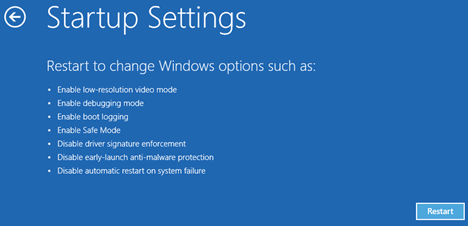
4. After the computer restarts, go to Troubleshoot > Advanced options > Startup Settings and click on the Restart button.
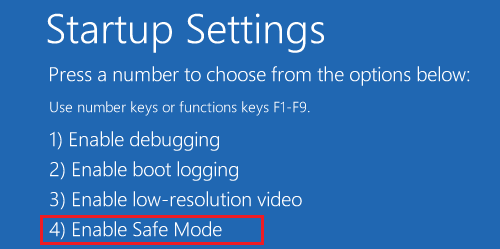
5. Now, when the computer restarts, press the F4 key to Boot Windows in Safe Mode.
2. Boot Windows in Safe Mode Using Run Command
Another way to start a Windows computer in Safe Mode is by using the Run Command.
1. Press Windows + R keys to open the Run Command on your computer.
2. Type msconfig and click on OK.

3. On the next screen, switch to the Boot tab, select Safe Boot with Minimal option and click on OK.
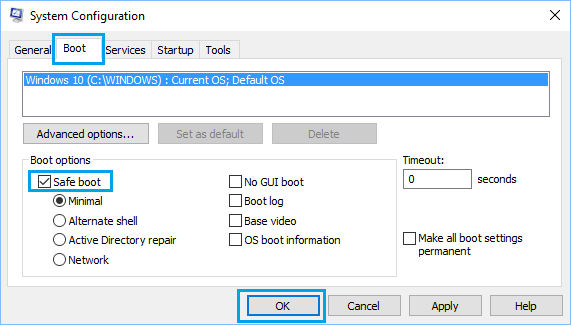
4. On the pop-up, select the Restart option to start the computer in Safe Mode.
3. Enter Safe Mode from Login Screen
You can enter Safe Mode from the sign-in screen by using Shift Key Restart method, which basically requires you to Restart the computer, while pressing and holding down the Shift key.
1. Click anywhere on the screen and this should take you to the login screen.
2. On the login screen, press and hold the Shift Key on the keyboard of your computer and select the Restart option.

3. After the computer restarts in Recovery mode, go to Troubleshoot > Advanced options > Startup Settings > click on the Restart button.
After the computer restarts, press the F4 key to Start the computer in Safe Mode.
4. Boot Windows in Safe Mode Using Recovery Mode
If your computer is stuck on a Blank, Black or Blue screen, you can follow the steps below to boot the computer in Safe Mode.
1. Press the Power button (for 10 seconds) to turn OFF your device.
2. Wait for the computer to completely power-off > After 30 seconds, press the Power button and this time the computer should start in Recovery Mode.
3. After the computer starts in Recovery mode, go to Troubleshoot > Advanced Options > Startup Settings and click on the Restart button.
Note: If the computer does not start in Recovery Mode, keep restarting the computer, until you see the Troubleshoot option.
4. After the computer restarts, press F4 to Boot the computer in Safe Mode.
5. Boot Windows in Safe Mode Using Bootable USB Drive
If you are unable to force the computer to start in Recovery Mode, you can make use of a Bootable USB Drive to start the computer in Safe Mode.
If you do not have a Bootable USB Drive, you Create Bootable Windows 11 USB Drive by going to any other Windows computer.
1. Power OFF the computer by using the Power button.
2. Insert Bootable USB Drive into USB Port of the computer and press the Power button to start your device.
3. After the computer starts, select a Keyboard Layout for your computer.

4. On the next screen, click on the Troubleshoot option.
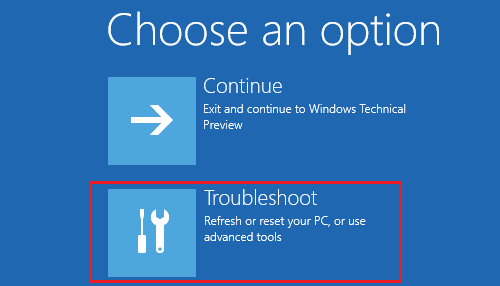
5. From the next screen, navigate to Advanced options > Startup Settings and click on the Restart button.
After the computer restarts, press the F4 key on the Keyboard of your computer and you will find it starting in Safe Mode.