While reading real or printed books has its own unique appeal, people that are allergic to old or used books prefer to borrow books from public Library on Kindle, Kobo and other eReaders.
Pretty much like regular books, public libraries have limited copies of eBooks and each digital copy of the book is treated like one title and it can only be borrowed by one person at a time.
Borrowing books from public Library on Kindle allows you to take advantage of Dictionary, Search, Font Size Control, Social Media integration and other features available on a Kindle device.
Borrow Books From Public Library On Kindle
Most public Libraries in USA, Canada, UK and other countries allow members to borrow books in digital format and read them on eReaders.
However, when it comes to Kindle; you need to make use of Libby App (by OverDrive) to borrow books from a public library and this feature is limited to public libraries within United States.
Steps to Borrow Books From Public Library
Since, OverDrive’s “Libby App” cannot be installed on Kindle eReader; it needs to be downloaded and installed on a mobile device (iPhone or Android phone).
Once “Libby App” is available on your mobile device, it can be used to borrow books from a public library and transfer them to your Kindle eReader.
Step 1. Install Libby App on Mobile Device
1. Download & Install Libby App from the App Store on your iPhone and from Google Play Store, if you are using an Android phone.
2. Open Libby App on your mobile device > Follow the prompts to find your Local Library and Sign-in with your Library Card Number and PIN.
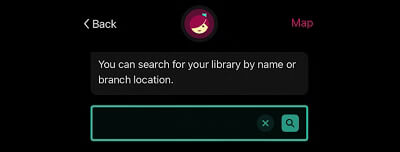
3. When prompted, select “Read with Kindle” option.
Step 2. Borrow Book From Public Library
1. Use the Search bar to find the particular book that you want to borrow from public library.
2. On the Book’s Title Page, make sure that “Read with Kindle” option is available. If its available, tap on Borrow and confirm the loan duration.
Step 3. Transfer Book from Mobile Device to Kindle
Once the book is available in Libby App on your iPhone or Android phone, it can be transferred to Kindle using the following steps.
1. Open Libby App on your iPhone or Android phone.
2. Tap on Shelf > Loans > Read With... > Kindle.
3. You will be taken to Amazon’s website > Sign-in to your Amazon Account and tap on Get Library Book option.
The book that you had borrowed from the public library will become available on your Kindle eReader.
Borrow Books From Public Library on Fire Tablet
If you are using a Fire Tablet, Libby App can be installed directly on your Amazon Fire device and used to borrow books from supported public libraries.
1. Download & Install Libby App on your Fire Tablet from Amazon’s App Store.
2. Open Libby App > Use the on-screen prompts to find your Local Library and Sign-in with your Library Card Number and PIN.
3. Use the Search bar in Libby App to find the book that you want to borrow from public library.
4. If “Read with Kindle” option is available for the book, tap on Borrow and confirm the loan duration.
Once you tap on “Borrow” the book should become available on your Fire Device.
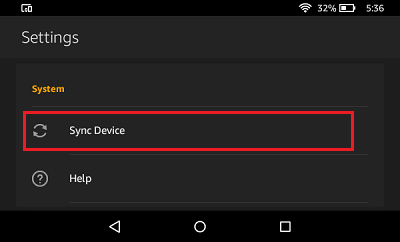
If you do not receive the book, you will have to manually sync your Kindle device by tapping on Settings > Sync Device option located under “System” section.
Return Books to Public Library On Kindle
Returning Books to Public Library on Kindle is just as easy as borrowing public library books on Kindle.
1. Open Libby App on your Fire Tablet.
2. Tap on My Account > Holdings and you will see the books that you have borrowed.
3. Select the book that you want to return and tap on the Return option.
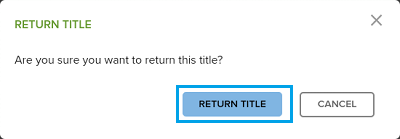
4. On the pop-up, tap on Return Title to confirm.
Hope this helps you understand the fairly easy process of borrowing and returning books to public library using Kindle.