The Safari browser on iPhone & Mac provides the option to clear “All browsing history” and also the option to clear your browsing history from Last Hour, Today and Yesterday.
While the Safari browser on Mac provides the option to clear only the browsing history, while leaving website data (cookies & cache) untouched or intact, this option is not available on iPhone.
Hence, when you clear Safari browsing history on iPhone; you will also end up removing cookies and all the cached data associated with the cleared websites.
Clear Safari Browsing History on iPhone & Mac
In general, users find the need to clear Safari browsing history to protect their privacy and also if they find the Safari browser running slower than normal or getting stuck while browsing.
You can find below the steps to clear entire Safari browsing history and also the steps to remove selected portions of browsing history from iPhone and Mac.
1. Clear All Safari Browsing History from iPhone
You can follow the steps below to clear all your entire search and browsing history from the Safari browser on iPhone.
1. Go to Settings > Apps > scroll down and tap on Safari.
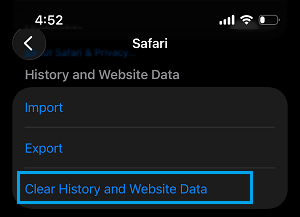
2. On the next screen, scroll down and tap on Clear History and Website Data option located under “History and Website Data” section.
3. On Clear History pop-up, select All History option and tap on Clear History button.
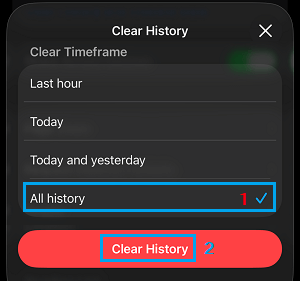
Note: Other time frames (Last Hour, Today & Yesterday) are also available for selection on the same screen.
This will clear out all your browsing history, cookies and other website data from iPhone.
2. Clear Selected Parts of Safari Browsing History from iPhone
As mentioned above, the Safari browser on iPhone also provides the option to remove specific or selected portions of the browsing history.
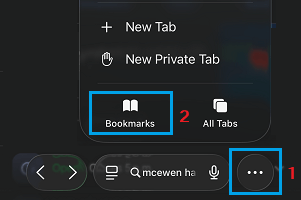
1. Open the Safari Browser on your iPhone > tap on 3-dots Icon and select Bookmarks Icon.
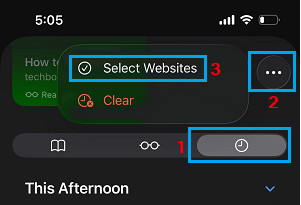
2. On the Bookmarks screen, switch to History Tab (Clock Icon) > tap on 3-dots icon and then tap on Select Websites.
3. Select the websites or webpages that you want to remove from your browsing history and tap on the Delete Icon.
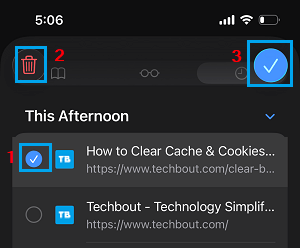
Note: You can also drag the item that you want to delete to the left and select the Delete option.
4. Tap on the OK Icon to close the screen.
3. Clear All Safari Browsing History from Mac
You can follow the steps below to clear all your Safari browsing and search history on MacBook.
1. Open the Safari Browser on your Mac.
2. Click on Safari tab in the top menu bar and select Clear History… option in the drop-down menu.
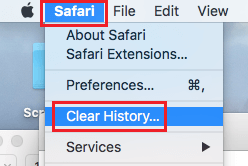
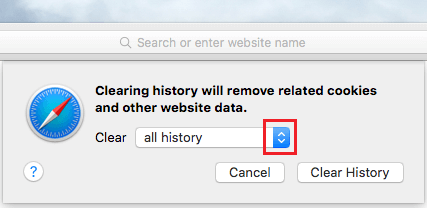
3. On the pop-up, click on the Arrow button and select All history option.
4. Once All History option is selected, click on Clear History button.
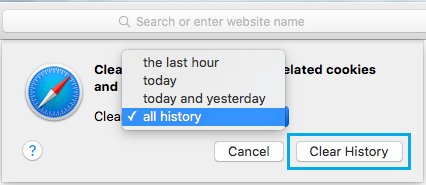
This will permanently delete your entire browsing history from the Safari browser on your MacBook.
4. Remove Selected Safari Browsing History from Mac
You can also delete individual websites or webpages from your browsing history on Mac.
1. Open the Safari Browser on your Mac.
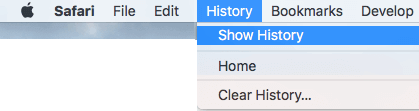
2. Click on the History tab in the top menu bar and select Show History in the drop-down menu.
3. On the next screen, right-click on the webpage that you want to remove and click on Remove in the drop-down menu.
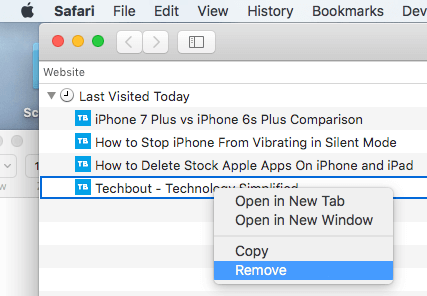
Alternatively, you can also select any entry/entries in the list and press the Delete key on the keyboard of your Mac.
Tip: To delete multiple webpages, select items by holding down the Shift Key. Once the items are selected, hit the delete key on the Keyboard of your MacBook.
5. Automatically Clear Safari Browsing History on Mac
You can set the Safari browser on Mac to automatically clear browsing history after a Day, Week, Month or Year.
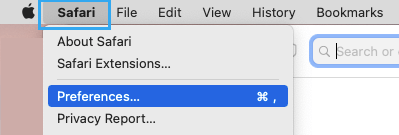
1. Open Safari Browser > click on Safari tab in top-menu bar and select Preferences in the drop-down menu.
2. On Safari Preferences screen, switch to General tab, click on Remove History Items down-arrow and select your desired option (After one day, After one week …).
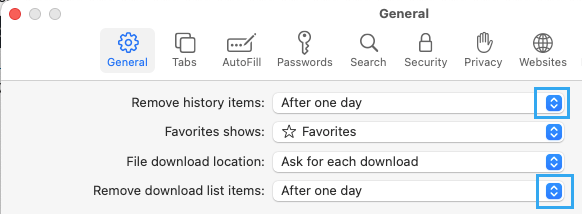
3. On the same screen, click on Remove Downloaded list items down arrow and select your desired option (After one day, when Safari Quits or Upon Successful Download)
In case you are concerned, only the list of downloaded items will be removed from Safari browsing history. All your downloaded Items will remain untouched on your Mac.