While the default setting in macOS is to save Screenshots to Desktop, you can change the Screenshot Save Location on your MacBook to “Downloads” folder or to a dedicated Folder located on the Desktop. This can useful, if you frequently take screenshots and want to prevent the Desktop from being cluttered with screenshots.
This can be done by going to the Options tab of the Screenshot App on your MacBook and selecting from the following available options.
- Desktop: This is the default option that saves screenshots to the Desktop of your MacBook.
- Documents, : Saves Screenshots to Documents Folder.
- Downloads: Saves Screenshots to the Downloads Folder.
- Clipboard: Saves Screenshots to the clipboard, which allows you to paste Screenshots into other Apps.
- Mail: Automatically opens a New Email with the Screenshot attached.
- Preview: Opens the Screenshot in Preview App, which allows you to edit the Screenshot, before saving it to your Mac.
- Messages: Automatically opens a New Message, allowing you to send the Screenshot right away to any of your Contacts.
- Other Location: Allows you to save Screenshots to New Folder or any other location on your MacBook.
Once you select Downloads, Documents or Other (New Folder), your MacBook will remember the new setting and start saving Screenshots to your selected Location.
Change Screenshot Save Location on Mac
You can find below the steps to change the Screenshot Save Location on your MacBook by using Screenshot App and also by using the Terminal App.
1. Change Screenshot Save Location Using Screenshot App
As mentioned above, the easiest way to change the default screenshot save location on your MacBook is by using the Options menu as available within the Screenshot App.
1. Press Command + Shift + 5 keys to open the Screenshot App on your MacBook.
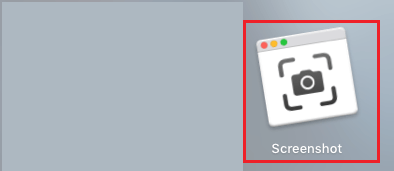
Note: You can also open Screenshots Tool by going to Launchpad > Others Folder and clicking on Screenshot icon.
2. Once the Screenshot tool becomes available, click on Options and select your preferred location (Downloads, Documents or Other Location) as the New Location for Screenshots on your MacBook.
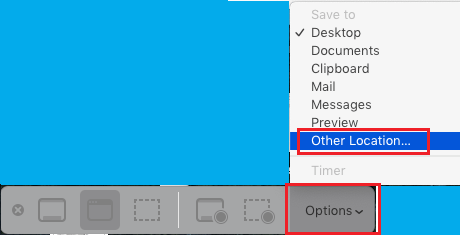
3. If you select Downloads, the Screenshots will be saved to the “Downloads” folder on your Mac. If you select Other Location, you will be prompted to select a specific Folder or Location, where you want to save the Screenshot.
2. Change Screenshot Save Location Using Terminal
Another way to change the screenshot save location on Mac is by using the Terminal.
1. Open the Finder on your MacBook.
2. From the Finder screen, go to Applications > Utilities and click on the Terminal.app.
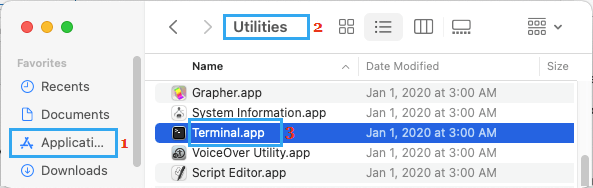
Note: You can also press Command + Spacebar to open Spotlight Search > type Terminal in Spotlight Search and click on the Top Hit suggestion Terminal to open the Terminal Window.
3. Type defaults write com.apple.screencapture location /Users/Username/Downloads/ and press the Enter key.

3. Next, type killall SystemUIServer and press the Enter key.
This will change the screenshot save location to the Downloads Folder on your MacBook.
3. Save Screenshots to New Folder Folder on Mac
You can create a New Folder > name the New Folder as “Screenshots” and save the screenshots to this New Folder Folder on your computer.
1. Open the Finder on your Mac.
2. From the Finder screen, navigate to Applications > Utilities and click on the Terminal.app.
3. Type defaults write com.apple.screencapture location /Users/Username/desktop/Screenshots/ and press the Enter Key.

4. Next, type killall SystemUIServer and press the Enter key.
This will change the default screenshot location on Mac to the New Screenshots Folder that you just created on your Mac.