When you Setup a new computer, it will be setup with the default Desktop Background as applicable for the version of Windows operating system installed on the computer.
While the default Desktop background or wallpaper is usually good to look at, Windows operating system also provides the option to change the Desktop background.
Depending on your preference, you can customize the Desktop Background on your computer by using photos of children, pets, nature or keep it simple by using solid color background.
Change Desktop Background in Windows 11/10
If you are looking for a way to personalize your device by changing its desktop background, you can find below the steps to change the Desktop Background to Solid Color and use Photos and Slideshow as the Desktop background on your computer.
Related: How to Delete Desktop Background Images in Windows.
1. Change Desktop Background on Windows Computer
You can follow the steps below to change the Desktop Background on your computer.
1. Right-click in any empty space on the Desktop and click on Personalize.
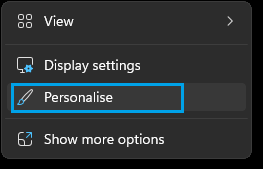
2. On the Personalization screen, click on the Background tab.
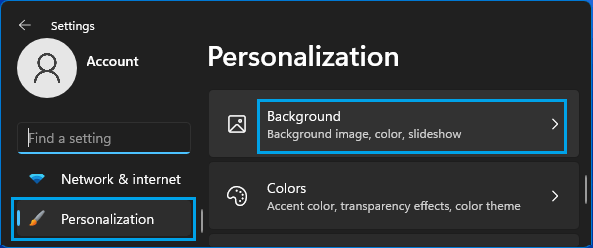
3. On the Background screen, click on the Down-Arrow in “Personalize your Background” section and select Picture, Solid Color or Slideshow as the type of Desktop background on your computer.
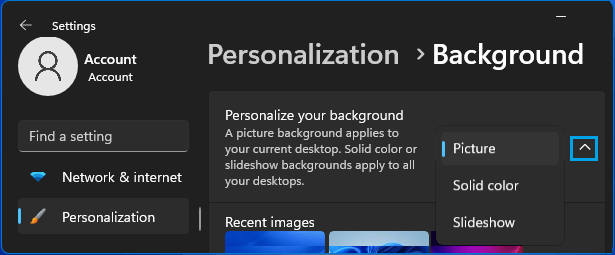
Here it is worth mentioning that selecting Picture will only change the current Desktop Background, while selecting Solid Color and Slideshow will apply to multiple desktops (Current and virtual desktops).
2. Use Photo as Desktop Background
You can select any photo located on the computer and set it as the Desktop Background on your computer.
1. Right-click in Empty space on the Desktop and click on Personalize.
2. On the next screen, click on the Down-Arrow in “Personalize your background” section and select Picture as the background type. Once that is done, click on Browse Photos option.
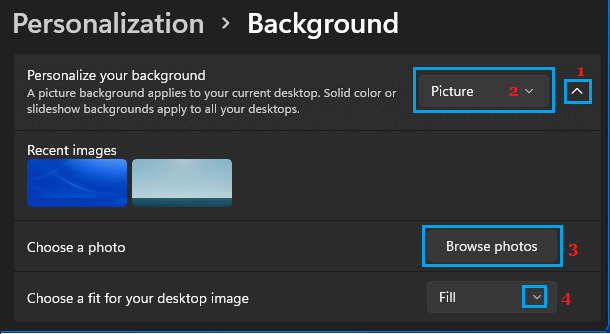
Note: You may have to expand Personalize your background tab, by clicking on the Down Arrow to access Browse photos option.
3. On the next screen, select the Photo that you want to set as the Desktop background on your computer.
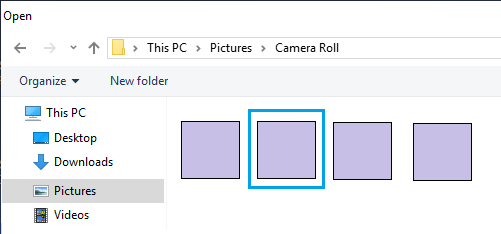
After selecting the Background Photo, you can set the selected photo to Fill, Fit, Center, Stretch and other available options by clicking on the Down-Arrow in Choose a fit for your desktop image section.
- Fill: The desktop background image will fill the desktop (image may enlarge or reduce in size)
- Fit: The image will be the same size
- Tile: The image will repeat to fill the entire desktop
- Stretch: Similar to fill, the image will stretch to fit the desktop
- Center: The image will be placed in the middle of the desktop
- Span: The image will span across the desktop
You can try all the options to fully understand them and choose the one that suits you the best.
3. Switch Desktop Background to Solid Color
Switching the Desktop background to solid color can reduce the amount of resources being used by your device.
1. Right-click on the Desktop (empty space) and click on Personalize.
2. On the next screen, click on the Down-Arrow in “Personalize your background” section and select Solid Color as the background
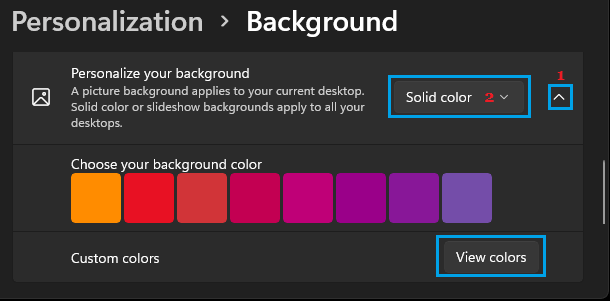
After setting Solid Color as the Background type, select any of the 24 colors as available under “Choose your Background Color” section or click on View Colors option to create your own custom color on the next screen.
Note: Using Solid Color as Desktop background leads to less resource usage on the computer and makes the Desktop icons prominent and easy to find.
4. Use Slideshow as Desktop Background
Instead of displaying the same or stationary Desktop picture, you can make the computer to keep changing its background by selecting Slideshow as the Desktop Background on your computer.
1. Right-click on the Desktop (empty space) and click on Personalize.
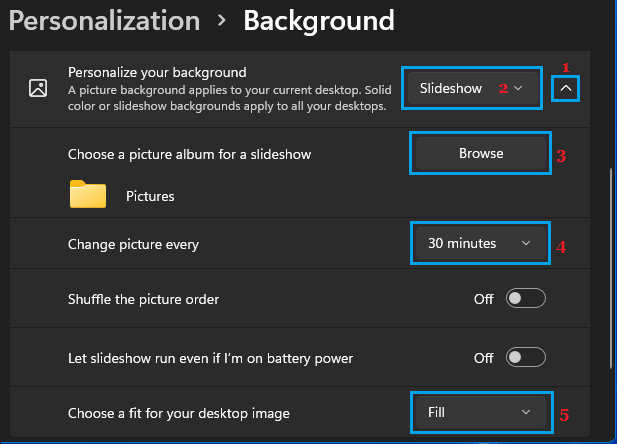
2. On the next screen, click on the Down-Arrow in “Personalize your background” section and select Slideshow as the background type and then click on the Browse option in “Choose a picture album for a slideshow” section.
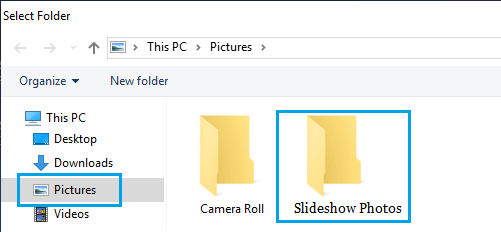
3. On the next screen, select the Folder containing Photos that you want to include in the slideshow.
After selecting the Photo Album, you can set the Photo change frequency for the Slideshow by selecting your desired time period under Change picture every section.
You can also select whether you want the Picture to Fit, Fill, Stretch and other available options in Choose a fir for your desktop image section.