In general, people find the need to check if an iPhone or Android phone is a locked or unlocked device; while travelling abroad, switching carriers and when they are buying a used device.
The clear advantage of owning an unlocked phone is that it can be used on the network of any carrier or service provider; which gives you the freedom to switch carriers, use prepaid SIMs and use temporary or Burner SIMs while travelling abroad.
While Locked phones are often available at attractive discounted rates, they usually end up costing more in the long run; as they are sold along with mobile service plan with a lock-in period of 18 to 24 months.
Depending on the carrier, a locked device either gets automatically unlocked after the end of lock-in period or needs to unlocked by making a request to the customer service of the carrier and paying a fee to unlock the device.
Check If iPhone or Android Phone is Unlocked
An easy way to find if an iPhone or Android phone is Locked or Unlocked is by checking whether it can make calls when a SIM Card from another carrier or mobile service provider is used.
If you do not have an active SIM Card from another service provide, you can find if your iPhone or Android phone is a locked or an unlocked device by using other methods as provided below in this guide.
1. Check If Phone Is Locked or Unlocked Using Settings
You can get a general indication of whether your iPhone or Android phone is a locked or an unlocked device by using the Settings App.
iPhone: Go to Settings > General > About > scroll down and check the entry next to Carrier Lock.
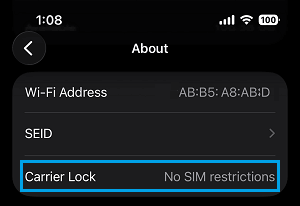
If the entry next to Carrier Lock reads “No SIM Restrictions“, the iPhone is unlocked. If the iPhone is locked to a carrier, the entry next to the “Carrier Lock” entry will read “SIM Locked“.
Android Phone: Go to Settings > Network & Internet (or Connections) > Mobile Networks > Network Operators.
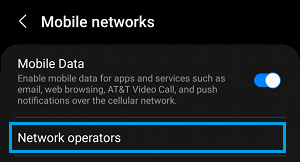
On Network Operators screen, disable Select Automatically option and this will make network operators to appear on this screen.
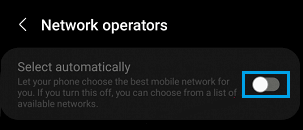
If multiple carriers appear on Network Operators screen, the Android phone is likely to be an unlocked device.
2. Check If Phone is Unlocked By Using SIM Card
The most reliable way to check if an iPhone or Android phone is unlocked or locked to a single carrier is by using SIM card from another service provider.
1. Power OFF the phone.
2. Remove its current SIM card and Insert SIM card from another service provider into the phone.
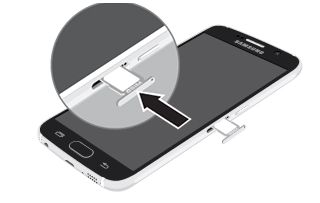
3. After replacing the SIM, press the Power button to start the phone.
4. After the Phone starts, see if you can make a Phone Call.
If the Call goes through, even after changing the SIM Card, the iPhone or Android phone that you are trying to buy is an Unlocked Device and it can work with any mobile service provider.
If the Call does not connect after changing the SIM Card, it confirms that the phone that you are trying to buy is Locked to a Carrier.
3. Check If Phone is Unlocked By Using IMEI Number
If you do not want to go through the process of changing SIM Cards, you can find if a particular iPhone or Android phone is locked or unlocked by entering IMEI Number of the phone on websites that can provide this information.
You can find the IMEI number of both iPhones or Android phones by dialing *#06# (Star-Hash-06-Hash). If you are buying a used phone, you can ask the seller to provide this information.
1. Get IMEI Number of the phone by dialing *#06# or by calling the seller (most genuine sellers should have no problem providing the IMEI Number to you).
2. Once the IMEI Number is received, go to imei.info website on your phone or computer.
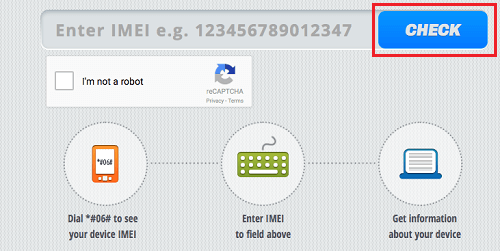
3. On the website, enter the 15 digit IMEI Number of the Android Phone into the dialog box as shown below and click on the Check button.
4. On the next screen, you will be able to see information about the phone that belongs to the IMEI Number that you had just entered. Click on SIMLOCK & WARRANTY button.
5. Once the process is completed, you will get information about the network to which the phone belongs to and whether it is an Unlocked phone or a Locked phone.
After IMEI check, the website also offers unlocking service for a fee in case your iPhone or Android Phone is locked.