The default setting in Google Chrome and most other web browsers is to maintain an accurate record or history of all the websites and web pages that you visit on your computer.
While this feature can help you find previously visited websites, it can also allow anyone with access to your device to take a look at the websites that you visit and monitor your browsing activity.
Hence, Google Chrome browser provides full control over your browsing history and makes it really easy to access, view and delete all or selected portions of your browsing history.
Related: How to Automatically Clear History in Google Chrome.
Clear Browsing History in Google Chrome
All that is required to clear your browsing history in Google Chrome on both computers and mobile devices is to open the web browser, go to the Settings Menu and access the option to delete browsing data.
On Delete Browsing Data screen, you will find the options to clear your browsing history from Last 15 minutes, Last Hour, Last 24 Hours and All Time.
In addition to this, you can also delete selected or specific portions of your browsing history by using the second and third methods as provided below in this guide.
1. Delete All Browsing History in Google Chrome
If you are using Windows computer or Mac, you can follow the steps below to clear your browsing history in Google Chrome.
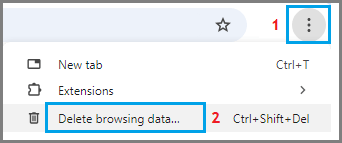
1. Open Google Chrome > click on 3-dots menu icon > select Delete Browsing Data option in the drop-down menu.
2. On the next screen, select All Time as the “Time Range”, check Browsing History, Cookies, Cached Images and click on Clear Data button.
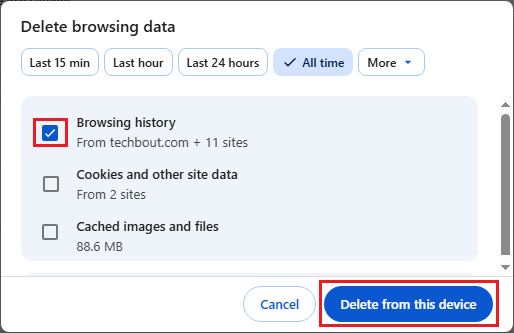
This will clear all the browsing history from your computer.
2. Remove Selected Browsing History in Chrome
As mentioned above, Google Chrome also provides the option to delete selected or specific portions of your browsing history.
1. Open Google Chrome > click on 3-dots icon > hoover mouse over History and click on History in the side-menu.
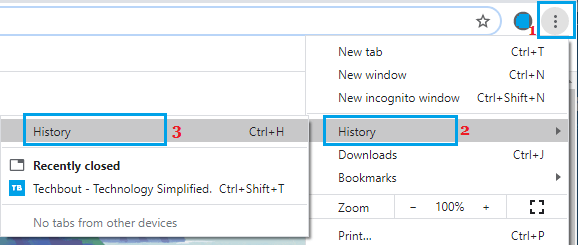
Note: You can also press Ctrl + H keys to directly go to your browsing history screen.
2. On the next screen, select the browsing records that you want to remove from your browsing history and click on the Delete button.
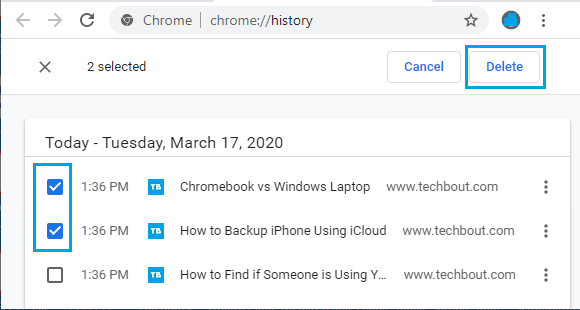
3. On the confirmation pop-up, tap on Remove to Confirm.
3. Quick Way to Delete Multiple Items in Chrome History
If you want to delete multiple items from browsing history, you can make use of the following keyboard shortcut to quickly select multiple browsing history items for deletion.
1. Open Google Chrome > Press Ctrl + H keys to open Chrome History screen.
2. On the next screen, select the First item (1) that you want to remove from browsing history.
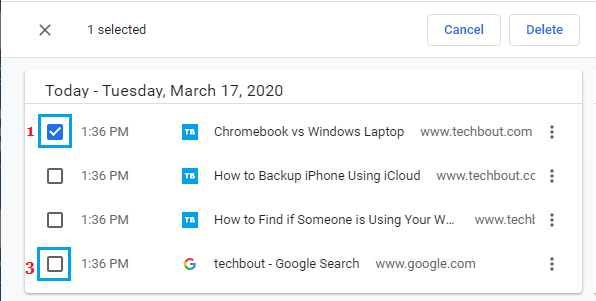
3. Scroll down to the Last Item > press and hold the Shift Key and click in the check box next to the Last item (3) that you want to delete.
This keyboard shortcut will select all browsing history items between the First and the Last item. Once the items are selected, you can click on the Delete button.
4. Clear Chrome Browsing History on Mobile Devices
The steps to clear Chrome browsing history on iPhone, Android phone and tablets are practically the same as clearing Chrome browsing history on a Laptop or Desktop computer.
1. Open the Chrome App on your mobile device (iPhone in this case).
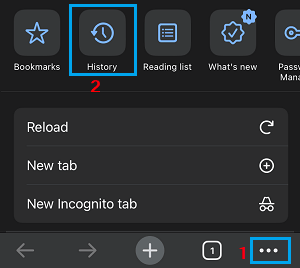
2. On the browser screen, tap on 3-dots icon (bottom-menu in case of iPhone) and select the History tab in the menu that appears.
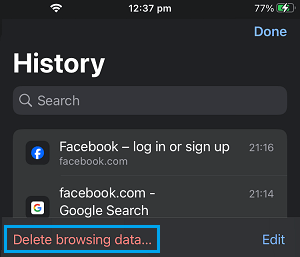
3. On the next screen, tap on Delete Browsing Data… option.
4. On Delete Browsing Data screen, select All Time as the Time Range and tap on Delete Data.
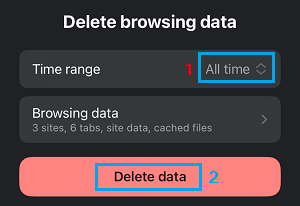
This will clear all your Browsing History and other website data stored by Google Chrome browser on your iPhone.
5. Clear Selected Browsing History on Mobile Devices
Similar to computer, you can can clear specific or selected portions of your Chrome browsing history on iPhone & Android phones.
1. Open Chrome App > tap on 3-dots Icon and select the History Tab in the menu that appears.
2. On the History screen, tap on the Edit option.
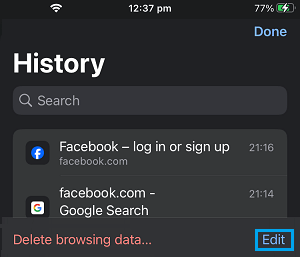
3. On the next screen, select the parts of browsing history that you want to delete.
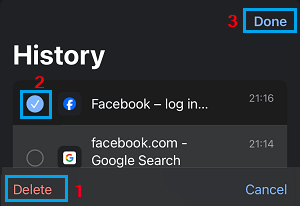
4. Once you are done with the selection, tap on the Delete button and tap on Done to close the screen.