If you are looking for a way to change the brightness level of the screen of your computer, it is likely that the current brightness level of the screen is set to a low or high level and it is not matching your visual requirements.
Another common reason for the need to change or adjust the brightness level of the screen is to match the surrounding lighting conditions in which the computer is located.
The brightness level of the screen has a direct impact on the Battery life of the computer, which means you can significantly increase the battery life of the computer by reducing the brightness of its screen.
Note: The brightness of the screen is not the same as its Display Resolution.
Change Screen Brightness in Windows 11/10
The option to change the Brightness Level of the screen on a Windows computer is available on the “Display Settings” screen, which can be accessed by using multiple methods as provided below in this guide.
Once you are able to access the “Display Setting” screen, you should find it really easy to adjust the brightness level of the screen to suit your visual requirements and surroundings.
1. Change Screen Brightness Using Right-click Menu
An easy way to access “Display Settings” screen, which provides the option to change screen brightness is by right-clicking on the desktop,
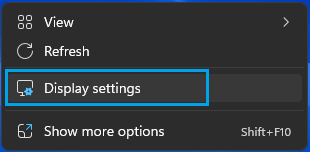
1. Right-click in any empty space on screen of your computer and click on Display Settings.
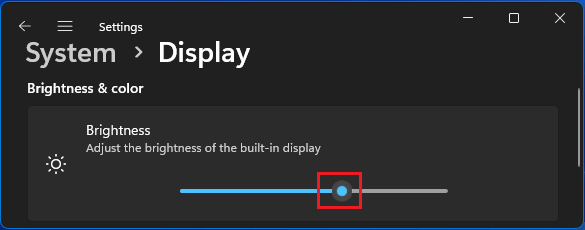
2. On Display Settings screen, you can increase the brightness of the screen by dragging Brightness Circle to the right and decrease screen brightness by dragging the Circle to left.
2. Change Screen Brightness Using Quick Settings
Another easy way to change the brightness of screen on a Windows computer is by accessing the Quick Settings menu.
1. Click on Quick Settings button (Wi-Fi/Speaker/Battery Icon) located at bottom right-corner in the taskbar.
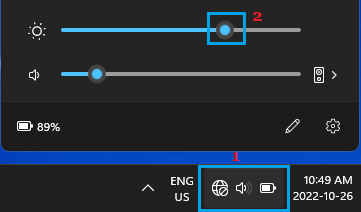
2. On Quick Settings screen, you can increase the brightness level of the screen by dragging the Circle on brightness slider to right and decrease screen brightness by dragging the Circle to the left.
When you are happy with the level of brightness, you can quit Quick Settings screen by clicking on Quick Settings button or by clicking anywhere outside Quick Settings screen.
3. Change Screen Brightness Using Action Center
You can also increase or decrease the brightness of screen on your computer by going to Action Center.
1. Click on Action & Notification icon located in the taskbar (bottom right corner).
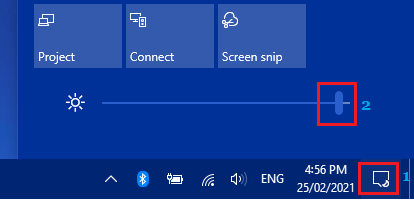
2. Use the brightness control toggle in Action Center to adjust the brightness of screen on your computer.
You will see the brightness of screen increasing when you move the slider to Right and decreasing when the Slider is moved to the Left.
4. Change Brightness using Mobility Center
Another way to change the brightness level of the screen on Windows computer is to by going to Windows Mobility Center.
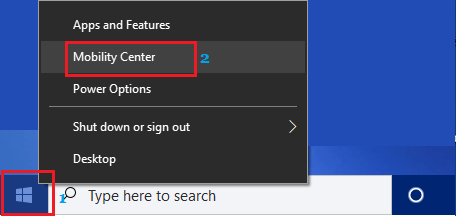
1. Right-click on Start button and click on Mobility Center.
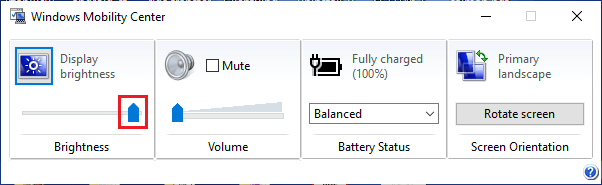
2. On Mobility Center screen, you can change the screen brightness by dragging the Brightness bar to your desired brightness level.
5. Change Screen Brightness Using Keyboard
You can also change Screen Brightness by using Fn, F11 and F12 keys.
1. If you are using a Laptop with built-in display, locate the Function Key (F1 ~ F12) with Brightness icon.
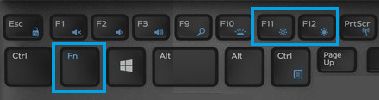
2. Once, you locate the Brightness key, you can quickly change the brightness of screen by pressing Fn + the Brightness key.
6. Change Screen Brightness Using Settings
You can also make use the the Settings App to change the brightness of the screen on a Windows computer.
1. Click on Start button > Settings Icon.
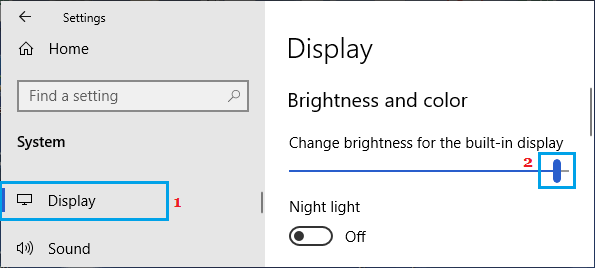
2. On the Settings screen, select the System tab in left-pane and click on Display in the right-pane.
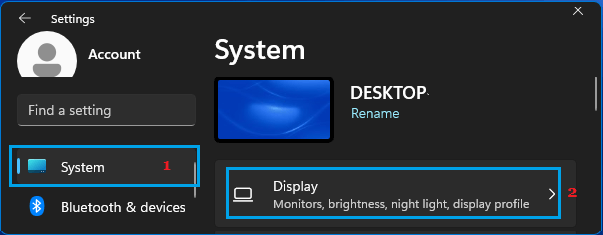
3. On Display Settings screen, you can increase or decrease the brightness of screen by dragging the Circle on Brightness bar to right and left.
Windows 10: Go to Settings > System > Display > Use the Brightness bar to change brightness level on your computer.
What to Do If Brightness Slider Is Greyed Out?
The Brightness Slider in Quick Settings Menu is only available on Windows Laptops and Tablets. If you are using a Desktop computer with an external monitor, the brightness slider will be unavailable or Greyed Out.
In such cases, you will have to use the Monitor’s physical controls to increase or decrease the brightness of the Monitor.