You may find the need to Delete and Reinstall WhatsApp on your iPhone or Android phone, if the current installation of WhatsApp is not working properly and appears to be corrupted or broken.
However, the most common reason for deleting and reinstalling WhatsApp is to Restore WhatsApp from a Backup stored on iCloud, Google Drive or on Local storage of the device.
In both cases, you will be looking for a way to remove and reinstall WhatsApp
Reinstall WhatsApp Without Losing Messages
Since, the goal is to Reinstall WhatsApp without losing any of your messages, the first step is to Back up WhatsApp to iCloud (in case of iPhone) and to Google Drive or Local Storage (in case of Android phone).
After making a Backup of all your WhatsApp messages and photos, you can safely remove the current installation of WhatsApp from your iPhone or Android phone and Reinstall the latest version of WhatsApp.
1. Delete & Reinstall WhatsApp on iPhone & Android
For the sake of clarity, the steps to delete and reinstall WhatsApp on your iPhone or Android phones can be divided into the following 3 steps.
Step 1: Manually Backup WhatsApp
Even if your iPhone is set to automatically backup WhatsApp to iCloud, it is still recommended that you make a manual backup of all your WhatsApp message & photos to iCloud.
If you are using an Android phone, you can make a manual backup of all your WhatsApp messages and photos by using steps as provided in this guide: How to Backup WhatsApp Locally on Android Phone.
Step 2: Delete Current Installation of WhatsApp
1. On both iPhone and Android, you can delete WhatsApp by long pressing (Tap and Hold) on WhatsApp icon and selecting the Delete App option that becomes available.
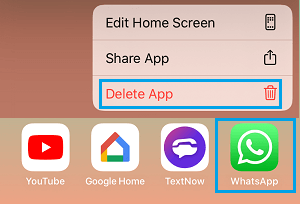
2. On the confirmation pop-up, select the Delete option to confirm.
Step 3: Download & Install the Latest Version of WhatsApp
After the current installation of WhatsApp is deleted, the next step is download & install the latest available version of WhatsApp on your mobile device.
1. Open the App Store on your iPhone or Google Play Store if you are using an Android phone.
2. Search for WhatsApp and download the latest available version of WhatsApp on your phone.
3. After the download process is completed > open WhatsApp > tap on Agree & Continue to agree to WhatsApp Terms of Service.
5. On the next screen, select Country, enter the Phone Number associated with your WhatsApp Account and tap on Next.
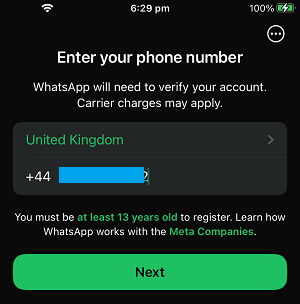
6. WhatsApp will now send a verification code to your phone number > Enter the Verification code to verify your phone number.
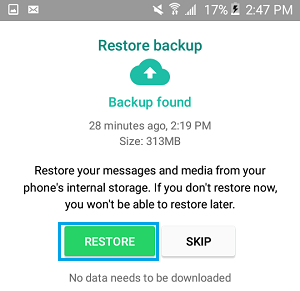
8. Once your phone number is verified, WhatsApp should automatically select the available Backup and prompt you to Restore. Tap on the Restore button to begin the restore process.
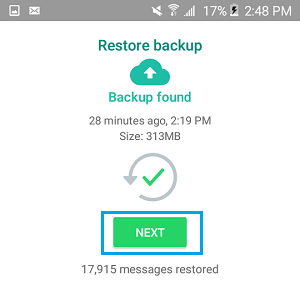
9. Wait for the Restore Process to be completed > Tap on Next when you see the blue check mark.
10. You can follow the steps to complete your profile information or do it later.
That will be it! – You have successfully managed to delete and reinstall WhatsApp back on your iPhone or Android phone, without losing any of your messages.