If an Android phone is coming up with a notification reading “Apps running in background” or “‘Apps using battery”, the initial response of most users would be to dismiss the notification; considering the fact that it is normal to have certain apps running in background and consuming battery life.
However, “App using Battery” is a persistent type of notification; which has been designed to remain active and visible on the screen. Hence, many users are looking for a way to disable this notification.
“Apps Using Battery” Notification on Android Phone
Most social media apps are designed to continue running in background, even when they are not actively being used; which drains battery life and uses up resources. Hence, Google came up with “Apps using battery” notification to inform users about background running apps on their Android devices.
The reason for “Apps Using Battery” notification being designed as a persistent type of notification is to make sure that users are informed about apps that are using battery life on their mobile devices and take the required action.
1. Disable “Apps Using Battery” Notification on Android Phone
You can follow the steps below to disable “Apps using Battery” notification on your Android phone or Tablet.
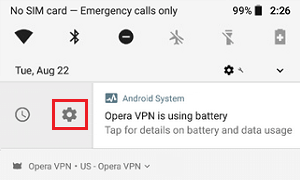
1. When you see “App using battery” notification on your Android phone, swipe-right on the notification and tap on the Gear icon in the slide-over menu that appears.
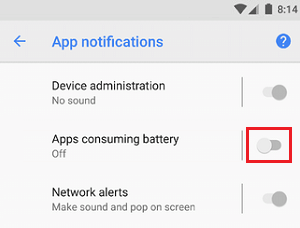
2. On the next screen, disable “Apps consuming battery” option by moving the slider to OFF position.
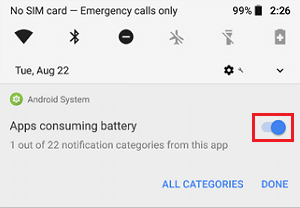
Note: This will disable Notifications for all the Apps on your Android phone.
2. Disable “Apps Using Battery” Notification Using Settings
You can disable “App is Using Battery” notification by using the Settings App on your Android phone.
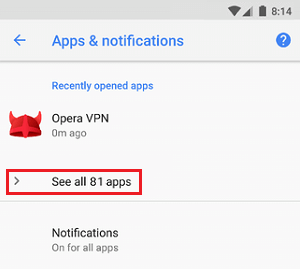
1. Go to Settings > Apps & Notifications > tap on See all apps option
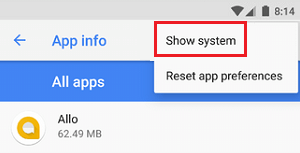
2. On the “App info” screen, tap on 3-dot icon (top-right corner) and select Show system option in the drop-down menu.
3. Next, tap on Android System from the list of apps and services.
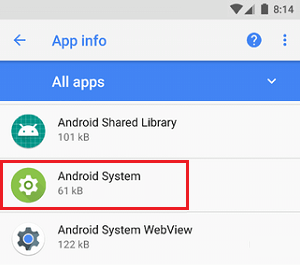
4. Next, tap on App Notifications and toggle off Apps consuming battery option.
3. Disable “App is Running in Background” Notification on Android Phone
If you are running Android 8.0 and later, you may see “App is Running in Background” Notification and there is no option in the “Settings App” to disable this notification.
In this case, you can make use of certain third-party apps; which have been designed to remove “App is Running in Background” notification.
1. Open Google Play Store > download and Install “Hide Running in the background Notification” app.
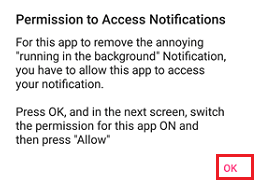
2. Once the app is installed, provide the App with Permission to Access Notifications screen by tapping on Ok
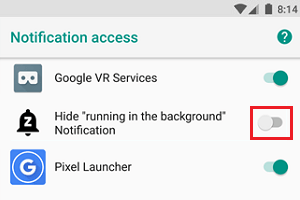
3. On the next screen, move the slider next to Hide “running in the background” Notification to ON position.
4. On the pop-up, tap on the Allow option.
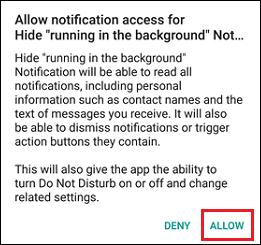
From now on, the App will start hiding “Running in the background” notifications on your Android phone.