While you can make use of both Soft and Hard Reset to fix problems on Kindle or Amazon Fire Tablet, they have their own unique effects on the device.
For example, Soft Reset is used to reset the Network and App settings on an Android phone or tablet back to its their original or default settings, without deleting any data stored on the device.
In the case of a Hard Reset, all the data stored on the Fire Tablet will be erased and it will go back to its original Factory Default condition or the way it was when you first bought it.
Soft and Hard Reset Kindle Fire Tablet
Based on above understanding, Soft Reset can be used to fix problems caused due to change in Network and App Settings and Hard Reset can be used to fix problems caused by damaged or corrupted system files.
1. Soft Reset Kindle Fire Tablet
If the problem on your Fire Tablet appears to be related to change in Settings, you can follow the steps below to Soft Reset your Fire Tablet.
1. Press and hold the Power and Volume down buttons at the same time on your Kindle Fire Tablet, until it starts to Power OFF.
2. Release the Power and Volume down buttons once Kindle Fire is completely powered OFF.
3. After 30 seconds, Power ON the Kindle Fire tablet by pressing the Power button.
2. Soft Reset Fire HD & HDX Tablets
The steps to Soft Reset Kindle HD and HDX (First to Fourth Generation) devices are a bit different.
1. Press and hold the power button on your Kindle Fire for about 20 seconds (Ignore any prompts that you may see on your screen)
2. After Kindle Fire is completely Powered OFF, wait for about 30 seconds.
3. Power ON the Kindle Fire Tablet by pressing the power button.
3. Hard Reset Fire Tablet
If the problem on your Kindle Fire tablet is not fixed by Soft Reset and other troubleshooting steps, you can Hard Reset Kindle Fire using the following steps.
Note: Before performing a Hard Reset, it is recommended that you make a backup of the data on your device, in order to prevent the possibility of data loss.
Also, make sure that your device is charged to at-least 50%, before going ahead with the steps to Hard Reset Kindle Fire Tablet.
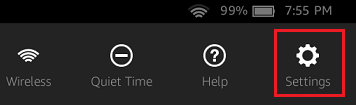
1. Swipe down from top of the screen on your Kindle Fire Tablet and tap on the Settings tab.
2. On the Settings screen, tap on Device Options
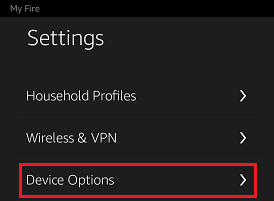
Note: You may be required to tap on More and then tap on Device option.
3. On the Device Options screen, tap on Reset to Factory Defaults option.

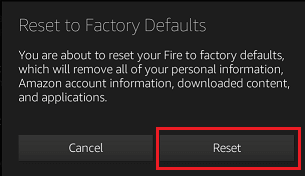
4. On the pop-up, tap on the Reset option to confirm that you do want to Hard Reset your Kindle Fire Tablet.
5. Patiently wait for the Reset process to be completed and make sure that you do not interrupt the Reset process in any way.
4. Hard Reset Fire Tablet Without Password
If you do not remember the Lock Screen Password, you won’t be able access the Settings screen on your Kindle Fire Tablet. In such cases, you should still be able to perform a Hard Reset by following the steps below.
1. Switch OFF your Kindle Fire Tablet by using the Power button.
2. After your device is powered off > press & hold Power + Volume down buttons, until you see Amazon Logo appearing on the screen of your Kindle Fire Tablet.
Note: If Power + Volume Down combination does not work, try Power + Volume Up buttons.
3. Release Power + Volume Down buttons, once the Amazon Logo appears.
4. After a few seconds, you should find Amazon System Recovery Screen appearing on your device.
5. On Amazon Recovery screen, use the Volume buttons to navigate and select Wipe Data and Factory Reset option.
6. Once, the Factory Reset option is selected, press the Power button to Hard Reset your Kindle Fire Tablet.
Patiently wait for the Hard Reset process to be completed and make sure that you do not interrupt the Reset process in any way.