While Windows computers come with Windows Defender enabled by default, they also provide the option to disable Windows Defender Antivirus protection, if required for troubleshooting and other purposes.
This can be done by switching off the “Real-Time Protection” feature in Windows Security program, which disables Windows Defender Antivirus protection for a short period of time and automatically enables it back again.
This ensures that your computer remains unprotected only for a short period of time and it returns back to its default Antivirus protection mode.
Disable Windows Defender Antivirus Protection
You can find below the steps to temporarily Disable Windows Defender Antivirus protection and also the steps to permanently disable Windows Defender on your Windows computer.
Permanently Disabling Windows Defender can make the computer vulnerable to malware and viruses. Hence, it is justified only as a temporary measure to fix problems or install a trusted third-party antivirus program.
1. Temporarily Disable Windows Defender Antivirus Protection
As mentioned above, the recommended way to disable Windows Defender Antivirus protection is by switching off the Real-Time Protection feature.
1. Type Windows Security in the Windows search bar > click on Windows Security System Settings in the search results.
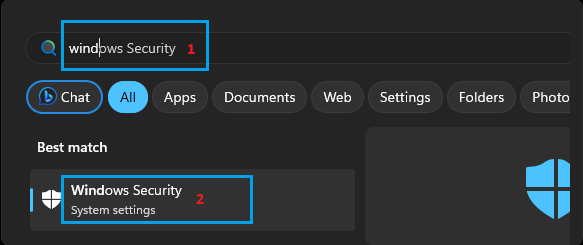
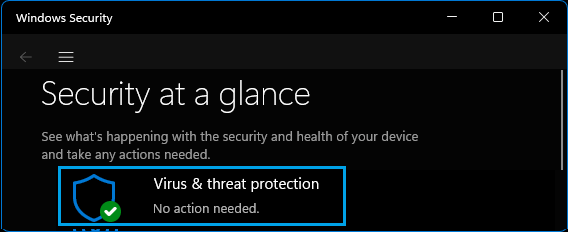
2. On the Windows Security screen, click on Virus & Threat Protection.
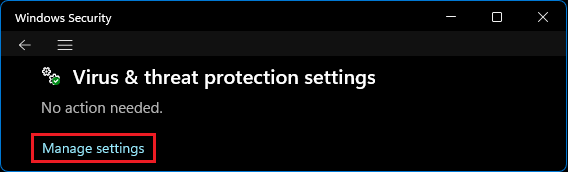
3. On the next screen, click on Manage Settings Link, located under “Virus & threat protection settings”.
4. On the next screen, turn OFF Real-Time Protection, Cloud Delivered Protection and Automatic Sample Submission.
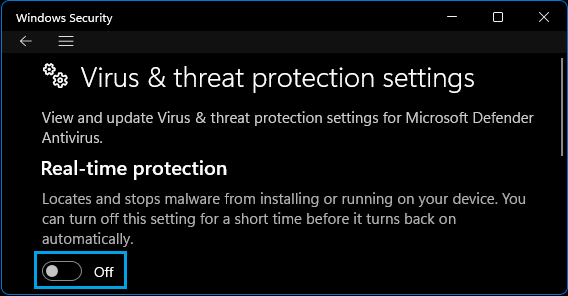
Note: This method disables Windows Defender for a temporary period of time. Your computer will automatically switch ON Real Time protection, after a certain period of time.
2. Permanently Disable Windows Defender Using Registry Editor
The only way to permanently disable Windows Defender in both Windows 10 and Windows 11 computers is by using Registry Editor.
Before going ahead with these steps it is recommended that you create a system restore point or Backup Registry Files on your computer.
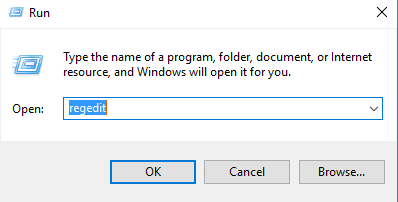
1. Open Run Command > type Regedit and click on OK.
2. On the Registry Editor Screen, navigate to HKEY_LOCAL_MACHINE\SOFTWARE\Policies\Microsoft\Windows Defender. In the right-pane, double-click on DisableAntiSpyware and change its Value Data from 0 to 1.
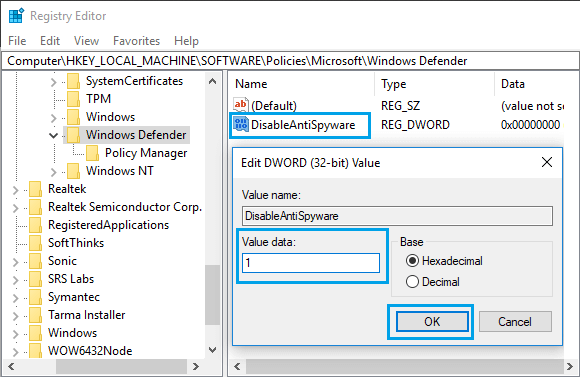
This will permanently disable Windows Defender Antivirus protection on your computer.
At any time, you can enable Windows Defender back on your computer by changing DisableAntiSpyware data value from 1 to 0.
Cannot Find DisableAntiSpyware
If you do not find DWORD named “DisableAntiSpyware”, you can create a New DWORD and name the DWORD as “DisableAntiSpyware”.
1. Right-click on an empty area in the right-pane > select New and click on DWORD (32-bit) Value.
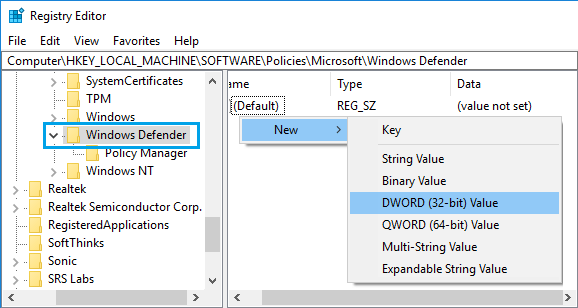
2. Name the new Key as DisableAntiSpyware and Enter 1 in the Value Data field.
Note: It is not recommended to permanently disable Microsoft Defender, unless a third-party Antivirus program is protecting your computer.