If required, you can enable “Do Not Disturb” only for certain selected or specific Contacts on iPhone, instead of allowing the “DND” mode to block calls and messages from everyone.
This can be done by adding only those selected Contacts to Do Not Disturb mode, which will result in call and message alerts from these selected individual Contacts being silenced, whenever your iPhone is in “Do Not Disturb” mode.
As you may agree, this unconventional use of “Do Not Disturb” mode is suitable; only if the purpose is to prevent someone or certain Contacts from bothering you with calls/messages for a certain period of time.
A more practical use of “Do Not Disturb” mode is to allow someone or certain specific Contacts to bypass “Do Not Disturb” mode, which allows only this person or selected Contacts to call/message you during “DND” period.
Enable Do Not Disturb For Specific Contacts on iPhone
You can find below the steps to configure the “Do Not Disturb” mode to silence calls and messages from specific or certain selected Contacts on your iPhone.
The good thing about this setup is that call and message notifications from these blocked Contacts will still be available in the Notification Center of iPhone, which allows you to check them and call back (if required).
1. Enable “Do Not Disturb” For Selected Contacts on iPhone
You can follow the steps below to enable “Do Not Disturb” for specific individual Contacts on iPhone.
1. Go to Settings > Focus > Do Not Disturb > select the People tab.
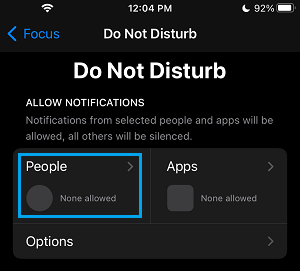
2. On the next screen, select Silence Notifications from option and tap on the Add People icon.
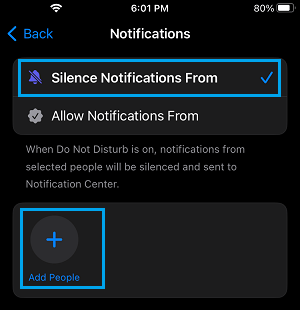
3. On the next screen, select the Contacts that you want to Silence Notifications from.
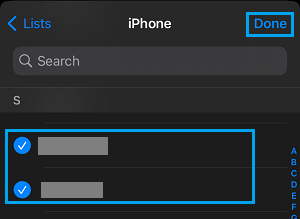
4. Make sure that you tap on Done to save this setting on your iPhone.
After this, the Contacts that you added to “DND” mode won’t be able to Message or Call you, whenever your device is placed in “Do Not Disturb” mode.
2. Remove Contacts from “Do Not Disturb” Mode on iPhone
At any time, you can remove any of the Contacts that you had added to “Do Not Disturb” mode by following the steps below.
1. Go to Settings > Focus > Do Not Disturb and tap on the People tab.
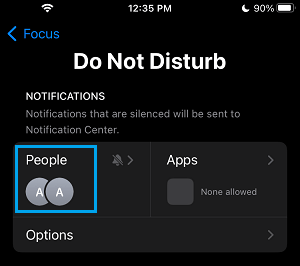
2. On the next screen, tap on the minus icon located above the Contact that you want to remove from “Do Not Disturb” block on your iPhone.
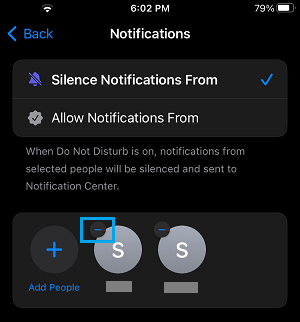
Once you tap on the minus icon, the Contact will be removed from the “Do Not Disturb” mode block on your iPhone.