When iPhone is placed in Do Not Disturb Mode, it generally blocks all calls and messages, which helps you avoid distractions and focus on your work. However, there are times when you may want to allow someone to call or message you, even during your scheduled “Do Not Disturb” period.
The reason for this could be to allow someone in the family to always remain in touch with you for health related or other reasons. In the case of a business related situation, you may a want to allow a key Contact or an associate to be always able to call or message you.
Allow Someone to Bypass “Do Not Disturb” Mode
The easiest way to allow someone or certain specific Contacts to Bypass “Do Not Disturb” mode is by using the “Emergency Bypass” feature as available on iPhone.
Depending on the case, you can allow the selected person to call/ring your device in “Do Not Disturb” mode or allow that special person to contact you only by using Text or iMessage during your scheduled “DND” period.
1. Allow Calls from Someone During “Do Not Disturb” Mode
This method allows you to permit a specific person or certain selected Contacts to call/ring your device, even when your iPhone is placed in “Do Not Disturb” mode.
1. Open the Contacts App on your iPhone and select the Contact that you want to be able to call you, even when your iPhone is in “DND” mode.
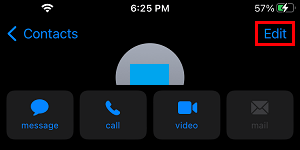
2. On Contact’s Detail screen, tap on the Edit option located at top-right corner of the screen.
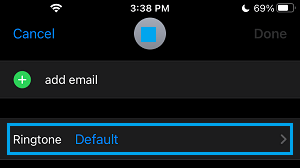
3. In the Editing mode, scroll down the screen and tap on Ringtone.
4. On the Ringtone screen, move the slider next to Emergency Bypass to ON position and tap on Done.
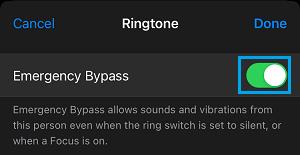
From now on, this particular Contact will be able to call you, even if your iPhone is placed in “Do Not Disturb” mode.
2. Allow Someone to Send Message During “Do Not Disturb” Mode
Instead of allowing yourself and others to be distracted by a call, you can allow someone or your selected Contacts to send only Text & iMessages, while your device is in “Do Not Disturb” mode.
This way, you can both keep in touch with that special someone and also prevent people around you from being distracted during a meeting or a busy period of the day.
1. Open Contacts App > select the Contact that you want to allow messages from during “DND” period.
2. On Contact’s Detail screen, tap on the Edit option located at top-right corner of the screen.
3. Scroll down on screen and tap on Text Tone tab.
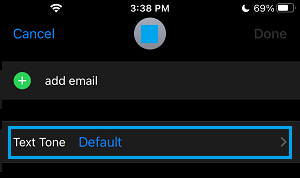
4. On the Text Tone screen, enable the Emergency Bypass option and tap on Done.
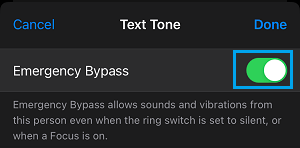
After this, the allowed person will be able to contact you by sending Text and iMessages, even when your iPhone is placed in “Do Not Disturb” mode.