While “Code 0x80070002” error is mostly related to Windows update failure, it can also occur while upgrading the computer from an older version of the operating system to new.
If this error is preventing you from downloading and installing updates, it can have an adverse impact on the performance of your device and make it vulnerable to security threats.
Code 0x80070002 Error in Windows
Since, “Code 0x80070002” error is mostly related to Windows update, it can be fixed in most cases by running Windows Update Troubleshooter and restarting Windows update related services.
If this does not help, you can run “SFC Scan” to check if the problem is being caused due to update related system files being damaged or corrupted.
1. Remove USB Connected Devices
The problem could be due the update process being impacted by a device attached to the computer.
1. Remove All USB Connected Devices from the computer (except Mouse & Keyboard)
2. Restart the computer and check for updates.
If the problem was related to any connected device, you should now be able to download the updates.
2. Check Storage Space
Make sure the computer has sufficient storage space to accommodate the updates.
1. Open the File Explorer on your computer.

2. On the File Explorer screen, click on This PC (left-pane). In the right-pane, you should be able to see the amount of storage space Used & Available on your computer.
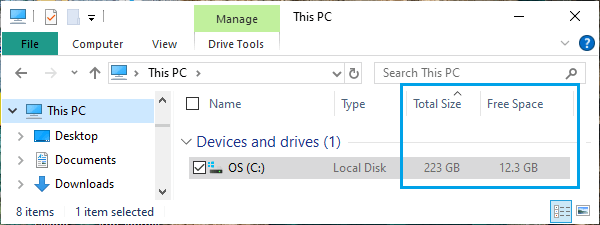
As you can see in above image, the computer has a low amount of available storage space and this needs to be fixed by removing photos and other types of files from the computer.
3. Run Windows Update Troubleshooter
As mentioned above, the built-in Windows Update Troubleshooter can be relied upon to fix update related problems.
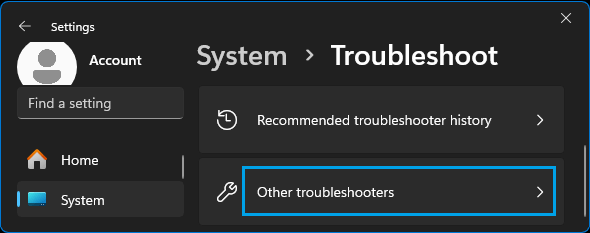
1. Go to Settings > System > Troubleshoot > scroll down in the right-pane and click on Other troubleshooters.
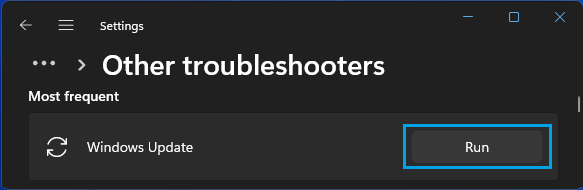
2. On the next screen, scroll down and click on the Run button, located next to Windows Update.
3. If prompted, enter your Admin Password > Allow Windows to find and fix problems related to Windows Update on your computer.
4. Restart Windows Update Services
The next step would be to Restart Windows update related services.
1. Type CMD in the Search bar > right-click on Command Prompt and select Run As Administrator option.
2. On the Command Prompt screen, type the following Commands one-by-one and press the Enter key after each command.
net stop bits, net stop wuauserv, net stop appidsvc, net stop cryptsvc
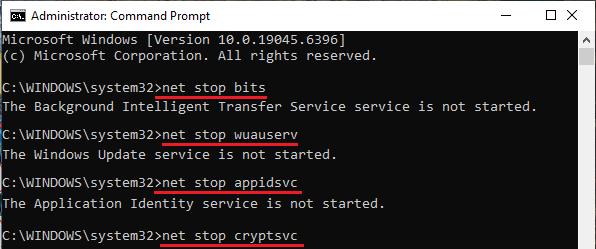
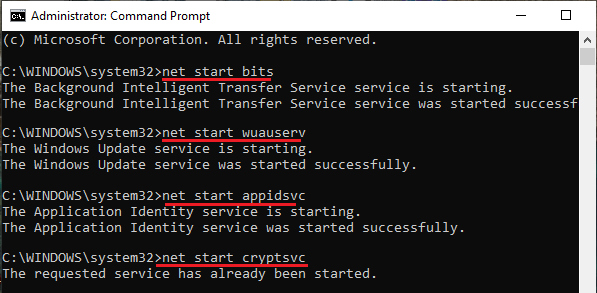
3. After this, restart Windows Services by executing the following commands one-by-one.
net start bits, net start wuauserv, net start appidsvc, net start cryptsvc
4. Close the Command prompt screen and try to install updates on your computer.
5. Run System File Checker (SFC)
If above steps did not help, use the SFC (System File Checker) tool to check the computer for damaged or corrupted system files.
1. Open Command Prompt As Admin.
2. Type sfc /scannow and press the Enter key.
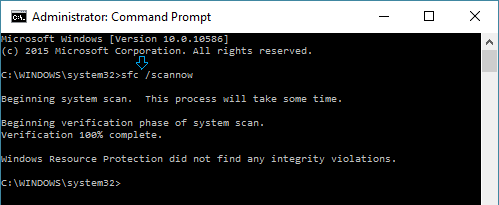
3. Patiently wait for the SFC scan to be completed.
Note: In case errors are detected, you can use the DISM command to repair corrupted system files on your computer.