When you travel from one time-zone to another, iPhone should automatically switch to the right Time Zone and display the correct Time & Date. If this is not happening, the problem is usually due to the “Location Services” feature not being enabled and iPhone not being set to automatically adjust its Time/Date based on its Location.
If you are not travelling and find iPhone showing the wrong Time & Date, the problem is usually due to an incorrect Time Zone being selected or a glitch; which might require manual correction of the time.
Apart from this, iPhone is known to display incorrect Time & Date, if it is left unused for a long period of time and also if its battery has run down.
iPhone Showing Incorrect Time and Date
In most cases, the problem of an iPhone showing the wrong time while travelling can be fixed by enabling Location Services and setting up iPhone to automatically adjust its Time/Date based on its Location.
If a stationary iPhone (not travelling) is showing wrong time, the problem can be fixed by making sure that the right Time Zone is selected and manually adjusting the Time/Date (if the issue is battery related).
1. Allow iPhone to Automatically Set Time & Date
As mentioned above, iPhone can end up showing incorrect Time, if you are travelling and happen to cross over to a different time zone. The solution in this case is to allow iPhone to automatically set its Time/Date by contacting Apple Servers.
Note: The “Location Services” feature needs to enabled on your device for this setting to work (see the next step).
1. Go to Settings > General > Date & Time.
2. On the next screen, enable Set Automatically option by moving the Slider to ON position.
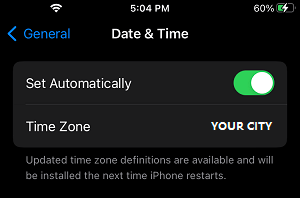
After this, take a look at Time Zone entry and make sure that the name of your Town or City is mentioned or it represents a Town or City that is near to your Location.
2. Enable Location Services
As mentioned above, iPhone won’t be able to change its Time/Date based on location, if the “Location Services” is not enabled on your device. If you are travelling, you need to make sure that Location Services is enabled on your device.
1. Go to Settings > Privacy & Security > Location Services.
2. On the next screen, enable Location Services by moving the slider to ON position.
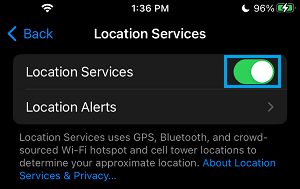
This will ensure that your iPhone is able to track its location and use its location information to automatically switch to the required Time Zone and display the correct Time/Date.
3. Enable “Setting Time Zone” Option
If your iPhone is still not showing the right Time/Date, make sure that “Setting Time Zone” option within “Location Services” has been enabled on your device.
1. Go to Settings > Privacy & Security > Location Services.
2. On the Location Services screen, scroll down and tap on System Services.
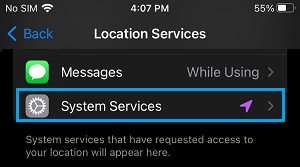
3. On System Services screen, make sure Setting Time Zone option is enabled.
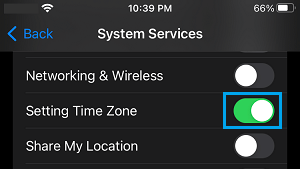
Once the option for Setting Time Zone is enabled, you can expect your device to automatically switch to the right Time Zone, based on its Location and show the correct Time & Date.
4. Manually Correct Time/Date On iPhone
Sometimes, iPhone may indicate wrong Time & Date, even if ‘Set Automatically’ option is enabled. In such a case, you will have to manually correct the Time, Date and the Time Zone.
Manually adjusting the Date/Time is also required to deal with the situation of an unused iPhone showing incorrect Date/Time.
1. Go to Settings > General > Date & Time.
2. On the next screen, move the slider next to Set Automatically to OFF position.
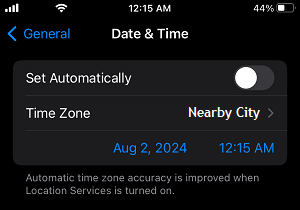
After disabling ‘Set Automatically’ option, tap on the Time Field to set correct Time and correct the Date by tapping on the Date field.
Can’t Change Time/Date on iPhone
If your iPhone is not allowing you to change Time/Date, the problem is usually related to the following issues.
Carrier Restrictions: If your iPhone is locked to a Carrier, the option to change Time & Date may have been blocked by the Carrier.
Company Policy: If you are using an iPhone provided by Company or Employer, the option to change Time & Date may have been blocked by the IT Admin of your company.