If your computer is coming up with an alarming “Microsoft Account Problem” error message, it is natural to think in terms of the computer being hacked or Microsoft Account being compromised.
However, you may find it comforting to know that this error message in most cases is unlikely to be due to your computer being hacked or your Microsoft Account being compromised.
Fix Microsoft Account Problem in Windows
In general, users have reported the following variations of “Microsoft Account Problem” notifications appearing on their computers.
- “We need to fix your Microsoft Account”
- “You need to fix your Microsoft Account for apps ….”
- “We need to fix your work or school account …”
The first message is most likely due to your Microsoft Account not being verified on the computer and the next two error messages are due to “Shared Experiences” or “Share Across Devices” feature being enabled.
1. Disable Shared Experiences
In a majority of cases, the problem” can be fixed by disabling “Nearby Sharing” and “Shared Across devices” features on the computer.
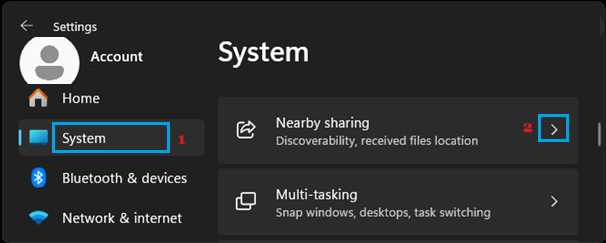
1. Go to Settings > System > click on Nearby Sharing tab in the right-pane.
2. On the next screen, disable Nearby Sharing by selecting the OFF option.
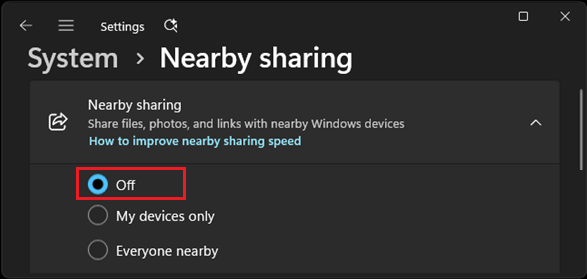
Windows 10: Go to Settings > System > Shared Experiences (left-pane) > Scroll down and disable Share content with nearby device option.
2. Disable Share Across Devices
Similarly, disable the “Share Across Devices” feature on your computer.
1. Go to Settings > Apps > click on Advanced App Settings.

2. On the next screen, disable Share across devices by selecting the OFF option.
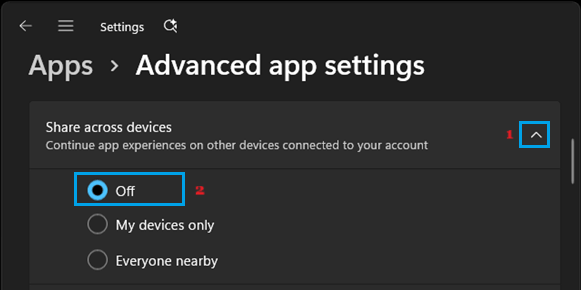
Windows 10: Go to Settings > System > Shared Experiences (left-pane) > Scroll down and disable Share Across devices option.
3. Verify Your Account
As mentioned above, the most likely reason for “We need to fix your Microsoft Account” message on your computer could be due to your Microsoft Account not being verified on the computer.
1. Go to Settings > Accounts > Your Info and click on Verify.
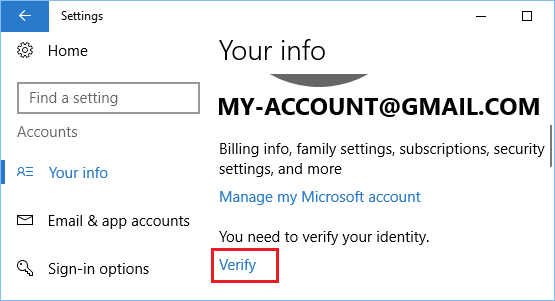
2. If prompted, re-enter the Password for your Microsoft Account and click on Sign In.
3. Next, you may be prompted to verify your Microsoft Account using a security code. If prompted, enter the Email Address to receive the security code and click on Next.
4. Get the Security code from your Email Account and enter the Security Code to verify your Microsoft Account.
4. Remove Microsoft Account
You can also consider the option of converting your Microsoft Account to a Local User Account, which allows you to login to the computer without the need to use your Microsoft Account.
For the actual steps to convert Microsoft Account to Local, you can refer to this guide: How to Switch Microsoft Account to Local User Account.