If the “Mail Recipient” option is missing from the “Send to” menu, you won’t be able to easily attach files to email messages being sent from the computer.
In general, the most common reason for this issue is due to the Default Email Client not being set on the computer and the “Mail Recipient Shortcut” being deleted.
Mail Recipient Missing from Send to Menu in Windows
Now that we have identified the most common reasons for this issue, we can go ahead and try to fix the problem by using the by using the following methods.
- Select Default Email Client.
- Copy “Mail Recipient” Shortcut from the Default User Profile.
- Create “Mail Recipient” related File in SendTo Folder.
- Delete Empty Bluetooth Folder
Note: The option to Show Hidden Files needs to be enabled in File Explorer, in order follow these steps.
1. Select Default Email Client
Starting with the basics, let us first make sure that Microsoft Outlook or your preferred Email App is set as the default App for opening and sending Emails from your computer.
While this step does not help in enabling the missing “Send to Mail Recipient” option, it makes sure that this option is working on your computer.
1. Go to Start button > Settings > Apps > Default Apps.
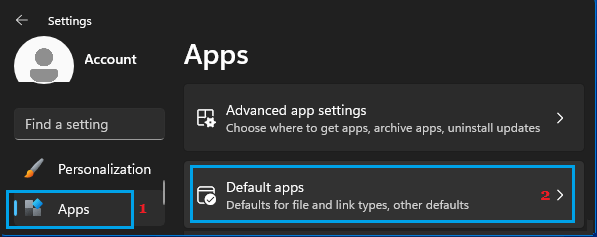
2. On the Default Apps screen, select your default email client (Outlook or other).
3. On the next screen, set Outlook (or your preferred Email app) as the default for all the applicable files.
After this, see if Send to Mail Recipient option is available/working on your computer.
2. Copy Mail Recipient Shortcut from Default User Profile
If the Mail Recipient Shortcut is missing or deleted, it can be copied from the Default User profile on your computer and pasted it in to your User Profile.
1. Open the File Explorer on your computer.
2. Navigate to C:\Users\Default\AppData\Roaming\Microsoft\Windows\SendTo and copy the Mail Recipient file.
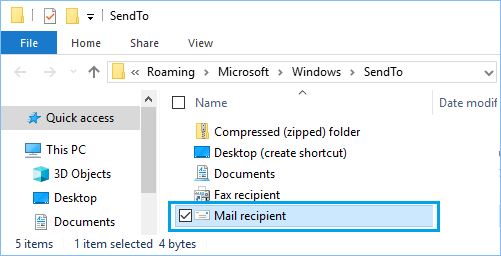
3. After copying the Mail Recipient Shortcut, navigate to C:\Users\Username\AppData\Roaming\Microsoft\Windows\SendTo and Paste the Shortcut into the SendTo Folder.
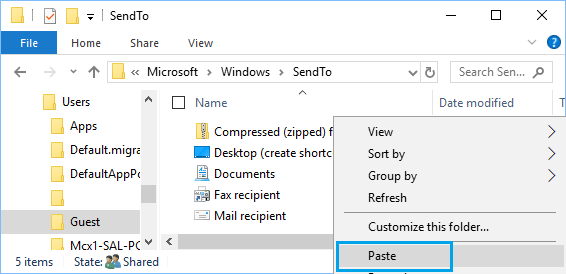
Note: The term “Username” is being used as an example – You need to navigate to the Username of your own User Account.
3. Create Mail Recipient Related File
If the above fix is only opening the Email program and not attaching files to emails, the problem is due to absence of Mail Recipient related file (Mail Recipient.MAPIMail) in SendTo Folder.
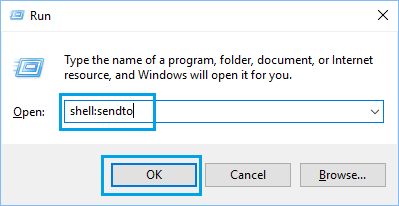
1. Open Run Command (press Windows + R keys).
2. Type shell:sendto and click on OK.
3. Right-click on any empty area in the SendTo Folder > select New and click on Text Document.
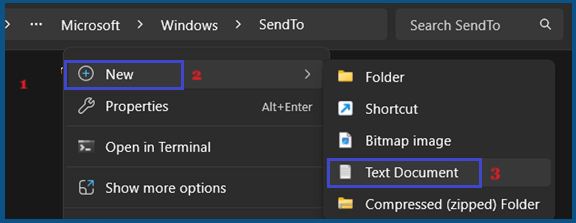
4. Name this new File as Mail Recipient.MAPIMail.
Important: Make sure the .TXT extension is removed and not left behind.
4. Delete Empty Bluetooth File/Folder
In certain rare cases, the problem is due to presence of an empty Bluetooth File/Folder interfering with functioning of the SendTo menu.
1. Open the File Explorer on your computer.
2. From the File Explorer screen, go to C:\Users\Username\AppData\Roaming\Microsoft\Windows\SendTo.
3. In the SendTo Folder, see if there is an empty (0 KB) Bluetooth File/Folder. If it is there, right-click on it and select the Delete option.
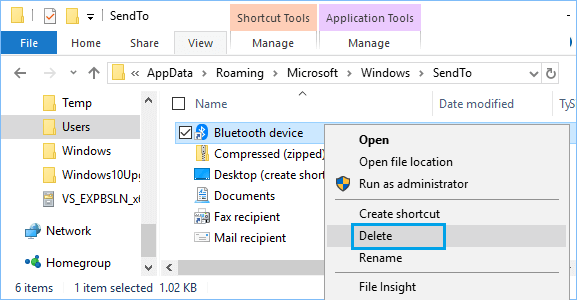
Important: Do not delete any Bluetooth Device File/Folder that is not 0 KB.
Restart the computer and see if “Send to Mail Recipient” option is now available on your computer.