While the easiest way to use WhatsApp on PC is by making use of WhatsApp Web application, this method still requires a primary WhatsApp account on a mobile device; as it has only been designed to make your existing WhatsApp Mobile Account accessible on computers and cannot be used to run a standalone WhatsApp account on a computer.
Hence, if you are looking for a way to use WhatsApp as an independent or standalone application on a Windows computer, it can only be done by downloading and installing the mobile version of WhatsApp on computer; which leads to the following issues.
- Mobile version of WhatsApp cannot be downloaded on PC.
- Windows operating system cannot run mobile applications.
Luckily, this issue can be fixed by making use of an Android Emulator called BlueStacks, which allows the computer to download the mobile version of WhatsApp from Google Play Store (within BlueStacks) and makes the computer capable of running Android applications.
BlueStacks is a widely used Android Emulator and it is available for download on Windows 10, Windows 11 and even on the older versions of Windows operating systems. Once BlueStacks is downloaded and installed on the computer; it can be used to download and run the mobile version of WhatsApp directly on the computer; totally by-passing the need to have WhatsApp account on a mobile device.
Use WhatsApp on PC Without Phone Using BlueStacks
For the sake of clarity and to avoid , we have divided the procedure to use WhatsApp directly on PC without the need to have a WhatsApp account on a mobile device into the following three steps.
- Download & Install BlueStacks.
- Download WhatsApp to PC Using BlueStacks.
- Create & Verify WhatsApp Account on PC.
Note: A phone number, which can receive verification code from WhatsApp by SMS text message or voice call is required to verify WhatsApp account on computer.
Step 1: Download & Install BlueStacks
The first step is to make the computer capable of running the mobile version of WhatsApp by downloading & installing the “BlueStacks” application.
1. Open the Web browser on your computer and go to bluestacks.com.
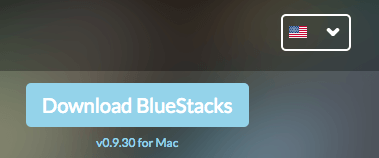
2. Once you are on bluestacks.com, click on Download BlueStacks button to download BlueStacks on your computer.
3. After BlueStacks is downloaded, double-click on the Downloaded File to begin the process of installing BlueStacks on the computer.
4. Follow the Onscreen Instructions to complete the installation process.
Note: BlueStacks will prompt you to Sign-in to Google Account. Make sure that you Sign-in, as this step is necessary to access Google Play Store, from where you can download WhatsApp.
Step 2: Download WhatsApp to Computer Using BlueStacks
The next step is to download and install WhatsApp within the Android like environment created by BlueStacks on your computer.
1. Open BlueStacks by clicking on BlueStacks icon located on the Desktop.

2. After opening BlueStacks, search for WhatsApp by typing “whatsapp” in the BlueStacks Search bar.
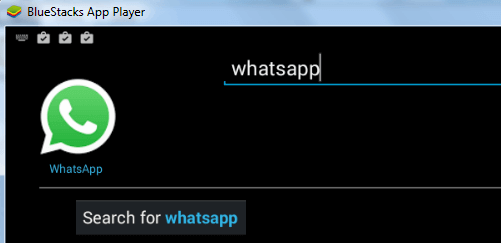
3. Once you are able to find WhatsApp, click on the Install button and follow the instructions to download and Install WhatsApp on your computer.
Step 3: Create WhatsApp Account on Computer
The final step is to create a WhatsApp account, which requires a phone number only during the verification process.
1. Open WhatsApp by clicking on WhatsApp icon located on the Desktop.
2. On the next screen, select your Country and enter a Phone Number; which can receive the verification code from WhatsApp via SMS text message or voice call and click on Next.
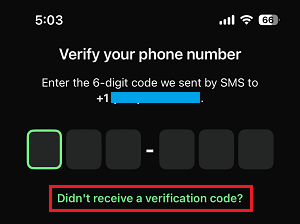
3. WhatsApp will now send a verification code to your mobile device by SMS text message. If you had entered a Landline Phone Number or prefer to receive the verification code by Call, click on Didn’t receive a verification code?
Note: The use of Landline phone numbers is specifically allowed by WhatsApp to verify Business Accounts.
4. On the next screen, select the Voice Call option and click on Continue.
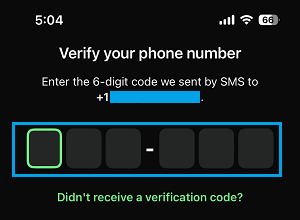
5. Note down the verification code; as received from WhatsApp via text message or call and enter the Verification Code.
6. Follow the steps to complete the remaining setup process.
After this, you can start a chat with any of your Contacts on WhatsApp and see if your standalone WhatsApp Account on PC is working properly.