If Siri is calling you by Name, it is getting this information from your Contact Card on iPhone. This means; it should be possible to make Siri Call you by any Name by changing your Name in the Contact Card.
Luckily, the Contact Card on iPhone also comes with the “Nickname” field, which allows you to keep your proper name (that you Contacts can see) and make Siri use the “Nickname” field to call you by any other Name.
If this sounds interesting, let us go ahead and take a look at the steps to make Siri call you by any Name.
Setup Siri to Call You By Nickname
Setting up your digital assistant Siri to call you by any Name or by using your Nickname is really simple and involves the following steps.
- Add a Nickname to your Contact Card
- Associate your Contact Card with Siri
- Make Siri Call you by your desired Name
- Correct Siri’s pronunciation (if necessary)
Step 1. Add Nickname to Contact Card
The first step is to add a Nickname to your own Contact Card on iPhone.
1. Open the Contacts App > tap on your own Name (it may also appear as “me’).
2. On the next screen, tap on the Edit option, located at top-right corner of the screen.

3. Scroll down to bottom of the screen and tap on Add Field option.

4. On Add Field screen, select the Nickname field.
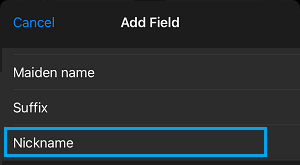
5. On the next screen, type the Name that you want Siri to call you and tap on Done.
The first choice of Siri is to call by the Name that appears in the Nickname field. Hence, from now onwards it will always default back to its first choice (Nickname).
Step 2. Associate Your Contact Card with Siri
The next step is to associate your Contact Card with Siri.
1. Open Settings > scroll down and tap on Siri & Search.
2. On Siri & Search screen, tap on My Information.
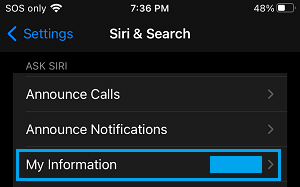
3. On the next screen, select the Contact card that you want to associate with Siri.
Step 3. Make Siri Call You By Any Name
Follow the steps below to make Siri call you by any Name. In this example let us assume that you want Siri to address you as James.
1. Press and hold the “Home” button till you hear two beeps to launch Siri
2. Say “Siri, call me James” you can substitute James with any name that you’d like to be called. Speak slowly and clearly for Siri to get your name and pronunciation right.
3. Siri will reply “From now on, I’ll call you James OK”
4. Reply OK and move to next step (if required by Siri).
Step 4. Correct Siri’s Pronunciation
If Siri is not pronouncing your Name correctly, you can train Siri to pronounce your Name correctly by using these steps.
1. Open the Contacts App on your iPhone and select your Contact Card (Your Name)
2. On the next screen, tap on the Edit option (top-right corner) > scroll down to bottom and tap on Add Field.
3. On Add Field screen, select your Nick Name > Spell your Nick Name Phonetically and tap on Done.
Currently, this is appears to be the only method to make Siri correct the pronunciation of your name.