Users have reported the problem of YouTube videos not playing, when they reach YouTube using the default Microsoft Edge browser installed on a Windows computer.
While some users have reported about YouTube videos not loading, others have reported seeing a black screen, no sound and even cases of “no video” while trying to use YouTube on Microsoft Edge browser.
When this happens, you may find Microsoft Edge displaying an error message reading ‘An error has occurred’, while trying to play YouTube Videos on your computer.
Microsoft Edge Not Playing YouTube Videos
The reason for videos not playing on Microsoft Edge browser on your computer could be due to the Edge browser not being updated to the latest version, corrupted cache, incompatible browser extentions and other reasons.
You can find below the most commonly used troubleshooting steps to fix the problem of YouTube videos struggling to load or not at all playing in Microsoft Edge.
1. Clear Edge Browsing History & Cache
In most cases, the problem of YouTube Videos not playing in Microsoft Edge browser can be fixed by clearing the browser cache.
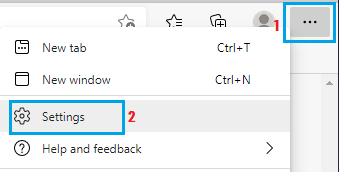
1. Open Microsoft Edge browser > click on 3-dots menu icon and select Settings in the drop-down menu.
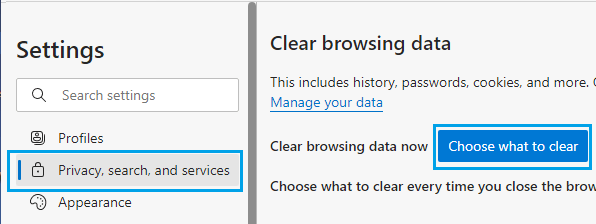
2. On the Settings screen, select Privacy, Search, and services tab in the left-pane. In the right-pane, scroll down to “Clear browsing data” section and click on Choose what to clear.
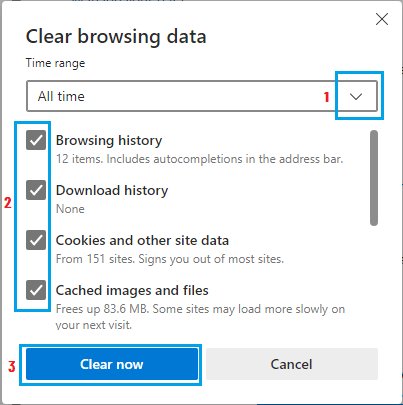
3. On the next screen, select All time as the ‘Time Range’, select items that you want to clear from the browser Cache and click on the Clear button.
4. Once Browsing History & Cache is cleared, restart Microsoft Edge and see if you can play YouTube videos.
2. Update Microsoft Edge Browser.
Make sure that you are using the latest version of Microsoft Edge browser on your computer.
1. Open Microsoft Edge browser on your computer.
2. Click on 3-dots Menu Icon (top-right corner) and select Settings in the drop-down menu.
3. On the Settings screen, select About Microsoft Edge in the left-pane and this should make Microsoft Edge to Update itself (if an update is available).
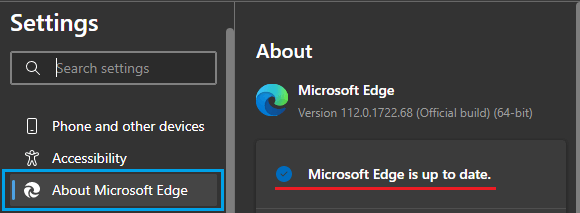
4. Wait for the update process to be completed.
3. Reset Edge Flags to Default
Most YouTube problems are said to be related to “about:flags” settings in Microsoft Edge browser and this can be fixed by Resetting Flags to default settings.
1. Open Microsoft Edge > type about:flags in the Search bar and press the Enter Key. This will take you to the Flags screen.

2. Click on Reset All button to Reset the Flags in Edge Browser to default settings.
3. Disable GPU Rendering and Use Software Rendering
While Microsoft Edge can take advantage of GPU acceleration, this setting is known to cause problems while playing YouTube and other videos on Microsoft Edge.
1. Type Internet options in the Search bar and click on Internet Options in the search results.
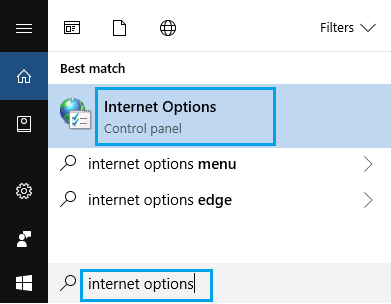
2. On Internet Options screen, switch to Advanced tab and select Use software rendering instead of GPU rendering option.
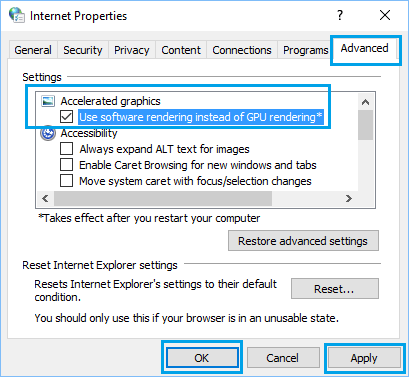
3. Click on Apply and OK to save this setting on your computer.
4. Disable Windows Defender SmartScreen
The SmartScreen Filter feature in Windows Defender can sometimes cause problems in Edge browser and prevent YouTube videos from loading.
1. Open Microsoft Edge > click on 3-dots menu icon and select Settings in the drop-down menu.
2. On the Settings screen, select Privacy, Search, and services tab in the left-pane. In the right-pane, scroll down to “Security” section and move the toggle next to Microsoft Defender SmartScreen to OFF position.
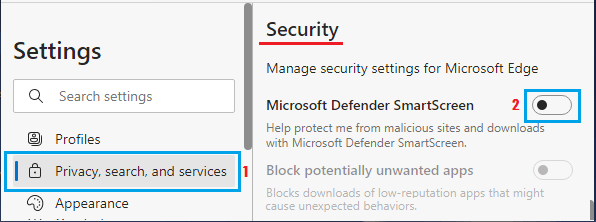
Note: Disabling SmartScreen might reduce your online security. You can re-enable SmartScreen protection after you are done playing YouTube videos.
5. Set Correct Default Audio Device
If you are unable to hear Audio while playing YouTube Videos on Microsoft Edge, the problem could be due incorrect Audio device being set as the main Audio Processor.
1. Right-click on the Sound icon located in the Taskbar and select Sounds in the menu that appears.
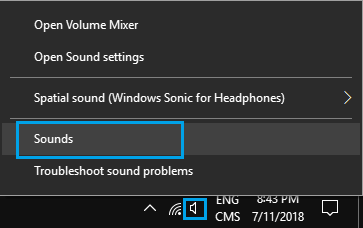
2. On the next screen, right-click on the right Speaker or Headphone from the list of devices and click on Set as Default Device button.
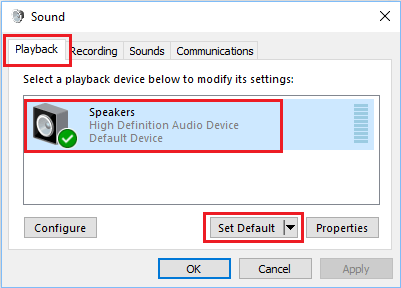
3. Click on Apply and OK to save this change on your computer.
6. Install Media Feature Pack
If none of the above solutions are working, the problem might be due to the Media Feature Pack not being installed on the computer.
The issue of missing Media Feature Pack in Windows has been reported by users in Europe using 10 N and KN versions of Windows operating system.
Microsoft offers Media Feature Pack for N and KN versions of Windows on its website and you can download the right Media Feature Pack for your version of Windows from this Microsoft’s Support Site.