The reason for Microsoft Excel not responding on a Windows computer could be due to conflicting Add-ins, the file being damaged or corrupted, heavy/complex calculations or the installation of Microsoft Excel program on the computer being corrupted.
- Large/Complex Calculations: Excel has a tendency to lock the user-interface and come out with “Not Responding” message, while it is going through complex and a large number of calculations.
- Add-Ins: Third-party Add-In programs can start conflicting with contents of the Excel file or the Excel program itself.
- Corrupted File: Excel files can get corrupted, if they are accidentally quit, improperly saved and moved around through multiple devices.
In addition to this, Microsoft Excel can become unresponsive while trying to print files and due to certain types of conditional formatting being used in the File.
What to Do If Microsoft Excel Is Not Responding
If you are able to open the Excel File, but it keeps getting stuck and crashes after a while, the problem could simply be due to conditional Formatting used in that particular file (see the first method).
If you are unable to open the File or launch the Microsoft Excel program or app on the computer, you should be able to fix the problem using other methods as provided below in this guide.
1. Clear Conditional Formatting
As mentioned above, the issue of a particular Excel File getting stuck can be fixed in most cases by clearing the conditional Formatting used in that particular file.
1. If the File is already open, click on Home > Conditional Formatting > Clear Rules > Clear Rules From Entire Sheet.
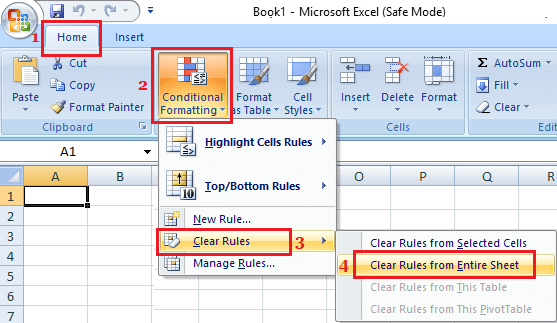
This will clear Conditional Formatting from this particular sheet.
2. After this, select other Sheets from the bottom of the sheet and clear Conditional Formatting in those sheets as well.
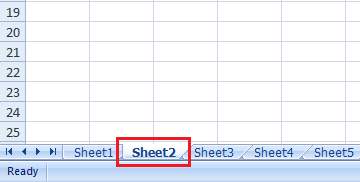
3. Save this Excel File with a New Name, so that the original File will also be available on your computer as a backup (in case required).
2. Run Excel in Safe Mode
This method can help, if the problem is being caused by a Plug-in or an Add-on program.
1. Right-click on Start button and click on Run.
2. On the Run command window, type excel.exe /safe and click on OK to start Microsoft Excel in Safe Mode.
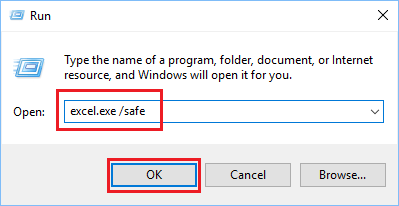
3. Now try opening the particular Non responsive Excel File again.
If this method helps in fixing the problem, you can follow the next method to disable the Add-in program on your computer.
3. Disable Add-Ins & Plug-ins
If the problem is being caused by a third-party Add-in plugin, you can remove it by using the following steps.
1. Right-click on Start button and click on Run.
2. In the Run Command Window, type excel.exe /safe and click on OK to start Microsoft Excel in Safe Mode on your computer.
3. Once you are in Microsoft Excel, click on the File tab in top menu bar > scroll down and click on Options.
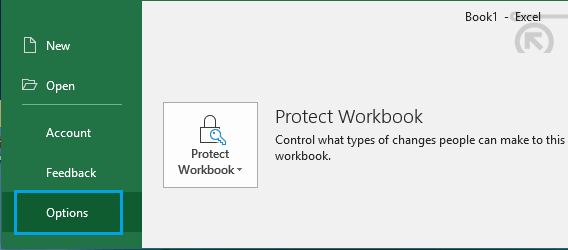
Note: In older versions of Excel, click on File Icon > Excel Options button

4. On the next screen, click on the Add-ins in the left pane. In the right-pane, select Excel Add-ins and click on the Go… button.
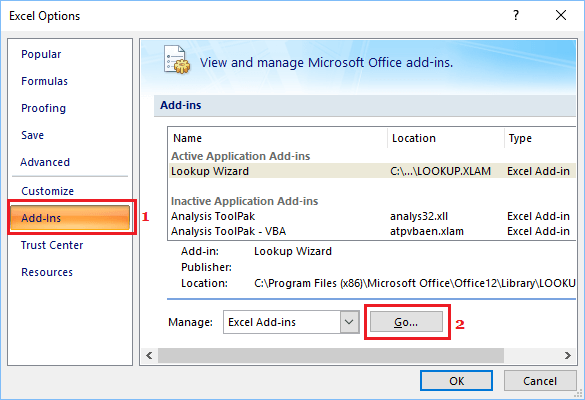
5. On the Add-Ins screen, uncheck the little box next to the active Add-Ins and click on OK to save.

After disabling Add-Ins, restart Microsoft Excel and see if the problem of Microsoft Excel Not Responding is now fixed.
In case the problem is fixed, try to isolate the particular Add-in that is causing problems by disabling the Add-Ins one by one.
4. Change Default Printer
Microsoft Excel can become unresponsive, if it is unable to communicate with the default printer on the computer. This can be fixed by temporarily switching the default printer to Microsoft Print to PDF or Microsoft Document writer and see if this helps in fixing the problem.
For the actual steps to Set Default Printer, you can refer to this guide: How to Set Default Printer in Windows 11/10.
After changing the default printer to Microsoft Print to PDF or Microsoft XPS Document Writer, try to open any Microsoft Excel File and see if the problem is fixed.
5. Repair Microsoft Office
As mentioned above, the problem could be due to installation of Microsoft Excel on the computer being damaged or corrupted.
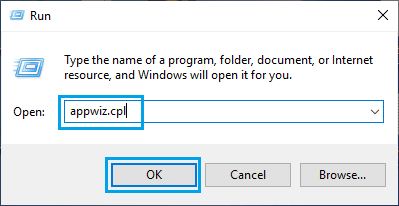
1. Press Windows + R keys to open Run command.
2. Type appwiz.cpl and click on OK.
3. On the next screen, right-click on Microsoft Office and click on the Repair option.
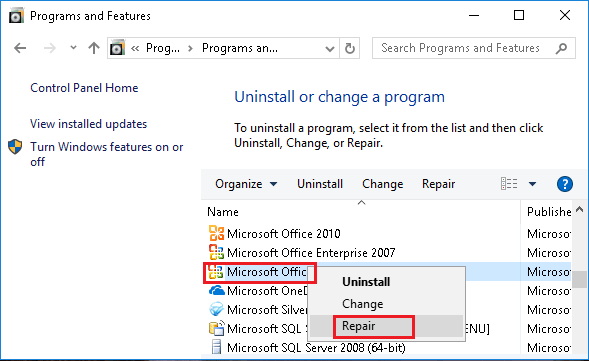
Note: If the Repair option is not available, right-click on Change > select Repair option in the pop-up and click on Continue.
4. Wait for the installation of Microsoft Office on your computer to be repaired.
6. Take Coffee Break!
If you are working on a very large Excel file or a File with complex calculations, you can expect the “Not Responding” message to clear up within 5 to 10 minutes or more; depending on the file size and the type/number of calculations involved.
Going by personal experience, the problem was fixed by taking a generous Coffee break and allowing Microsoft Excel to deal with the situation.
Note: You can try taking a Tea Break and switch to Coffee; if it doesn’t work.