The reason for No Sound while using the web browser (Chrome or Edge) is usually due to the browser tab being muted or sound being muted due to accidental pressing of the volume key on the built-in or USB Keyboard attached to the computer.
This problem can also be caused due to an incompatible plugin or due to “Site can play sound” or similar option not being enabled in browser settings.
No Sound in Web browser (Chrome & Edge)
In a typical case of “No Sound in Web browser” issue, you are likely to find sound not working only while using the web browser (Chrome or Edge), while there is practically no problem with the sound; when apps like Spotify, YouTube and others are being used on the computer.
If the sound is not working in both cases (browser and apps), you also need to take a look at this guide: Fix: No Sound On Windows Computer. If the issue is browser related; you should be able to fix the problem using the following steps.
1. Check Volume Button
Before going ahead with other troubleshooting steps; make sure that you have not accidentally disabled the Sound on your computer by pressing the volume button, located on the keyboard.
Also, click on the Volume Icon; located in the taskbar and make sure the sound volume on the computer is not muted or set to a very low level.
2. Unmute Browser Tab
As mentioned above, the problem could simply be due to the browser tab being accidentally muted.
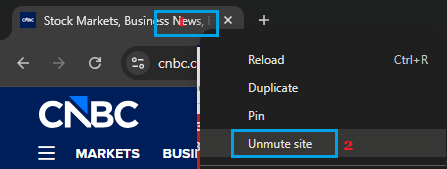
Google Chrome: Right-click on the browser tab and select Unmute Site option.
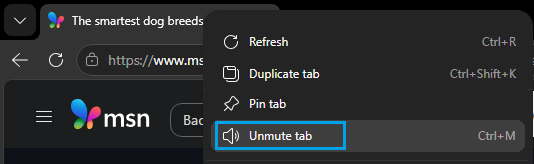
Microsoft Edge: Right-click on the browser tab and select Unmute tab option.
This is likely to be the case, if you were attending an online meeting and ended up muting a browser tab; containing your most frequently used website.
3. Allow Sites to Play Sound in Google Chrome
It is possible that “Sites can play sound” option has been disabled in Chrome browser settings on your computer.
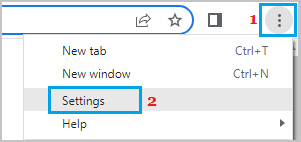
1. Open the Google Chrome browser on your computer > Click on 3-dots icon & select Settings in the drop-down menu.
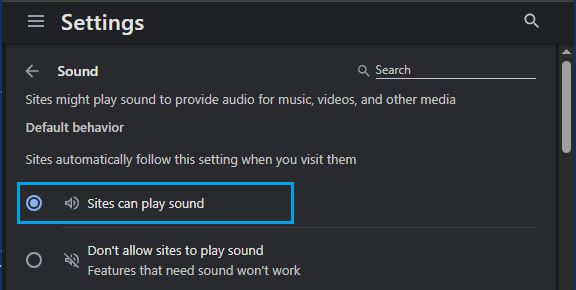
2. From the “Settings” screen, go to Privacy & Security > Site Settings > Additional Content Settings > Sound > Select Sites can play sound option.
3. Restart the browser to apply this change.
4. Allow Sites to Play Media in Microsoft Edge
If you are using the default Microsoft Edge browser on your computer, you can follow the steps below to allow websites to play sound on your computer.
1. Open the Microsoft Edge browser on your computer > click on 3-dots icon & select Settings in the drop-down menu.
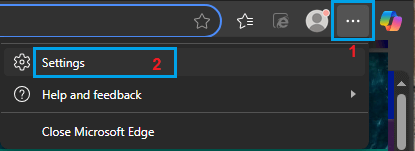
2. From the “Settings” screen, go to Privacy, search and services > Site Permissions > All Permisions > Media Autoplay > Make sure the Block option is not selected.
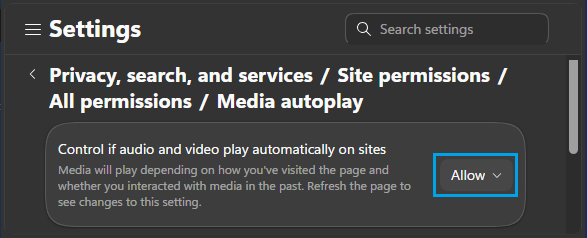
3. Restart the browser to apply this change.
5. Allow Sound in Internet Options
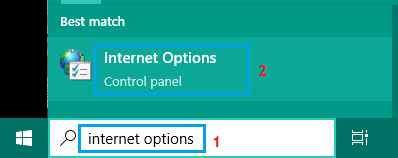
1. Type Internet options in the Search bar and click on Internet Options Control Panel in the search results.
2. On “Internet Properties” screen, switch to Advanced tab, scroll down to “Multimedia” section and select Play sounds in webpages option.
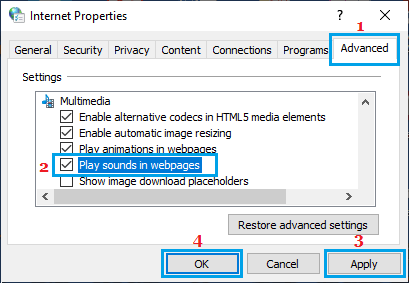
3. Make sure you click on Apply & OK to save this setting on the computer.
6. Clear Flash Player Settings
The Flash Player stores its own settings for websites on the computer and clearing Flash Player settings is known to help in fixing browser related problems.
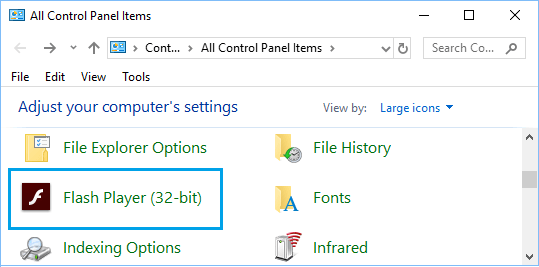
1. Open the Control Panel on your computer.
2. On Control Panel Screen, make sure you are on “Large icons” view and click on the Flash Player Icon.
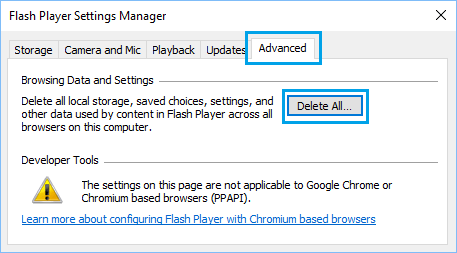
3. On Flash Player Settings screen, switch to Advanced tab and click on Delete All… button located under “Browsing Data and Settings” section.
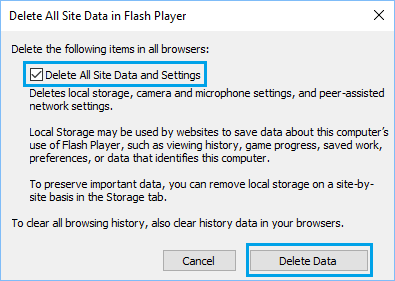
4. On the next screen, make sure Delete All Site Data and Settings option is checked and click on Delete Data button.
Now check if the problem of No Sound in Internet Explorer is fixed on your computer.
7. Disable Chrome Extensions
If you are using Google Chrome, you can follow the steps below to disable the browser extensions on your computer.
1. Open the Google Chrome browser on your computer.
2. Click on 3-dots icon > Extensions > Manage Extensions.
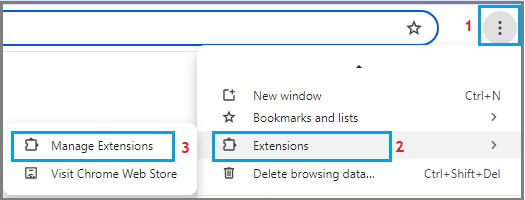
3. On the Extensions screen, Disable or Remove the Extensions.
Restart the computer and check if you can now hear Sound while using Google Chrome browser on your computer.
8. Disable Edge Browser Extensions
If you are using Microsoft Edge, you can follow the steps below to disable the browser extensions on your computer.
1. Click on 3-dots icon > Extensions > Manage Extensions.
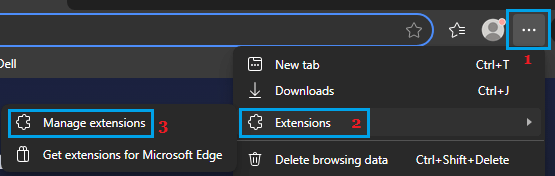
2. On the Extensions screen, Disable or Remove the extensions.
Restart the computer and check if you can now hear Sound while using the Microsoft Edge browser on your computer.