When you open the “Devices and Printers” Interface on a Windows computer, you will be able to see Printers and other devices that are directly plugged-in to the computer and devices that are wirelessly connected to the computer using Wi-Fi/Bluetooth network.
Hence, the most common reason for users looking for a way to open the “Devices & Printers” Interface on a Windows computer is to Add Printers, Remove Printers, Set Default Printer and Change Printer Preferences.
Open Devices and Printers in Windows 11
A popular way to open the Devices & Printers interface on a Windows computer was by clicking on the “Devices & Printers” link in Control Panel; which currently leads back to the Settings screen (after Windows 11 22H2 update).
However, you can still directly access the “Devices & Printers” interface from Control Panel by right-clicking on the “Devices & Printers” link (instead of clicking on it). In addition to this, you add a “Devices and Printers” shortcut to Desktop by using Control Panel.
In addition to this, you can also find below the steps to open “Devices & Printers” Interface by using Settings, Run Command, Device Manager, Print Queue and by right-clicking on USB Drive Icon; located in the System Tray (inside Hidden Icon menu).
1. Open Devices & Printers from System Tray
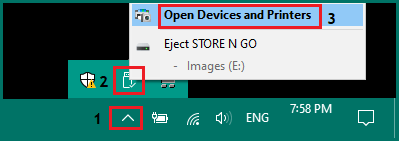
If there is a USB Drive attached to the computer, you can open “Devices & Printers” by opening the Overflow menu or the Hidden Icon menu and right-clicking on the USB Drive Icon.
1. Click on Up Arrow Icon located in the System Tray > right-click on USB Drive Icon and select Open Devices and Printers option.
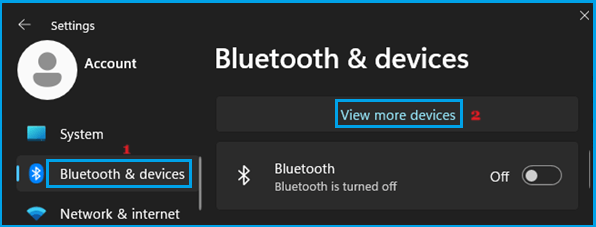
2. On the next screen, click on View More Devices link.
3. On the “Devices” screen, scroll down to “Related Settings” section and click on More devices and printer settings tab.

This will take you to “Devices and Printers” screen, which allows to Set Default Printer, Manage Print Jobs and Printer Preferences on your computer.
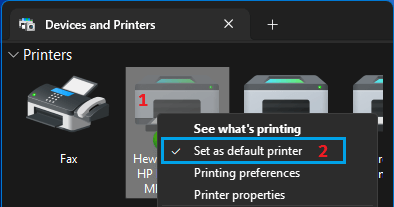
Note: This option becomes available only if a USB Drive is attached to the computer.
2. Open Devices & Printers Using Control Panel
As mentioned above, you can still go directly to “Devices & Printers” screen from Control Panel by right-clicking on Devices & Printers link, instead of clicking on it (which takes you to the Settings screen).
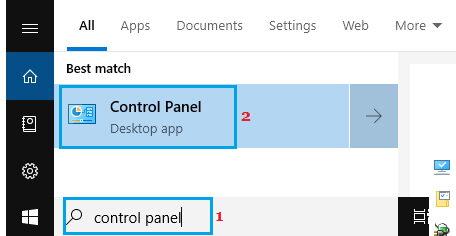
1. Type control panel in the Search bar and click on Control Panel in the search results.
2. On “All Control Panel Items” screen, switch to Large icons view > right-click on Devices & Printers and click on open.
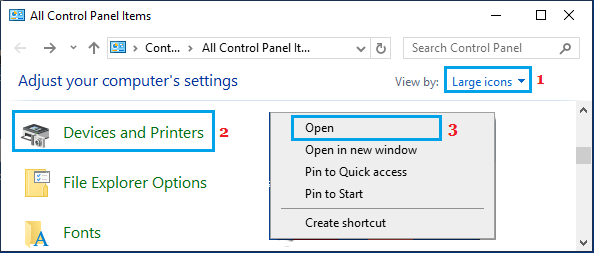
3. This will take you directly to “Devices and Printers” screen
3. Open Devices and Printers Using Device Manager
An easy way to open “Devices and Printers” is by using the Device Manager utility as available in Windows 11/10.
1. Right-click on Start button and click on Device Manager.
2. On the Device Manager screen, click anywhere inside the screen or click on any device.
3. After this, select the Action tab and click on Devices and Printers.
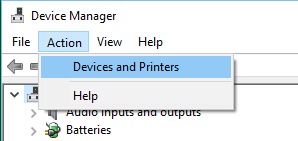
4. On the next screen, you will find all the Printers and Devices attached to the computer.
4. Open Devices & Printers Using Settings
If you are like most users, it is likely that you prefer using the Settings menu to open “Devices and Printers” on your computer.
1. Go to Settings > Bluetooth & Devices > click on View More Devices option in the right-pane.
2. On the next screen, scroll down to “Related Settings” section and click on More devices and printer settings tab.
3. This will take you to the familiar “Devices & Printers” screen.
Windows 10: Go to Settings > Devices > Bluetooth & Other devices (left-pane) > click on Devices & Printers link located under “Related Settings” section.
5. Open Devices & Printers Using Run Command
You can follow the steps below to open “Devices & Printers” interface by using Run Command.
1. Right-click on the Start button and click on Run.
2. Type control /name Microsoft.Printers and click on OK or press the Enter key.
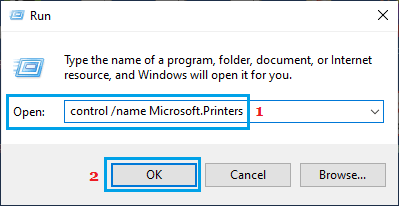
In addition to above, you can open the Classic printers interface and Legacy Devices & Printers screen by executing the following commands.
- Classic Printers Interface: Type Shell:PrintersFolder and press the enter key.
- Legacy Devices & Printers screen: Copy & paste shell:::{A8A91A66-3A7D-4424-8D24-04E180695C7A} and press the enter key.
6. Open Devices and Printers Using Print Queue
Another way to open “Devices & Printers” screen on a Windows 11/10 computer is by going to “Print Queues” properties screen on the Device Manager screen.
1. Open Device Manager > right-click on Print queues and click on Properties.
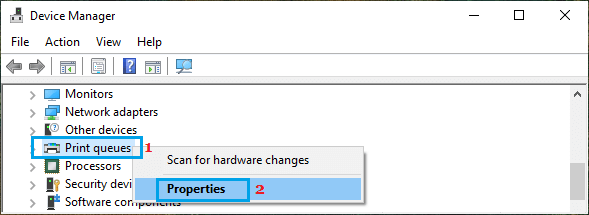
2. On the next screen, switch to Settings tab and click on Devices & Printers Folder button.
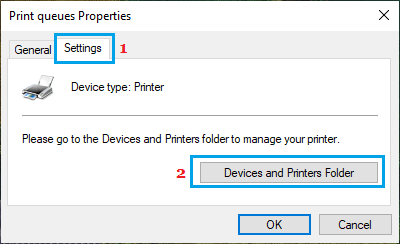
3. On the next screen, you will be landing on the Devices & Printers screen.
7. Open Devices & Printers Using Desktop Shortcut
As mentioned above, you can add “Devices and Printers” Shortcut to Desktop and use it to open Devices and Printers Interface on your computer.
1. Type control panel in the Search bar and click on Control Panel in the search results.
2. On the Control Panel screen, switch to Large icons view > right-click on Devices & Printers and click on Create Shortcut option.
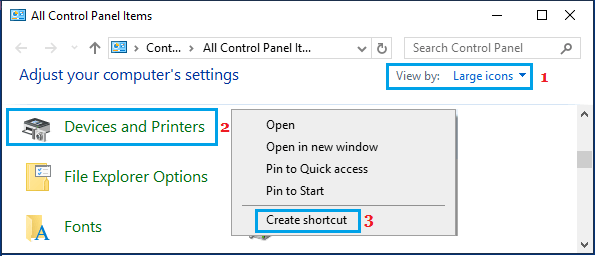
3. On the confirmation pop-up, click on the Yes option to confirm.
4. You should now see a “Devices and Printers” shortcut Icon on the Desktop.

At any time, you can open the “Devices and Printers” screen on your computer by double-clicking on the Shortcut Icon.