When you bring home a new wireless or USB printer, you won’t be able to print anything to it; unless you go through the process of adding the printer to computer.
In the case of a home printer, the process of adding a printer usually requires the user to connect the actual printing device to computer via USB or Wi-Fi network; which allows the operating system to detect the printer and install the drivers required to use the printer.
Note: If you are looking for a way to add a network printer using IP Address, you can refer to this guide: How to Add Printer Using IP Address in Windows 11/10.
Add Wi-Fi & USB Printer to Windows Computer
As suggested by the terms, USB printer can be directly plugged-in to USB port of the computer and a wireless or Wi-Fi printer can be connected to the computer using your home Wi-Fi network.
In most cases, Windows operating system should be able to automatically identify the make/model of the printer and install the right drivers to use the printer. If it does, you will be required to manually identify and add the printer to computer.
1. Add Wireless (Wi-Fi) Printer to Windows Computer
You can follow the steps below to add a wireless (Wi-Fi) printer to Windows computer.
1. Plug the wireless Printer to its Power Supply source and start the printer by pressing its Power button.
2. Once, the printer starts, it will start scanning for nearby Wi-Fi Networks. After 2 to 3 minutes, go to LCD Panel of the printer > open Settings menu and select your Wi-Fi Network.
3. When prompted, enter the Password for your Wi-Fi Network and this will connect the printer to your home Wi-Fi network.
4. On the computer, go to Settings > Bluetooth & Devices and click on Printer & Scanners in the right-pane.
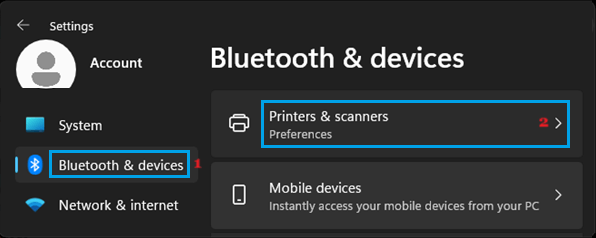
Windows 10: Go to Settings > Printers and Scanners > Add a Printer or Scanner > select Printer > click on Add Device.
5. On the next screen, you may find your printer already listed. If the printer is not listed, click on Add Device button and wait for Windows to scan and locate the printer.
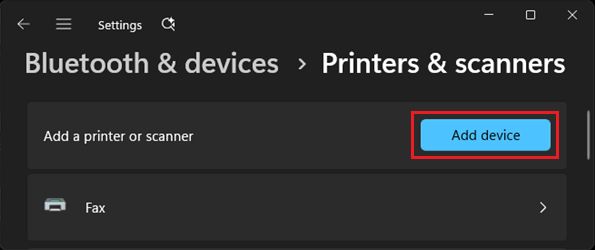
Note: If Windows fails to list the printer, click on Refresh and wait for the Printer to be listed. If this fails, click on Add a new device manually option.
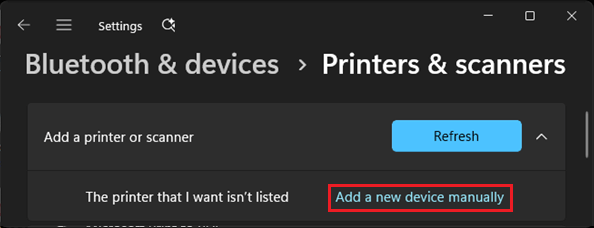
6. When the Printer becomes listed or manually added, click on Add Device button located next to the Printer.
7. On the next screen, enter the WPS PIN for the printer and click on the Next button.
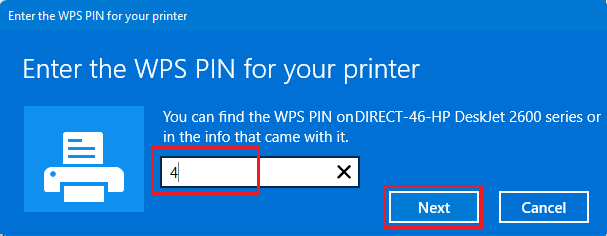
8. Follow the remaining on-screen instructions to complete the setup process.
Note: On certain printers, you may be required to install the printer software on the computer.
2. Add USB Printer to Windows Computer
You can follow the steps below to add a USB printer to Windows computer.
1. Connect the USB Printer to its Power Supply Source.
2. Plug the Printer to USB Port of the computer and press the Power button to switch on the printer.
3. On your computer, go to Settings > Bluetooth & Devices > click on Printer & Scanners tab in the right-pane.
Windows 10: Go to Settings > Printers and Scanners > Add a Printer or Scanner > select Printer > click on Add Device.
4. On the next screen, click on Add Device button and wait for the computer to scan for available printers.
5. After the scan process is completed, click on the Add Manually button.
6. On “Add Printer” screen, select My Printer is a little older, help me find it option > click on Next and wait for Windows to come up with a list of printers.
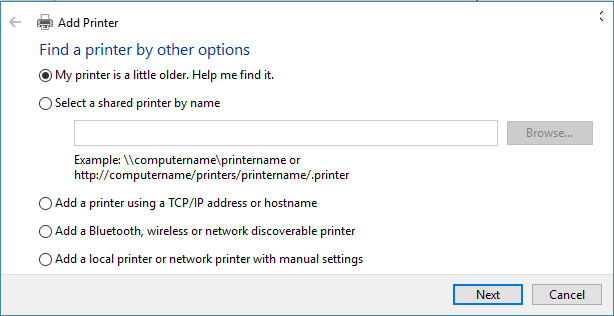
7. On the next screen, go through the list of printers, select your printer and click on Next to install the printer driver.
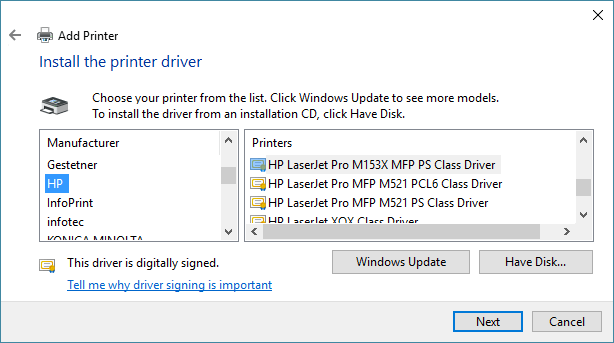
8. Follow the next set of on-screen instructions to complete the installation of USB Printer.
Note: If the printer does not appear in the list of printers, go to website of the printer manufacturer and download the latest driver software required to run the printer on your computer.