You may find the need to reset the Google Chrome browser on your computer to its original or default settings, if it is going through problems, which could not be fixed by regular troubleshooting steps.
The Reset process can help in fixing most browser related problems by removing extensions, plugins and undoing all the changes that were made to the browser settings on your computer.
What Happens When You Reset Google Chrome Browser
When you Reset Google Chrome to its original or factory default settings, it results in the following changes.
- The Search Engine in Chrome will be reset to Google (default Search Engine)
- All Cookies, Cache, Browsing History and other Site data will be deleted
- All Extensions, Chrome Add-ons and Themes will be disabled
- Home page, New Tab and Pinned Tabs will be reset to default settings
- Your personal settings for websites (if any) will be lost
If you are logged-in to Google Chrome, above changes will apply to your Google Chrome profile and will be reflected across all devices that you are signed-in.
The Reset process will not delete your Bookmarks, Reading List, Browsing history and saved passwords. Also, personal settings like Fonts and Accessibility settings won’t be impacted.
Steps to Reset Google Chrome to Default Settings
The steps to Reset Google Chrome to default settings are practically the same on Windows computer, Mac and Chromebook.
1. Open Google Chrome > click on 3-dots icon and select Settings in the drop-down menu.
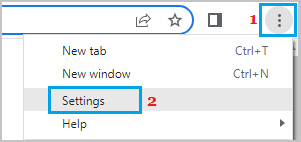
Note: If you cannot open the browser, open Chrome in Incognito Mode.
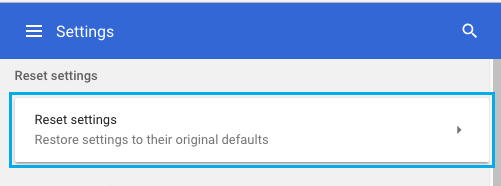
2. On the Settings screen, select Reset Settings in the left-pane and click on Restore Settings to their original defaults in the right-pane.
3. On the confirmation pop-up, click on Reset Settings button to confirm.
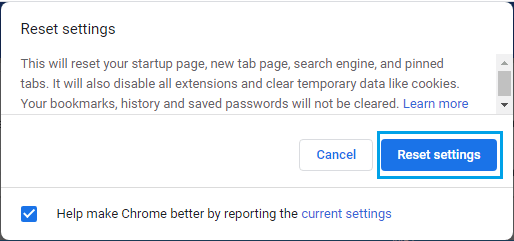
Optionally, you can check Help make Chrome better… option, which provides Google Chrome with the option to report your current browser settings, whenever it is going through problems on your device.