iPhone provides the option to Reset Network Settings, if it is going through Cellular, Wi-Fi or Bluetooth connectivity issues, which could not be fixed by regular troubleshooting steps.
Unlike a Factory Reset process, Network Settings Reset does not erase any data from iPhone. It has been specifically designed to clear out only the Network related information and settings from iPhone.
Performing a Network Settings Reset can help in fixing network connectivity issues, if the problem is being caused by broken, damaged or corrupted network settings.
After the “Network Settings Reset” process is completed, iPhone will go back to its original or Factory Default Settings.
Reset Network Settings on iPhone
As mentioned above, Network Settings Reset is going to wipe out all the Network related data from your device, including Wi-Fi/VPN passwords and details of paired Bluetooth devices.
Hence, it is recommended that you note down your Wi-Fi Network Name & Wi-Fi Password, before going ahead with the steps to perform a Network Settings reset on iPhone.
Also, it is important that you try other troubleshooting steps like Restarting iPhone, Enabling/Disabling Wi-Fi, Enabling/Disabling Airplane Mode and other methods, before performing a Network Settings Reset.
Steps to Reset Network Settings on iPhone
If you have already tried other troubleshooting steps, you can follow the steps below to Reset Network Settings on your iPhone to their original factory default settings.
Note: Make sure that your iPhone has sufficient charge and do not interrupt the Network Reset process in any way.
1. Open Settings > scroll down and tap on General.
2. From the next screen, go to Transfer or Reset iPhone > tap on Reset.
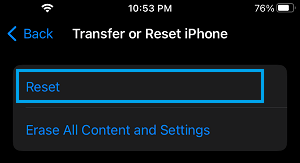
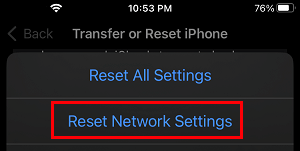
3. On the pop-up, select Reset Network Settings option.
3. Enter your Lock Screen Password > On the pop-up, select the Reset option.
You should now find the screen of your iPhone displaying a white Apple Logo, after which it will shut-down and turn back on, in about 15 to seconds.
After the Reset Process is completed, you will be required to rejoin Wi-Fi network by entering your Wi-Fi network password.